
Pine Script converter
Paste your script, convert it, then configure PineConnector in TradingView.
Paste your Pine Script
Pine Script v5 or v6. Processed in your browser, with no upload.
Your converted script
Copy into TradingView, then test on demo.
Conversion settings
Chart markers preview signals; they do not confirm delivery.
How it works Signals, timing & chart previews
Chart previews included. Previews work while alerts are off and do not validate your connection or trade settings. Historical markers are recalculated from the loaded data and settings; they are not sent alerts or broker-trade receipts.
Additional entry settings
These parameters apply to entry requests. Filters and broker stop management do not change TradingView’s simulated orders.
See each event
These are order requests, not confirmed trades. Compile the code in TradingView, then verify the actual demo outcome.
Configure in TradingView
Follow the red boxes, one step at a time. Use your demo setup.
TradingView chart · right toolbar
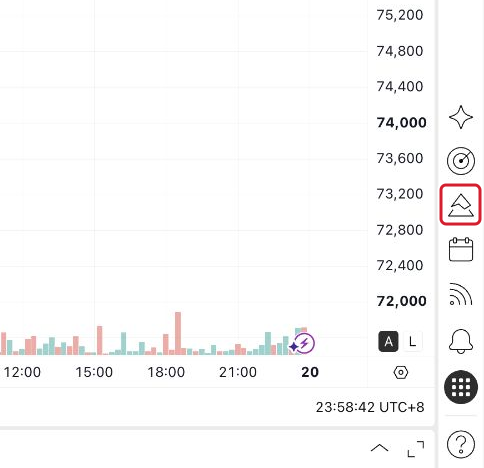
Open Pine Editor
On your chart, select the Pine icon in the right toolbar. It may sit near the bottom of the screen.
You should see an editor beside or below your chart.
Pine Editor · toolbar above the code
Paste into a new script
- Open the script-name menu → Create new → Strategy.
- Select all the template code, then paste your complete converted code.
- Select Save, name your copy, then select Add to chart.
Your new script should appear on the chart. Keep the original as your Before copy.
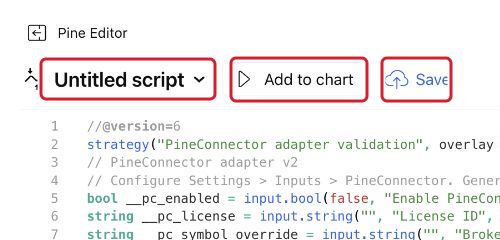
Chart · script name at the upper left
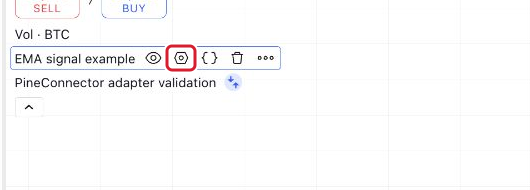
Open this script’s settings
Move over your converted script’s name, or select it, to reveal its controls. Select the gear beside that name, then the Inputs tab.
The settings window should show your script’s name at the top.
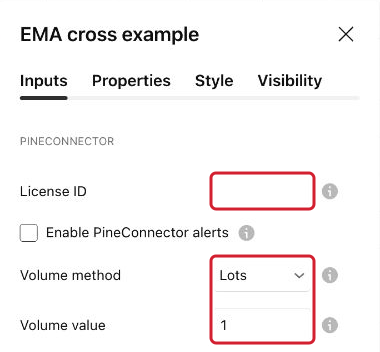
Script settings · Inputs · PineConnector
Check your License ID, size and exits
Enter your License ID from Portal → Connections. Check every account using that ID.
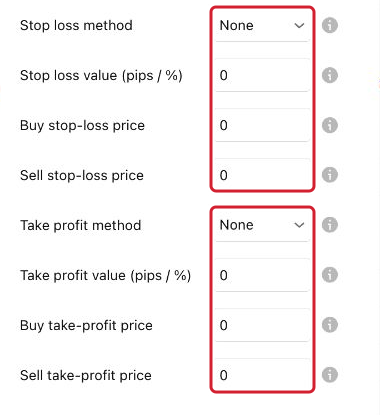
Choose Volume method and Volume value. Then review Stop loss method and Take profit method. None omits that broker-level request; loss-based volume requires a stop.
Pips and percentages use their value fields. Price uses separate buy/sell price fields. Review exact prices against your broker’s quote, especially after changing symbols.
Keep Enable PineConnector alerts off for now. We turn it on after checking the setup.
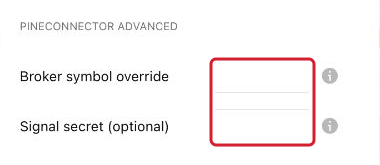
Where are the advanced options?
Scroll to PineConnector advanced for the symbol override and optional secret. A blank symbol override uses the chart ticker. The secret must match the receiving connection.
Optional filters, labels, breakeven and trailing inputs appear when included through Advanced above. To add another group later, update the conversion and copy the new script.
Script settings · Inputs · PineConnector signals
Choose what each signal should do
For each condition, choose its action: open or reverse into a buy/sell, close buys, or close sells. Leave unused conditions on Do not send.
The default timing sends once when a selected condition becomes true, at the confirmed bar close. Every true bar can send again on later true bars.
Choose only the actions you intend to send. If selected conditions happen together, the converter skips that bar and marks an orange cross.
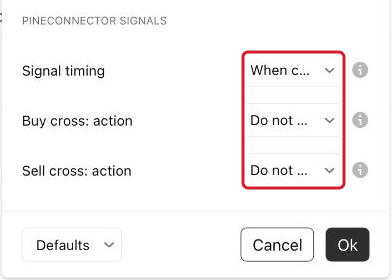
Chart · review history before enabling
Check where signals would appear
Keep Show chart previews on under PineConnector visuals. Alerts can stay off and License ID can stay blank while you check the chart.
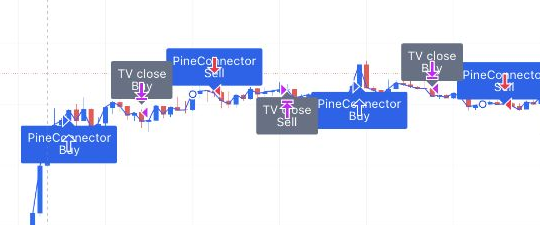
Blue Buy/Sell markers show simulated entry fills. Grey TV close markers show exits without an opposite entry on that bar. A reversal’s close is covered by its blue entry marker.
Markers use the recorded fill bar. They can appear on the next script calculation, after the fill alert. Several fills of one type on a bar share one marker. Keep Script execution settings unchanged; intrabar recalculation is outside this converter’s scope.
If native strategy text overlaps, open Style and turn off Signal labels and Quantity. This only changes the display.
Blue markers show the actions you selected at confirmed bar close, with the same timing used for generated alerts. An orange cross means conflicting selected conditions were skipped.
No blue markers yet? Assign an action under PineConnector signals; unused conditions stay on Do not send.
Inspect several historical signals and compare them with your intended rules. History is recalculated from the loaded data and settings; it is not an alert log. Repainting in the original script can change these previews.
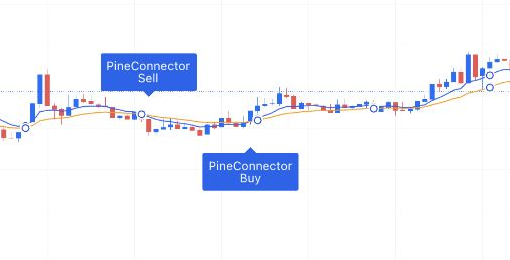
Buy ↑
Blue: entry or selected-action preview.
Strategy: simulated exit without an opposite entry on that bar.
Indicator: conflicting actions, no generated message.
Markers help inspect chart logic. Verify actual delivery in TradingView’s alert log, PineConnector and the broker.
Chart · top toolbar
Enable, then create your alert
Start with the simulated strategy and every receiving demo account flat. Flat means no open positions. Check every account sharing the License ID.
In your script’s Inputs, turn on Enable PineConnector alerts and select OK. Then select Alert in the chart’s top toolbar.
The Create alert window opens. A script on your chart does not send webhooks until you create its alert.
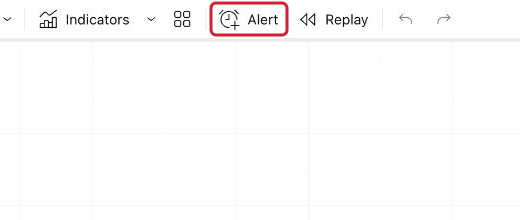
Create alert · Condition
Select your converted script
Under Condition, select the converted script you just added.
Choose Order fills only if an event selector appears. A strategy with only order-fill events may show just the script name.
The next step supplies the message for each simulated order fill.
Select Any alert() function call in the second dropdown.
The script supplies the message. Do not create extra alerts from the original individual Buy/Sell condition choices.
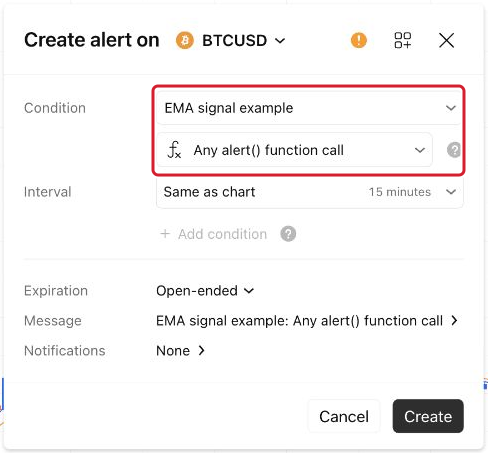
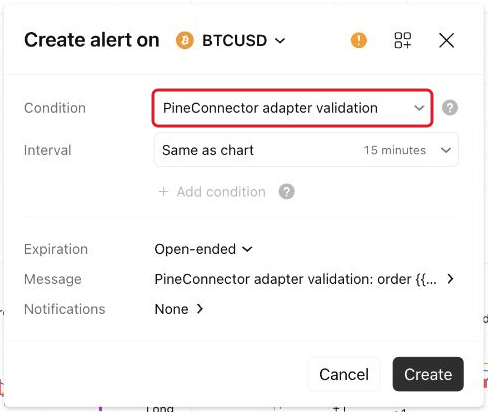
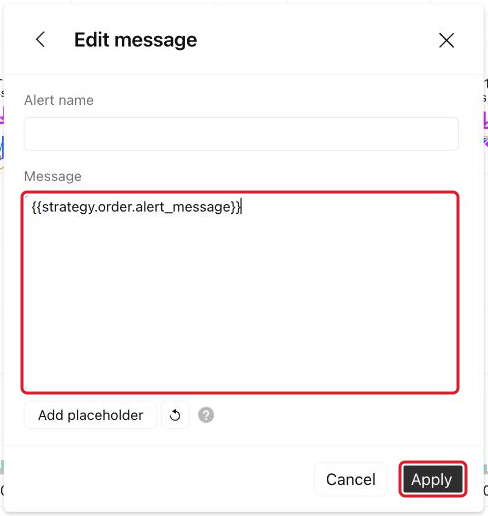
Create alert · Message → Edit message
Use the script’s order message
Select Message in the Create alert window. Replace the entire default Message with this exact value:
Select Apply to return to the alert.
Keep both pairs of braces. Extra text around the placeholder would change the message PineConnector receives.
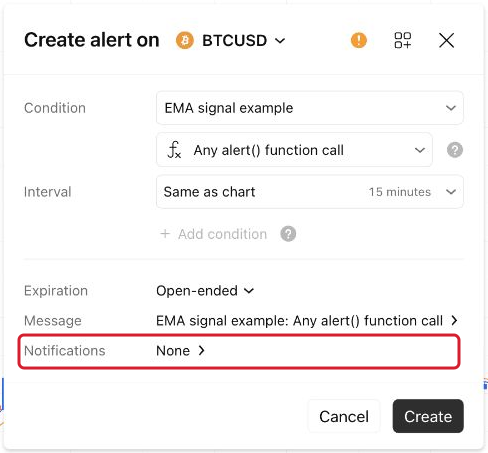
Create alert · below Message
Open Notifications
Select the Notifications row near the bottom of the Create alert window.
A separate Notifications screen opens. This is where TradingView stores the webhook address.
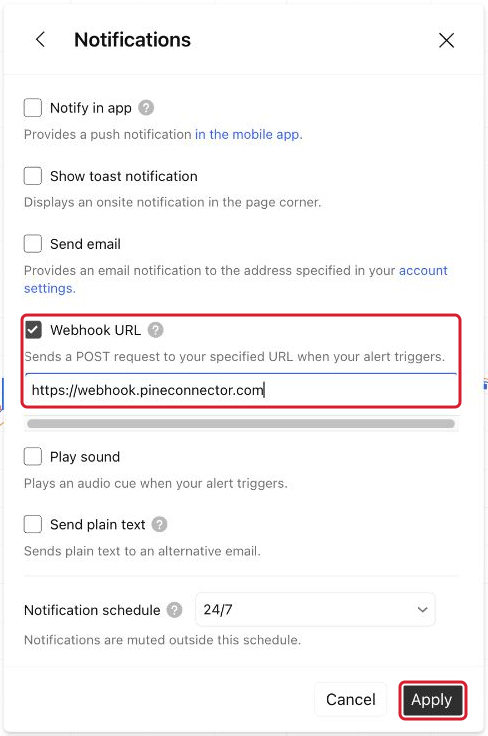
Notifications · Webhook URL
Send to PineConnector
- Tick Webhook URL.
- Paste the address below.
- Select Apply to return to your alert.
Before selecting Create, review the script, symbol, interval, message and your demo destination.
TradingView → PineConnector → broker demo account
Create and verify one complete signal
Create the alert for your demo setup. For the next intended signal, check each point in the delivery path.
After changing code or inputs, recreate the alert. TradingView uses a saved snapshot. Remove superseded alerts to avoid duplicate requests.
- TradingViewThe intended alert fired, with the expected message.
- PineConnectorThe expected connection received the request.
- Broker accountCheck account, symbol, direction, volume, stop, take profit and no duplicate order.
Screenshots use example scripts. Your script name and chart symbol may differ. Select an image to enlarge it.
Changes and compatibility notes
Compilation checks the code. It does not verify delivery or the broker outcome. Close commands can affect matching positions across every account sharing the License ID; use a dedicated symbol and EA scope for this automation.
The script’s simulated stops and targets are not copied to the broker. Broker SL and TP in Basic, and stop management in Advanced, are separate requests that can close before TradingView exits. If the result differs, pause the alert and use Missing signals or Errors.
Configure the converted scriptThe complete TradingView steps, also available without the converter.
Compile a separate copy in TradingView
Section titled “Compile a separate copy in TradingView”- Open your TradingView chart and select Pine in the right toolbar. Create a new script in Pine Editor, paste the converted code, then save and add it to the chart.
- Open Settings → Inputs → PineConnector. License ID is the first field. Copy it from Portal → Connections and check which accounts use it. Review Volume method and Volume value, then choose one Stop loss method and one Take profit method. Pips and percentages use the value fields; Price uses separate buy/sell price fields. None omits that broker-level request. Loss-based volume requires a stop.
- For an indicator, choose the action for each condition you want to use. Conditions start at Do not send so the script does not guess whether a signal means an entry or an exit.
- Review historical chart previews before enabling alerts. Keep Show chart previews on in PineConnector visuals. Blue indicator markers follow your selected actions at bar close; conflicting events show an orange cross. Strategy blue markers show simulated entries, including reversals. Grey markers show exits without an opposite entry on the same bar. Strategy previews can appear on the next calculation but are placed on the recorded fill bar. They do not prove that an alert or broker trade occurred.
- Start with no open positions in your receiving demo accounts. For a strategy, its simulated position must also be flat. Then turn on Enable PineConnector alerts in Inputs.
- Open Create alert and select your converted script. For a strategy, choose Order fills only if TradingView shows an event selector; a strategy with only order fills may omit it. Open Message, enter
{{strategy.order.alert_message}}and select Apply. For an indicator, choose Any alert() function call. - Open Notifications, tick Webhook URL, enter
https://webhook.pineconnector.comand select Apply. Review the script, symbol, interval, message and demo destination, then select Create. TradingView requires two-factor authentication for webhook alerts.
Alerts start off; entry volume defaults to 1 lot. Review the volume method, amount, broker stop and target, symbol and receiving accounts before enabling. Browser prefills can change these defaults. Verify the alert, PineConnector’s processing result and actual demo position. After changing inputs, replace the old alert so it uses the new values; remove duplicates.
If the result differs, pause the alert and use Missing signals or Errors.
Supported scripts and conversion detailsWhat changes, what stays the same and when a manual integration is needed.
What the converter supports
Section titled “What the converter supports”The converter accepts supported Pine Script v5 and v6 strategies and indicators. It adds PineConnector settings to a separate copy; your pasted source stays unchanged.
| Script | How it connects |
|---|---|
| Strategy | Adds messages to supported entry and full-exit orders. The alert follows TradingView’s simulated order fills. |
| Indicator | Adds an action setting for each detected condition. Choose entries or closes in TradingView; unused conditions remain off. |
A blank symbol override uses syminfo.ticker, the chart’s ticker. This must match the receiving broker’s symbol, including suffix and letter case; otherwise set the override. Basic includes all five volume methods: lots (initially 1), cash loss at a stop, balance loss at a stop, equity loss at a stop, and balance allocated as margin. The three loss-based methods require a stop. Choose pips, an exact price or a percentage of entry price for SL and TP, or None to omit that request. Margin allocation is not a loss limit. Exact prices stay fixed when you change symbols; separate buy/sell levels must be appropriate for the broker’s quote.
Advanced contains the optional symbol override, signal secret, entry filters, trade label, breakeven and trailing settings. Only the additional groups you choose are included in TradingView Inputs. You can add another group by updating the conversion. Breakeven and trailing require Shadow Targets to be off in the receiving EA. An entry label does not isolate the converter’s closing or reversing commands.
The tool stops on unsupported or ambiguous code and explains why. Use Add alerts to your script for a manual integration. If you do not have the source, find your alert setup.
The integration does not reproduce TradingView’s position sizing or place its simulated stops and targets as protective broker orders. Broker stops, targets, breakeven and trailing added through this converter operate separately. They can close before TradingView exits, and the adapter does not resynchronise their positions. Close commands affect matching positions within the EA’s scope on every account receiving the License ID. Use a dedicated symbol and scope, and check both actions of a reversal on demo. Compilation does not verify delivery or the broker outcome.
Your code and privacy
Your code and settings
Section titled “Your code and settings”The converter does not upload the source, save the draft to browser storage or send trading signals. Support opens chat in a separate tab; your script is not attached.
Keep your source and downloaded copy private. Any secret prefilled here appears in the generated code and file. You can instead enter your License ID and signal secret in TradingView, and never use your broker password as a signal secret.