
Send Signals with PowerShell and curl
Copy a command, add your License ID and send your first connection test. No coding needed.
Send a message straight from your computer to PineConnector, without creating a TradingView alert. You will copy a ready-made command, add your License ID and check that the message reached MetaTrader.
- Choose your account
Find its PineConnector License ID.
- Send a test message
Copy, edit and send one command.
- Check MetaTrader
Find the matching test in its messages.
Only setting up TradingView alerts? You can use Test your setup instead. This guide is for sending a message yourself or preparing your own integration.
Before you begin
Section titled “Before you begin”Using Edge? Complete the Edge setup first. Running MT5 on your own computer or VPS? Keep MT5 and the PineConnector EA open.
Keep it open in another browser tab. You will use Connections to find your License ID.
- A demo account for the optional trade
A demo account uses practice funds. You do not need to send a buy or sell to complete the connection test.
New to PowerShell or curl?Here is what the names mean.
- PowerShell is an app where you run commands: lines of text that tell your computer what to do.
- curl is the tool the Windows command below uses to send your message. You do not need to write a script.
- Webhook means PineConnector’s receiving web address. It is already included in the commands; leave it unchanged.
- EA means Expert Advisor, the PineConnector program running inside MT5 that processes your message. Edge runs it for you.
1. Find your License ID
Section titled “1. Find your License ID”- PineConnector Portal
- Connections
- Overview
- Open Connections in Portal.
- Find the group containing the broker account you want to test.
- Select the copy icon beside its License ID. This copies the ID, ready to paste later.
Your License ID tells PineConnector which connected accounts should receive the message. It is not your broker account number or password.

Using Edge? Open Portal → Edge, select your instance and check for Running. If you run MT5 yourself, keep that terminal and its PineConnector EA open. Running is a starting check; you will confirm message delivery in step 4.
2. Open PowerShell and Notepad
Section titled “2. Open PowerShell and Notepad”Open PowerShell
Press the Windows key, type PowerShell and open Windows PowerShell or PowerShell. You do not need to run it as administrator.
A command window opens. Its input line often begins with PS, followed by a folder location.
Open a blank Notepad document
Press the Windows key, type Notepad and open it. Press Ctrl+N for a new document.
Notepad is for editing; PowerShell is for sending. You will prepare the text in Notepad first, so you do not have to edit a long line inside PowerShell. There is no need to save a file.
You have somewhere to edit the command before sending it.
Check that curl is available
Section titled “Check that curl is available”Select Copy below. Click inside PowerShell, press Ctrl+V to paste, then press Enter.
Using a Mac or Linux?Open these apps instead, then continue to step 3.
On Mac: press Command+Space, type Terminal and open it. Open TextEdit as your editor; start a new document and choose Format → Make Plain Text. Use Command+C and Command+V to copy and paste.
On Linux: open your desktop’s application search and launch Terminal and a plain-text editor. App names vary by distribution. Many terminal apps use Ctrl+Shift+V to paste, or offer Paste in their right-click menu.
Select Copy below, paste into Terminal and press Enter. Use curl, without .exe. In the later command choices, select macOS / Linux.
3. Prepare and send the test
Section titled “3. Prepare and send the test”This sends the message test,test, which checks the connection without requesting a buy or sell. The commands are illustrative requests, not executed trades.
Copy the command into Notepad
Select Copy on the Windows command below. Click in your blank Notepad document and press Ctrl+V.
Do not send it yet. First replace the License ID and check whether you need a secret key.
Other computers and Windows without curlChoose one alternative instead of the Windows command above.
Windows without curl.exe: choose PowerShell. It uses PowerShell’s own sending command, so curl is not needed.
Mac or Linux: choose macOS / Linux. Copy into your plain-text editor first. Then follow the same editing checks below and send it through Terminal.
Replace LicenseID with your own ID
In Notepad, replace the word LicenseID with the ID from step 1. If copying the command replaced it on your clipboard, return to Portal and copy your License ID again.
Keep the commas and quotation marks in place. Leave test,test and the web address unchanged.
How do I check whether a secret key is needed?Read the setting; do not change it for this test.
- PineConnector Portal
- Bridge
- Modifier
- Signal Authentication
- Open Bridge in Portal and select Modifier.
- Find Signal Authentication and read the On / Off label beside its switch.
- If it is On, use the matching key already configured for your setup. It is case-sensitive. Do not switch authentication off to get the command to work.
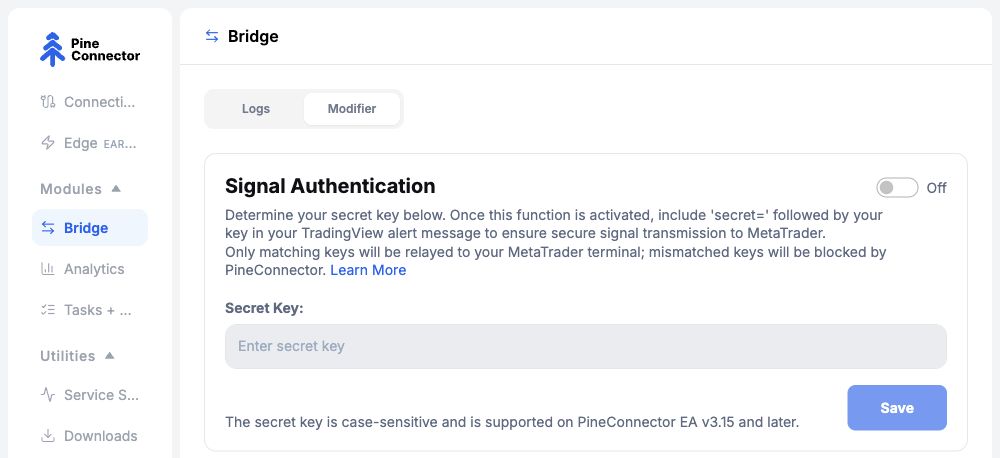
If you cannot confirm the setting or find the required key, pause and ask Support. The Signal Authentication guide explains the feature in more detail.
Does your secret key contain quotation marks?Only needed for keys with special characters.
The single quotes around the message keep characters such as $ literal. Keep the key itself exactly as saved in Portal.
PowerShell: replace each apostrophe in the key with the two straight characters below, inside the quoted message. If the key contains double quotes, choose the native PowerShell alternative above rather than curl.exe.
Copy into the secret text in your editor. This is not a command to run.
macOS/Linux: replace each apostrophe with the five characters below, inside the single-quoted message. The shell converts this back into one literal apostrophe when it sends the message.
Copy into the secret text in your editor. This is not a command to run.
If you are unsure how to prepare your key, ask for help using a redacted example. Never share the real key.
Send the finished command once
In Notepad, press Ctrl+A to select the complete command, then Ctrl+C to copy it. Click inside PowerShell, press Ctrl+V, then press Enter once.
Keep the response and note the time. If you see an error, stop and use Something did not work? below.
PowerShell displays a response, or an error you can read and investigate.
4. Check that the test arrived
Section titled “4. Check that the test arrived”A response from the web address is the first checkpoint. Now check that the connected MT5 setup received your test.
Using Edge: open Portal → Edge, select the same instance, then open Experts. This tab contains the EA’s activity messages, also called logs. Select Refresh and check the time range if needed.
- PineConnector Portal
- Edge
- Your instance
- Experts
Running MT5 yourself: in that MT5 window, open Toolbox → Experts. Look for the test at the time you sent it. More about reading the logs.
This checks your computer’s route to PineConnector and MT5. To check that an actual TradingView alert fires and is delivered, follow Test your setup separately.
5. Optional: send one demo trade
Section titled “5. Optional: send one demo trade”Continue only if you want to check the complete route through to a broker order.
Find your broker’s exact instrument name
Section titled “Find your broker’s exact instrument name”The command uses EURUSD as its example. Your broker might call it EURUSD.i or EURUSD.mini. This exact name is the symbol; copy it as shown, including capital letters, prefixes and suffixes.
- On Edge: open the same broker account in its supported MT5 mobile app, web terminal or desktop app and find the instrument there.
- In desktop MT5: press Ctrl+U to open Symbols, select the instrument and read the Symbol value.
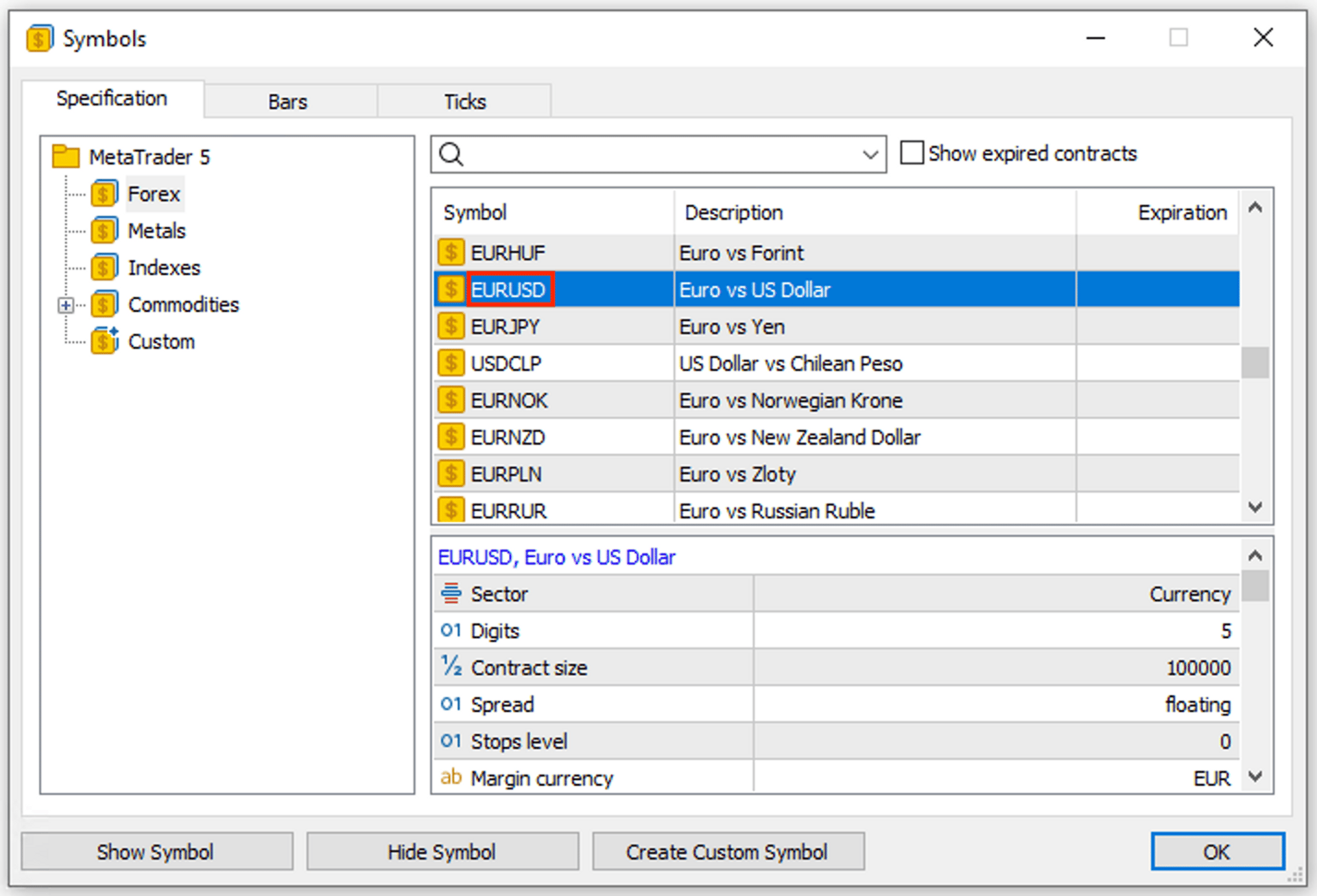
Check the instrument’s permitted trade size and trading session with the broker. 0.01 lots is an example size, not a size every broker accepts. If you cannot confirm a permitted size or whether the market is open, ask your broker before continuing.
Tick only the checks you have confirmed yourself. This list cannot check your accounts for you.
For this visit only. Your progress resets when the page reloads.
Prepare the buy command in Notepad
Section titled “Prepare the buy command in Notepad”Select Copy below. In Notepad, press Ctrl+A, then Ctrl+V to replace the earlier connection-test command. Keep just this one command in the document.
Replace LicenseID and, if needed, EURUSD and 0.01. Copy your ID from Portal again if needed. If authentication is On, add ,secret=YOUR_SECRET_KEY after the lot size and before the closing single quote, using your own key.
Other demo-buy commandsFor Windows without curl, or macOS/Linux. Use the same option as your connection test.
When the edited command is ready, select and copy the complete line from Notepad. Paste it into PowerShell and press Enter once. On Mac/Linux, use your editor and Terminal instead. These are illustrative requests, not executed trades.
6. Check the order, then finish
Section titled “6. Check the order, then finish”First, find the message in Bridge
Section titled “First, find the message in Bridge”- PineConnector Portal
- Bridge
- Logs
Open Bridge. Find the new message by the time you sent it, then check the intended account, symbol, action and processing result. If a response included a Signal ID, that is a reference for the message, not proof of a broker order.

Then, check the same broker account in MT5
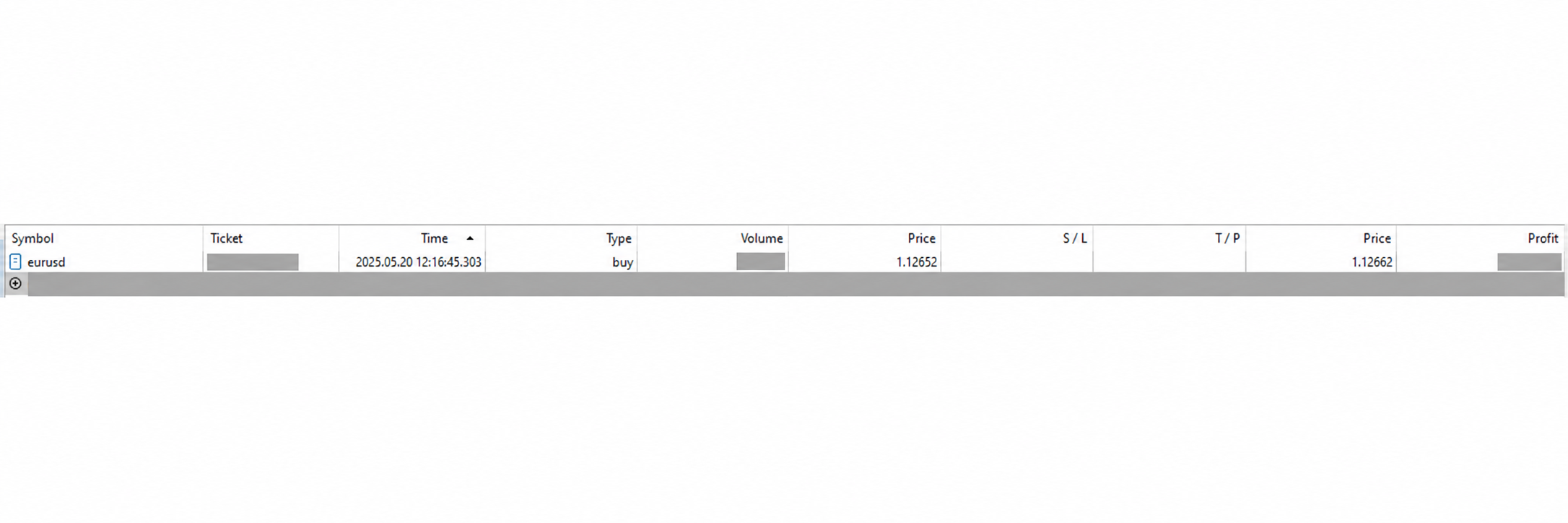
Section titled “Then, check the same broker account in MT5”Open that account’s Trade / positions view. In desktop MT5, use the Trade tab in the lower Toolbox panel.
| Check | For the unchanged example |
|---|---|
| Account | Your intended demo account, and each other account sharing the ID. |
| Instrument | The exact symbol you put in the command. |
| Trade | Buy, with volume 0.01 lots unless you changed it to a permitted size. |
| Stop loss / take profit | None requested in this message. Inspect the actual position and applicable EA settings. |
| Extra orders | No unintended duplicate. |
Something did not work?
Section titled “Something did not work?”The connection test works, but a buy failsIncluding market-analysis-index-out-of-range-error.
Start here: copy the command from this page again and keep its plain-text setting. In curl that is -H "Content-Type: text/plain"; in the native PowerShell command it is -ContentType "text/plain".
In the investigated curl case, leaving this setting out caused the message to be cut off at its first =. That removed the value from vol_lots=0.01. The connection test could still work because test,test has no equals sign.
Send the comma-separated message as one quoted piece of text. Do not convert it into JSON or put message= in front of it. This addresses the investigated case, not every possible cause of the same error. Before resending a trading command, check for an existing order.
PowerShell does not understand the commandCheck the tool name and copy the whole line.
On Windows, use curl.exe, including the extension. Windows PowerShell 5.1 can treat curl as a different command. If curl.exe is unavailable, use the native PowerShell alternative.
Copy the complete command without a prompt such as PS>. Keep straight quotation marks. Edit in Notepad first, then copy the finished line into PowerShell.
I cannot find my message in BridgeRead the response before looking for an order.
A request rejected before signal creation may have no entry in Bridge or Recent Signals. Check the response, License ID, full command, plain-text setting and any required secret key.
If the message was acknowledged, look in the intended MT5 setup’s activity messages at the same time. Use An alert is missing or EA errors for the recorded problem.
Want to understand the command itself?Optional reference after the walkthrough.
-H / -ContentType: sets the message format. -d / -Body: supplies the message. -Method Post: tells native PowerShell to send it. The final web address is PineConnector’s webhook.
See the curl manual and Microsoft’s Invoke-RestMethod reference for tool details. This direct test does not provide market data or check your strategy’s trading decisions.