Subscription and billing
Choose monthly or annual billing, review a plan change, manage payment methods and failed renewals, and cancel your subscription.
Manage your plan in Subscription in Portal. This guide covers current paid Core, Plus and Pro subscriptions. Legacy subscriptions and migration offers can have different terms; review the quote for your own account before confirming a change.
Choose a billing interval
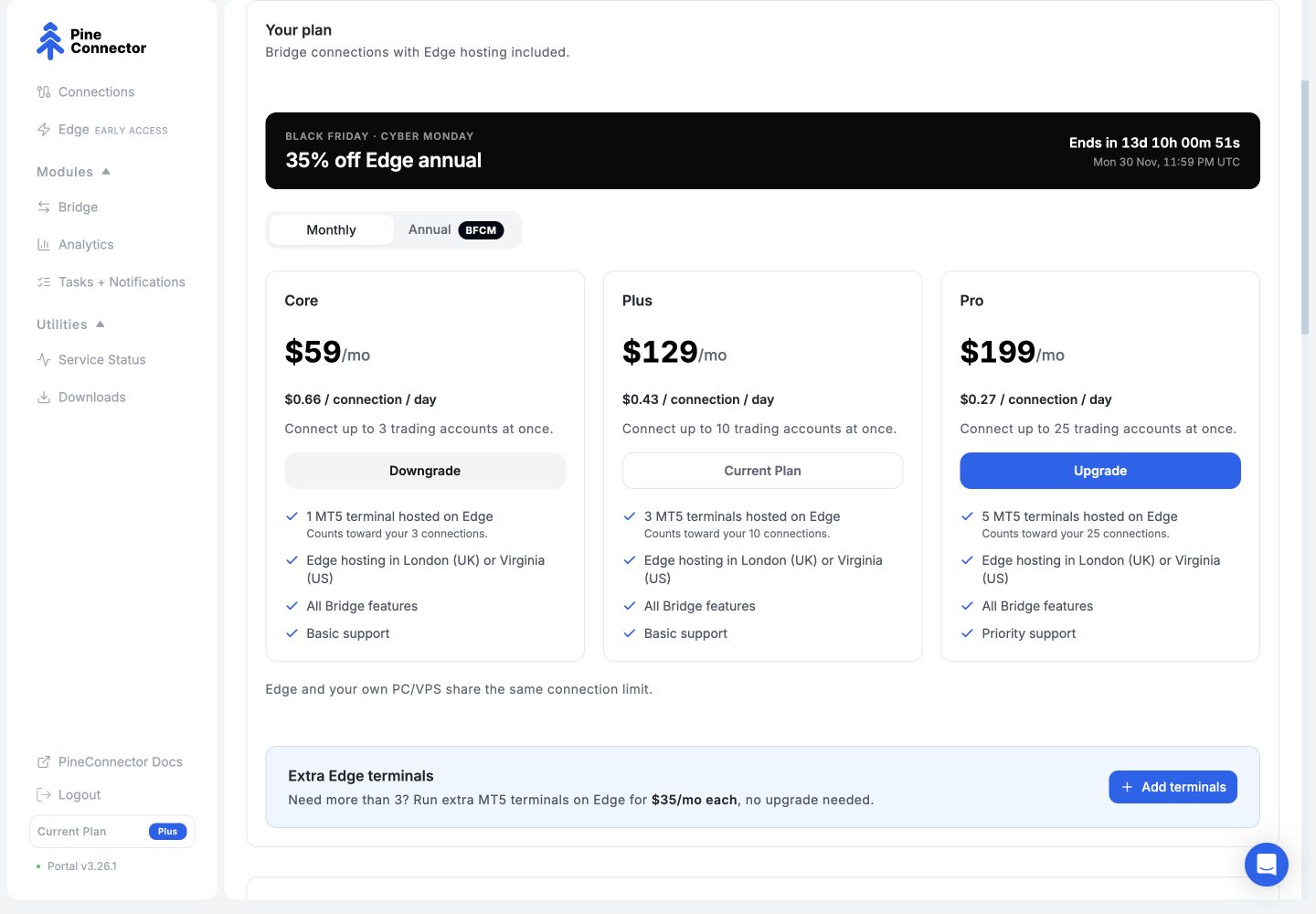
Section titled “Choose a billing interval”Core, Plus and Pro are available monthly or annually. Annual billing is one payment for the year, at 25% less than twelve monthly payments.
| Plan | Monthly | Normal annual price |
|---|---|---|
| Core | US$59/month | US$531/year |
| Plus | US$129/month | US$1,161/year |
| Pro | US$199/month | US$1,791/year |
The monthly equivalent on an annual plan card helps you compare prices; it is not a monthly instalment. The price per connection per day is also a comparison figure, not a daily charge.
All three plans include Signal Authentication, Symbol Mapping, Telegram notifications and all four Tasks: Close All Trades, Trading Time Limit, Signal Error and Connection Lost. Telegram is a notification channel for a task, not an additional active task. Core allows one active task at a time, Plus allows three and Pro allows unlimited active tasks. Connection and hosting allowances remain separate; see Edge hosting and extra terminals.
Black Friday and Cyber Monday 2026
Section titled “Black Friday and Cyber Monday 2026”The offer runs from the 17 November 2026 release through 30 November 2026 at 11:59 PM UTC (1 December at 7:59 AM Singapore time). Eligible annual purchases receive 35% off the equivalent cost of twelve monthly payments for the first year.
| Plan | BFCM first year | Each annual renewal |
|---|---|---|
| Core | US$460.20 | US$531 |
| Plus | US$1,006.20 | US$1,161 |
| Pro | US$1,552.20 | US$1,791 |
The 25% annual discount and 35% BFCM discount are alternative discounts against the monthly price. They do not stack. The first-year offer does not continue at renewal.
For an existing subscription, check the offer displayed for the intended change. A lower-tier plan change or a legacy migration can have different pricing and timing. Do not apply the first-year table to a migration quote that converts unused subscription value into additional days.
Buy or switch to annual
Section titled “Buy or switch to annual”Before you start: check your required connections and hosted terminals. Extra Edge terminals are available on monthly Core, Plus and Pro only. If you already pay for extra hosting, review how the proposed change affects those terminals and their end date before confirming. Ask Support if the quote does not explain this.
- Open Subscription, then find Your plan. The Monthly / Annual selector also appears on Get Edge.
- Select Annual and review the plan card. During the sale, the selector shows BFCM.
- Choose your plan. Existing monthly members use Switch to annual on the relevant card.
- Review the amount due today, the annual renewal price and any displayed start or next-payment date. Read the terms before confirming the payment or plan change.
- After completing the flow, return to Subscription. Check the plan, billing interval, next-payment date and Billing History. If bank approval is requested, complete the approval step and check again.
Plan-change timing and unused value
Section titled “Plan-change timing and unused value”Read the quote for the particular change before confirming. Check what you pay today, when the new plan starts, and what renews next. An immediate change and a change scheduled for the end of the paid period are different.
Do not calculate a refund, credit or free-day allowance from the headline annual price alone. In particular, legacy Seal migrations can convert unused value into additional days rather than charge the ordinary first-year sale amount. If the quote does not explain the treatment of your unused value, ask Support before confirming.
Change your payment method
Section titled “Change your payment method”On Subscription, find Payment Method and select Edit. Follow the payment-provider flow, then return to Portal and check the displayed payment method.
Changing the saved card and paying an overdue invoice are separate checks. If a payment has failed, also review the outstanding-payment notice and Billing History below.
Recover a failed renewal
Section titled “Recover a failed renewal”When a renewal fails, Payment failed identifies the amount owed, the retry information and the attempts made. If the plan has ended, the subscription area explains the reason.
- Open Subscription and read the outstanding-payment notice.
- Use Pay now when you want to pay the overdue amount. This flow accepts a replacement card and attempts payment immediately; it is not only a card update for a future renewal.
- Return to Subscription and check that the payment notice has cleared, the subscription status is correct and the invoice is Paid in Billing History.
If the payment result is unclear, check Billing History and your payment-provider result before trying again. Contact Support if they disagree.
To stop the subscription instead, use the cancellation flow. Cancellation of a failed-renewal subscription stops further charge attempts; it does not by itself show that an earlier payment was refunded.
Bank approval for India-issued cards
Section titled “Bank approval for India-issued cards”An India-issued card can remain on file through renewals and plan changes. If your bank needs approval for a renewal, upgrade or an earlier affected payment, Portal shows an approval banner.
Open the approval flow from that banner and follow your bank’s instructions. Return to Portal afterwards and check both the banner and payment status. Opening the bank page alone does not complete approval or establish that the payment succeeded.
If approval cannot be completed or the banner remains after your bank confirms success, contact Support with the time and displayed message. Keep card details and bank authentication codes private.
Cancel your subscription
Section titled “Cancel your subscription”- Open Subscription and select Cancel.
- Choose the reason that applies, then select Yes, Continue.
- Review the next screen and the end date before completing cancellation. Use Don’t Cancel to leave the flow without cancelling.
- Return to Subscription and check the cancellation status and displayed end date.
For more hosting on an eligible monthly plan, follow Add or remove extra Edge terminals.