
Create and update a practice alert
Follow the TradingView alert dialog one field at a time, check the log, and replace the saved alert after changing your script.
Builds on: Conditions and signals


You will create a TradingView alert for the Cross event from lesson 2, then learn what to do when you change the script.
Continue with My EMA practice on your BITSTAMP:BTCUSD, 1-minute candlestick chart. You should already see the markers from lesson 2. Your TradingView account needs access to script alerts and an available alert slot to complete the live exercise.
Add the learning message
Section titled “Add the learning message”Copy the complete script with alerts
Section titled “Copy the complete script with alerts”Click Copy on the code block below, on this lesson page. You will replace the code in the same saved My EMA practice script. The screenshots are reference pictures you can enlarge; their pictured buttons do not control TradingView.
Paste into your existing practice script
In TradingView, click Pine. With My EMA practice open, click inside the code, select all, and paste.
On Mac: Cmd+A, then Cmd+V. On Windows: Ctrl+A, then Ctrl+V.
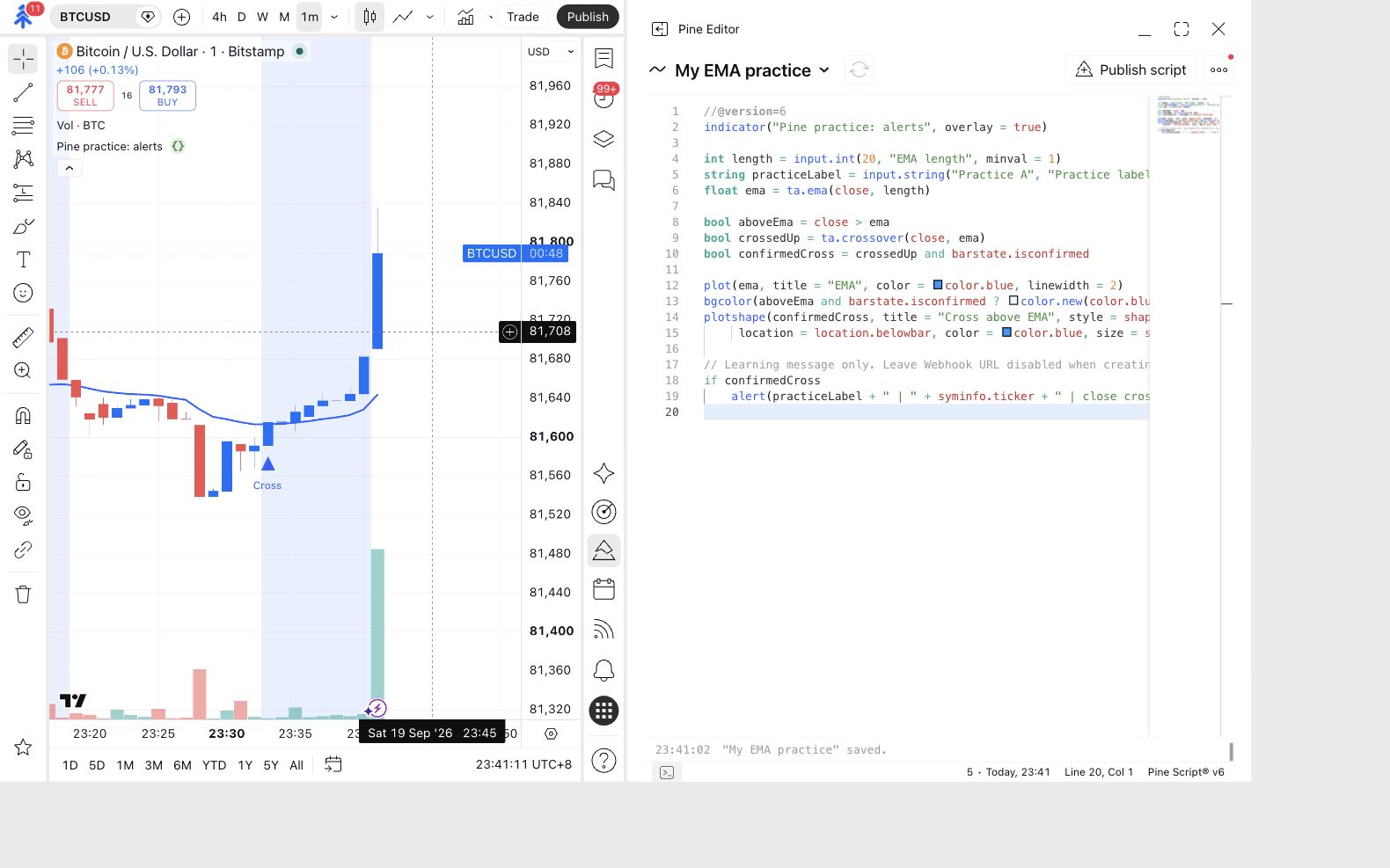
The editor contains the complete version above, including if confirmedCross and its indented alert(...) line at the bottom.
Save and update the chart
Click the cloud-shaped Save control, or press Cmd+S or Ctrl+S. Click Update on chart if it appears. If the practice indicator is missing from the chart, click the triangle-shaped Add to chart button.
Still shows Pine practice: signals? Check that the new source was saved and applied to this chart before opening the alert dialog.
The chart label is now Pine practice: alerts. Your EMA and Cross markers are still visible.
Set the two practice inputs
Hover over Pine practice: alerts on the chart and click its Settings gear.
The current chart script uses EMA length 20 and Practice label Practice A.
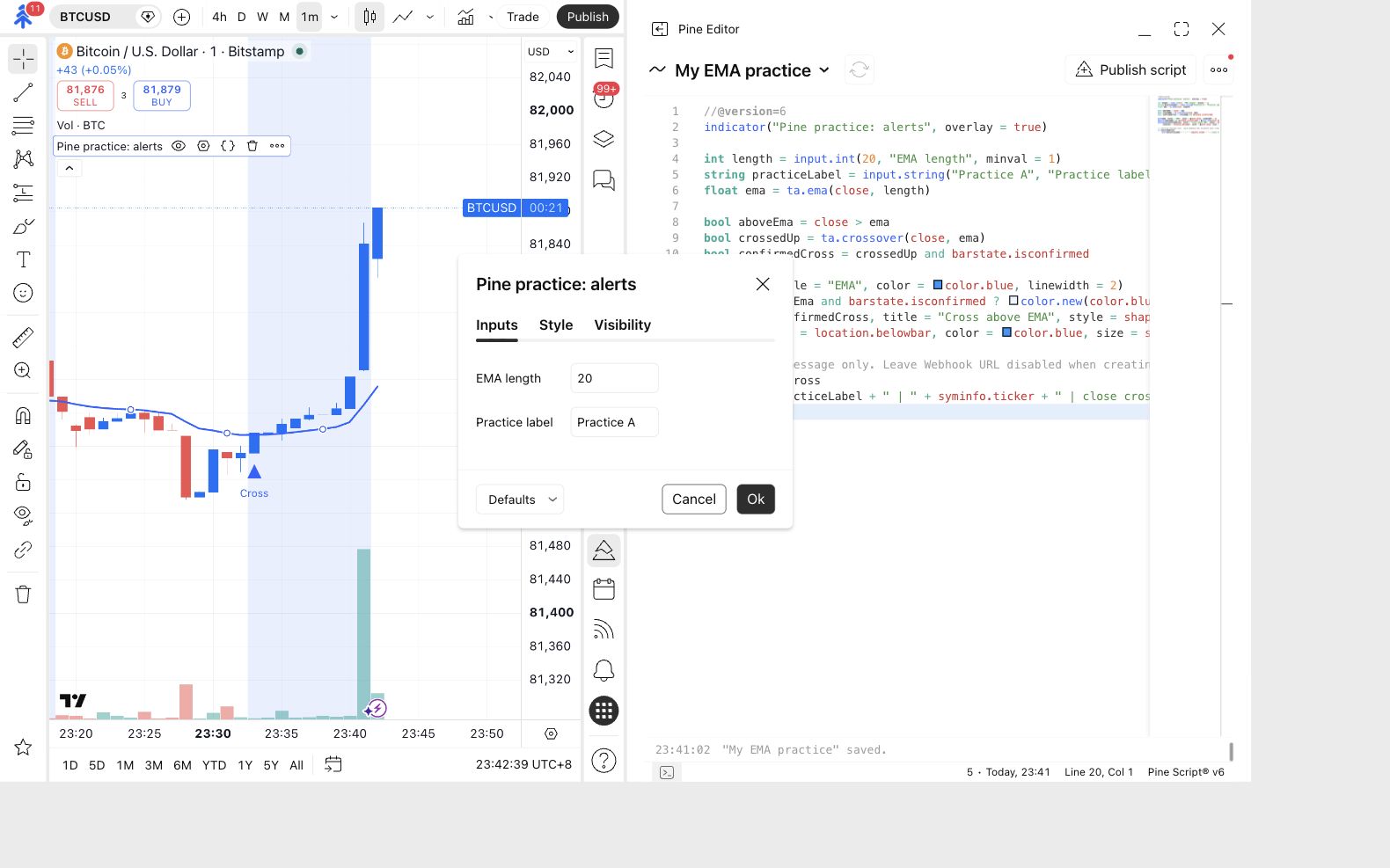
Open Inputs. Set EMA length to 20 and Practice label to Practice A, then click Ok.
Create the alert in TradingView
Section titled “Create the alert in TradingView”The script can describe an alert event, but it does not create a running alert for you. Follow each field below; choosing the indicator alone is not enough.
Chart toolbar crowded? Click the minus button at the top of Pine Editor to collapse it. Your saved practice indicator stays on the chart.
Open the alert dialog
Click the alarm-clock icon with a plus sign in the chart’s top toolbar. Its tooltip says Create alert.
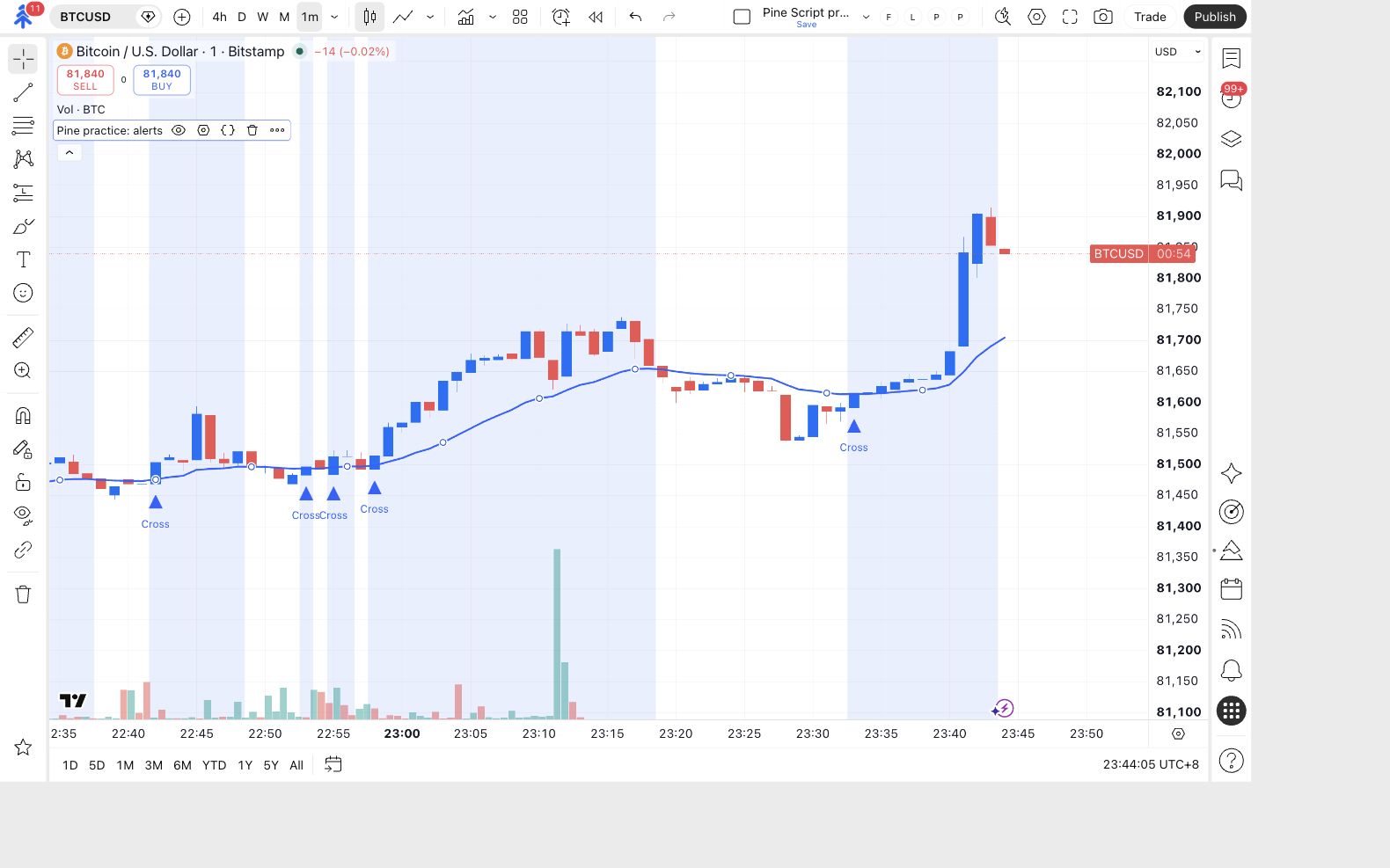
The Create alert dialog appears over your chart.
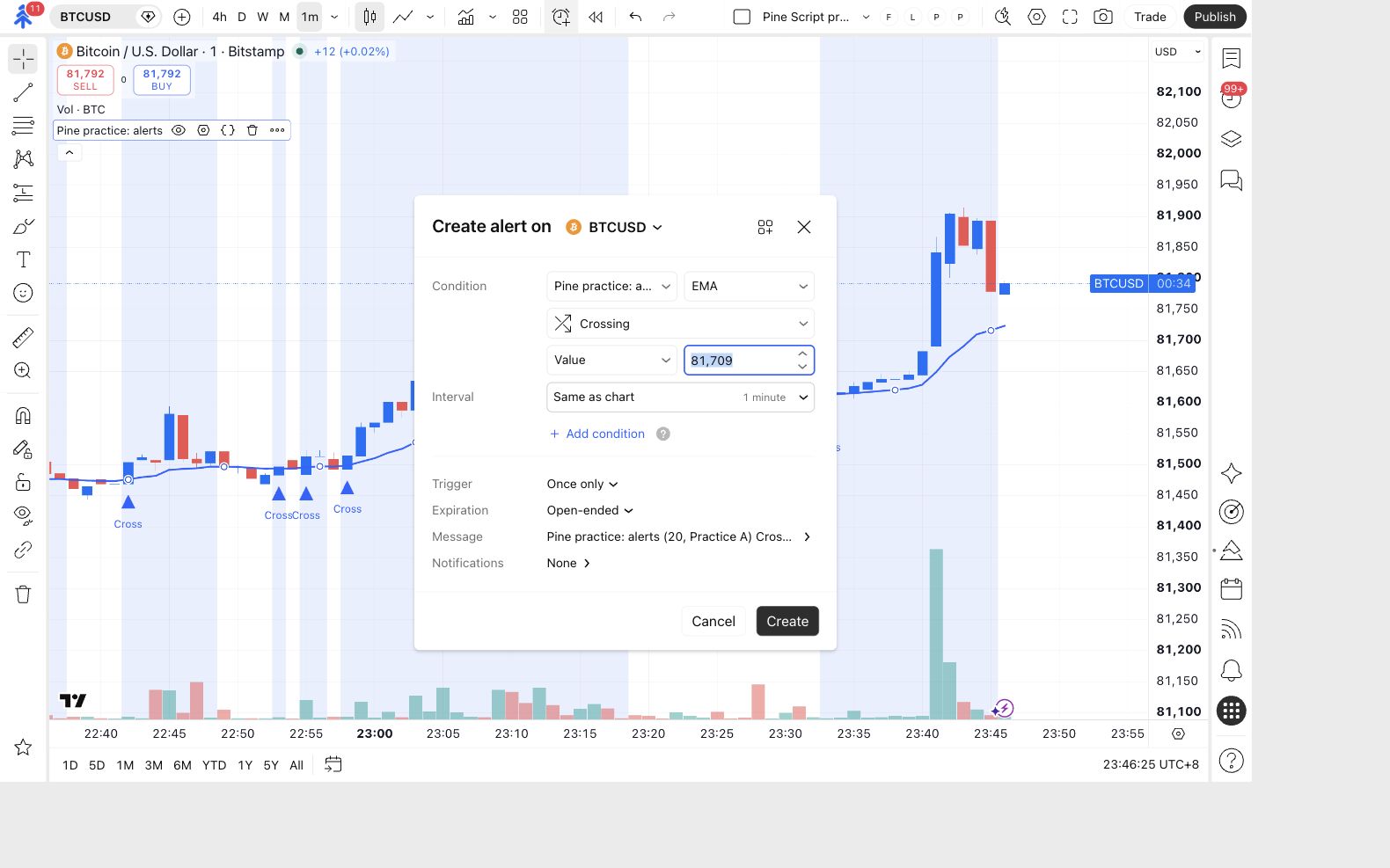
Choose Pine practice: alerts
Open Condition and select Pine practice: alerts.
The indicator is missing? Close this dialog, finish steps 1–2, and confirm the chart shows Pine practice: alerts. Then open the alert dialog again.
Condition refers to your practice indicator. The event may still say Crossing; change it in the next step.
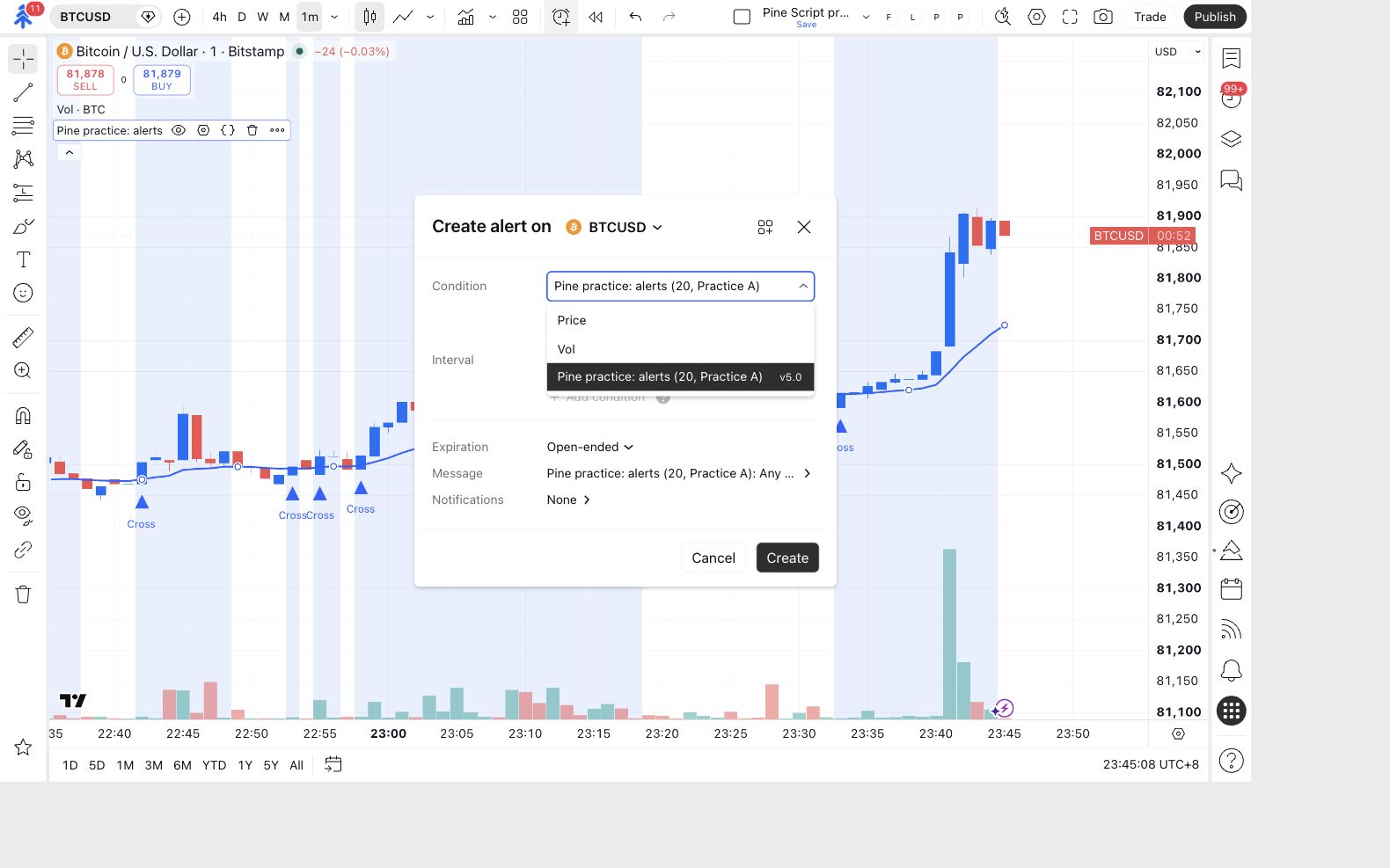
Not finished yet: Crossing is a generic comparison. Leaving it selected will not listen to the alert(...) call you added to the script.
Choose Any alert() function call
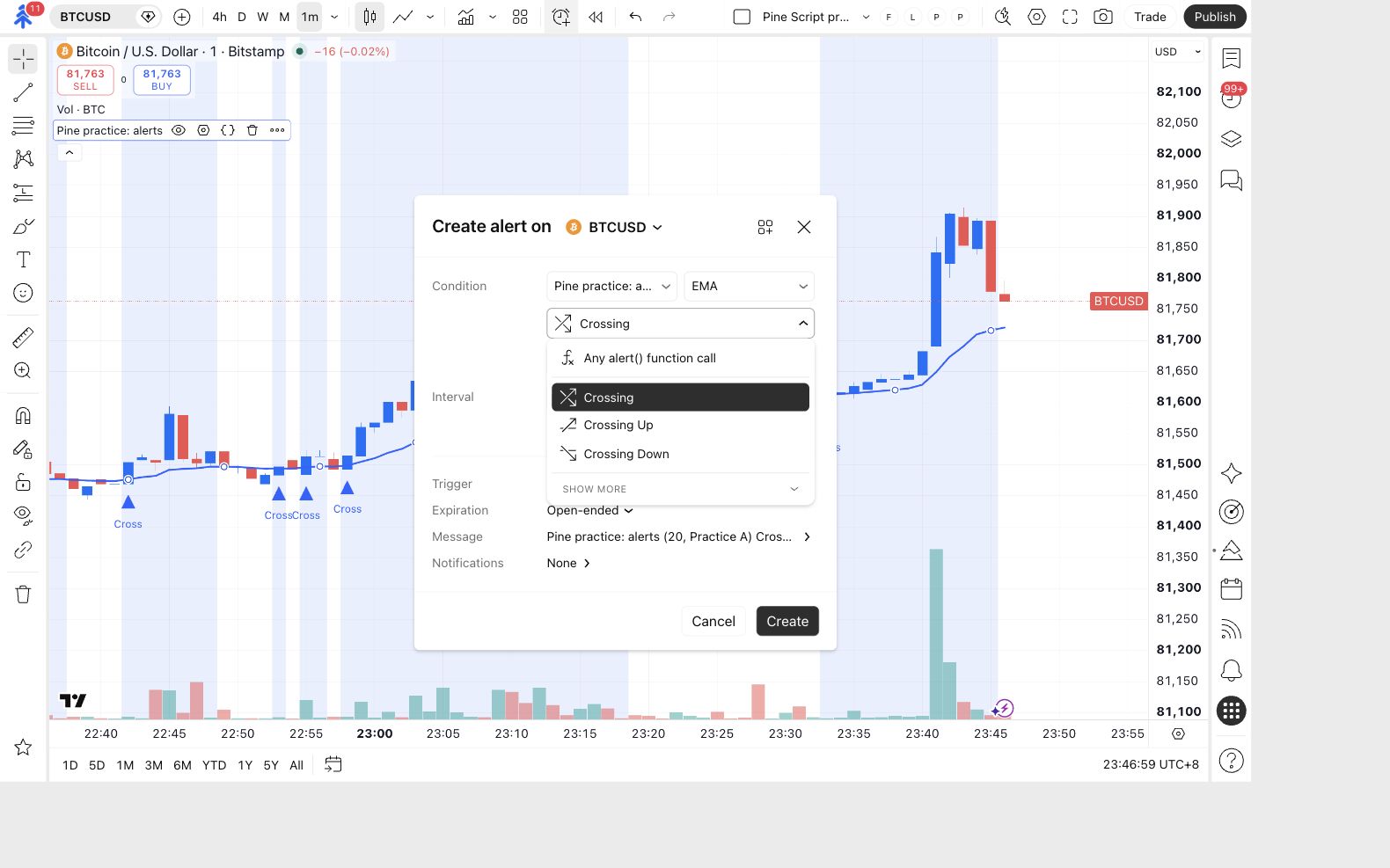
Click the event menu that currently says Crossing. Select Any alert() function call.
The selected event reads Any alert() function call, rather than Crossing.
Check the alert interval
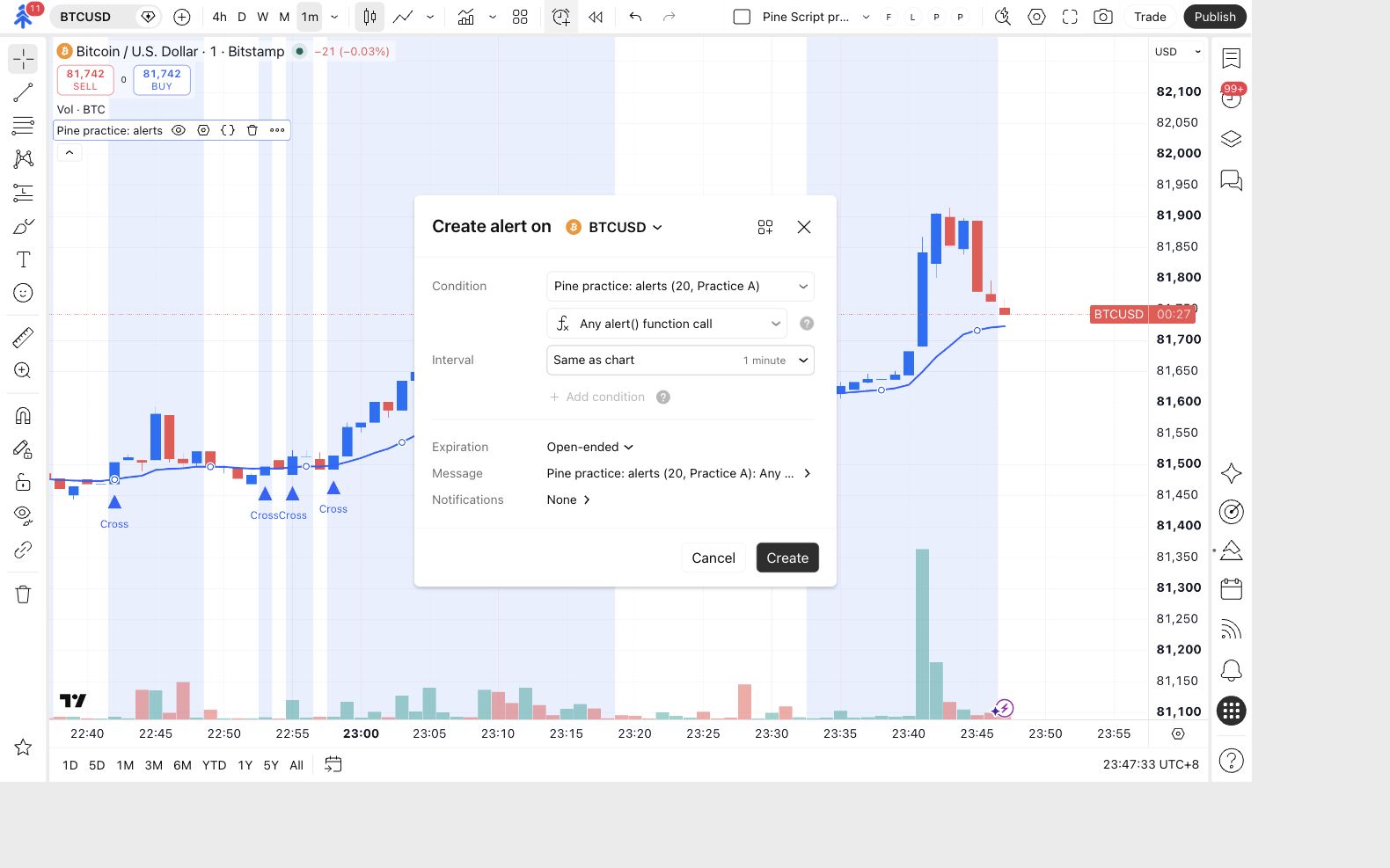
Check Interval. The example shows Same as chart with 1 minute. Keep that choice if your chart is on 1 minute. Otherwise, select the 1-minute interval before continuing.
The alert interval and your chart interval are both 1 minute.
Turn off Webhook URL
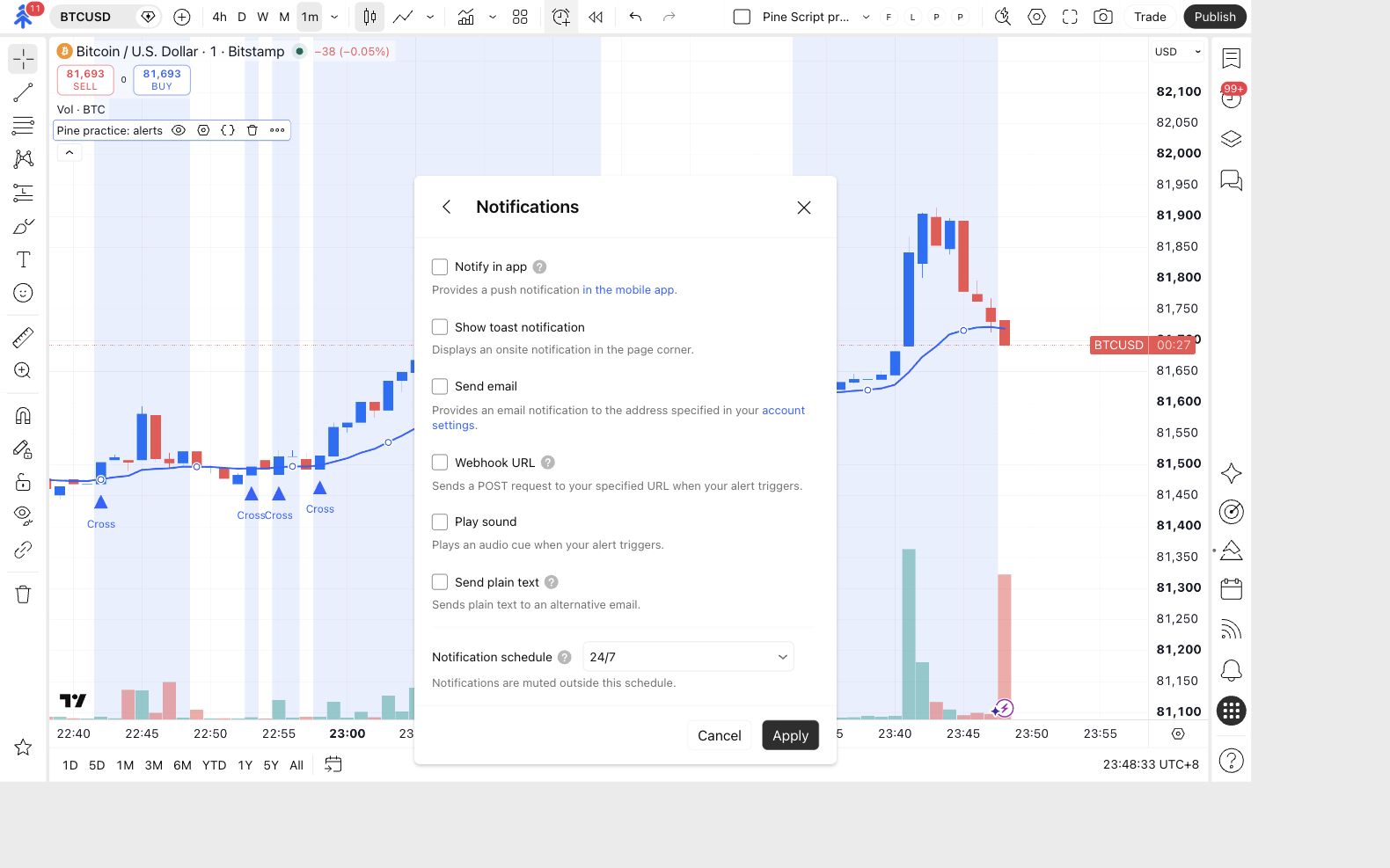
Open Notifications. If Webhook URL is checked, click its checkbox to clear it. For quiet practice, leave the other notification options off too, then click Apply.
Events can still appear in TradingView’s alert log with notification options off.
Webhook URL is unchecked. An address can remain in the inactive field, but the option itself must be off.
Name the practice alert
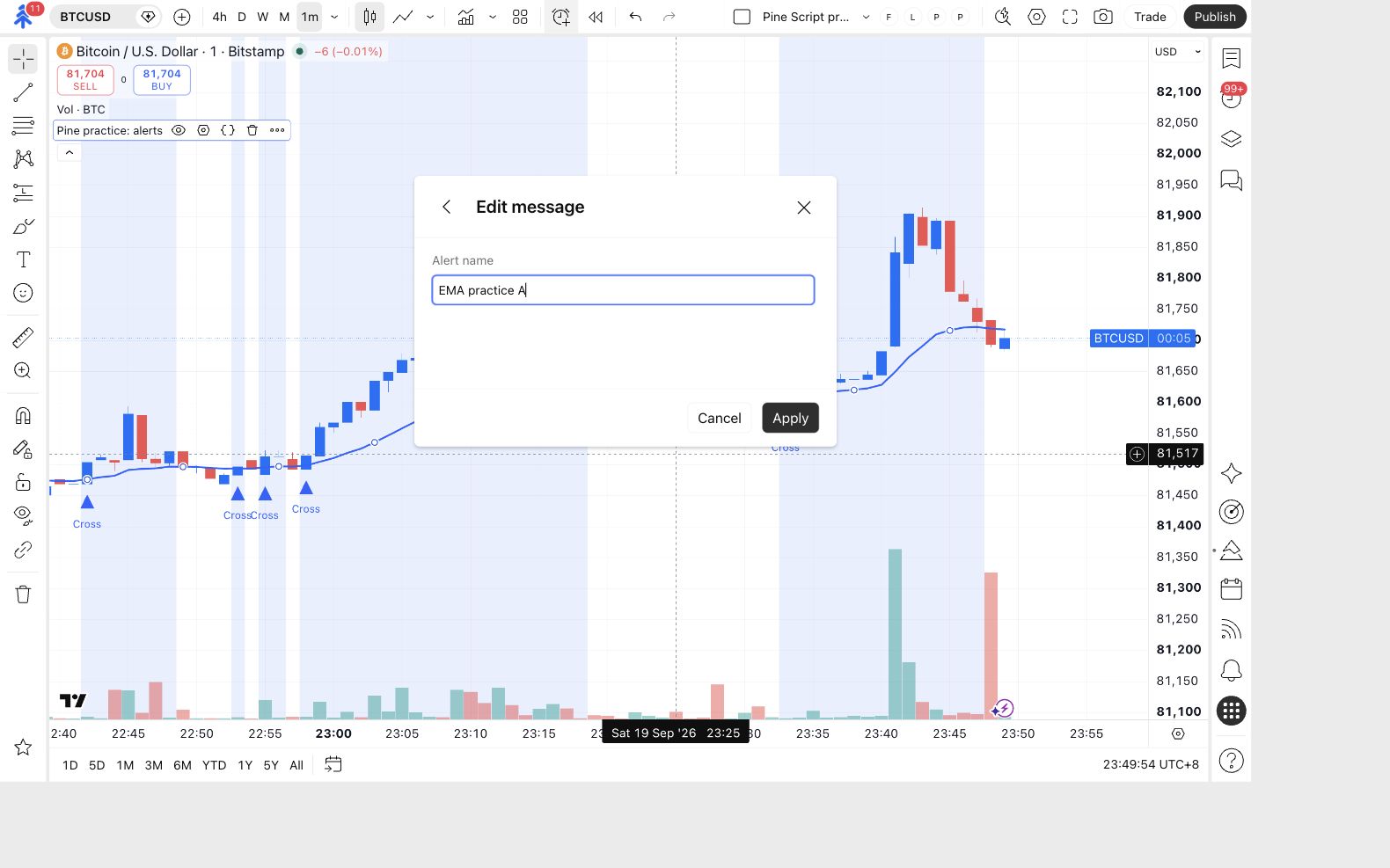
Open Message. In Alert name, type EMA practice A, then click Apply.
The actual event message comes from your code. The alert’s name helps you find this alert in the list.
The alert's name is EMA practice A. You have not pasted a PineConnector message into this dialog.
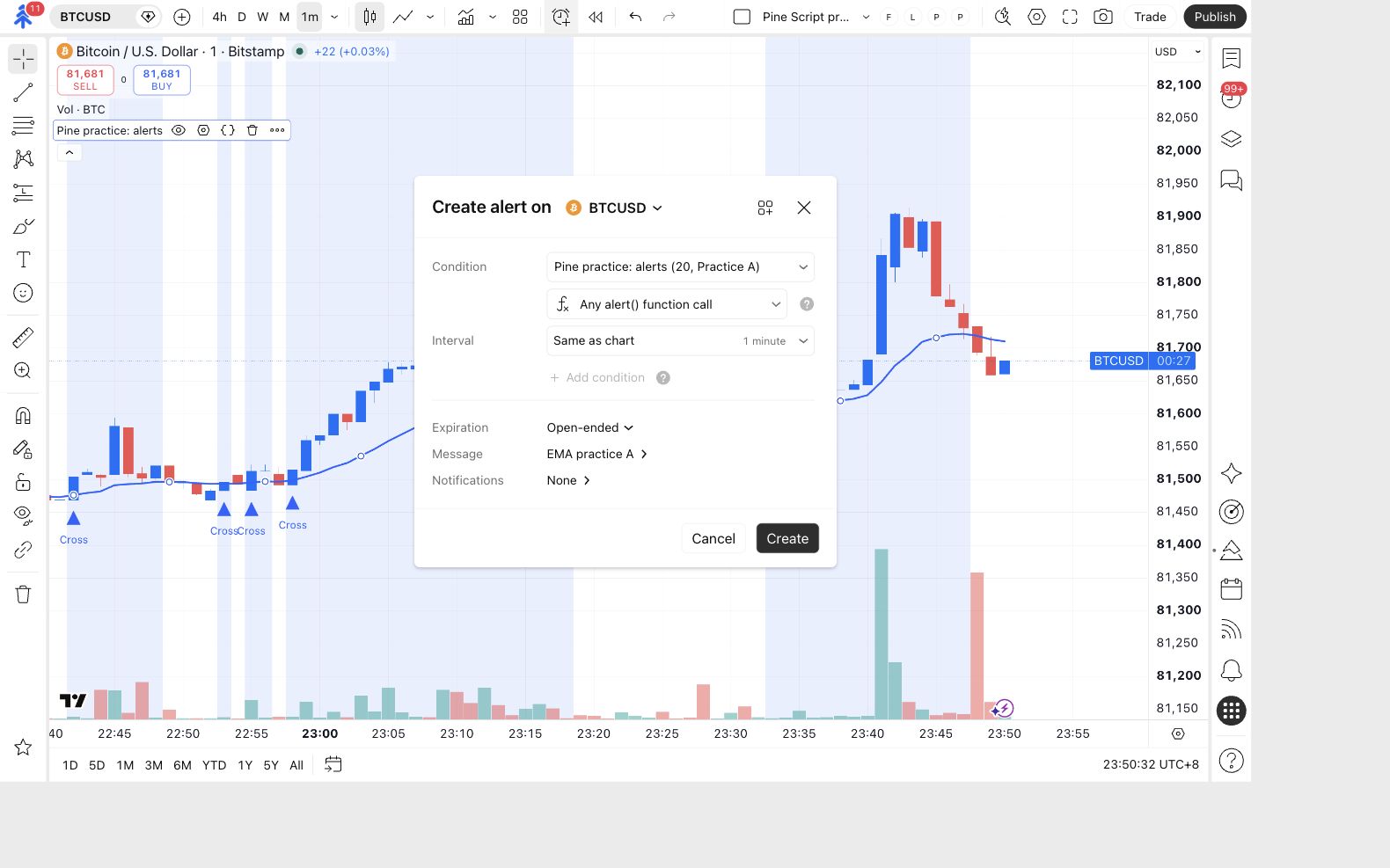
Create and locate the alert
Check the script, 1-minute interval and name EMA practice A. Notifications should read None. Review the expiration, then click Create.
TradingView asks you to upgrade or says you have no alert slots? The live alert has not been created. You can still work through the saved-alert illustration below; keep the live-message check incomplete.
EMA practice A appears in your alerts list. It must be active to evaluate future events.
Open Alerts on the chart’s right-hand toolbar. Click the search icon, type EMA practice, and find EMA practice A. Check that its status says Active.
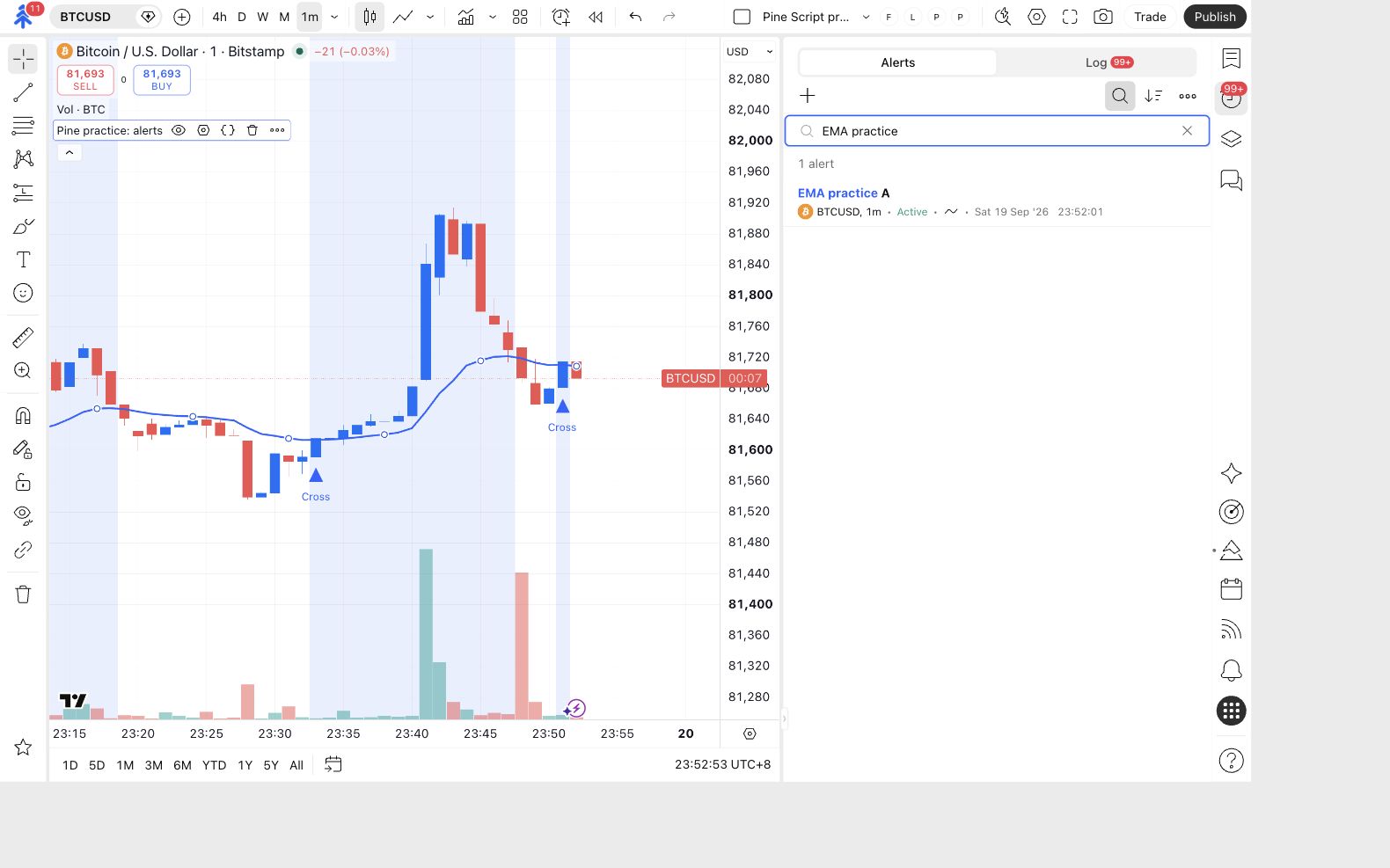
Shows Activating? Wait for it to change to Active. Shows Stopped manually? That alert is paused and will not evaluate new events.
Verify a future event
Section titled “Verify a future event”Open the alert log
Click the Log tab beside Alerts. Look for an entry from EMA practice A after a new confirmed upward cross.
You can inspect the messages TradingView generated. A listed alert and a message in the log are different things.
This is a real message from the practice example. Your timestamp will differ. Look for the same message text in your own log:

The log is empty? A new upward cross may not have happened yet. Historical Cross markers do not send old messages when you create an alert. A 1-minute chart gives you more candle closes to observe; it does not guarantee a crossover.
You can continue to the saved-alert exercise while you wait. Until a real entry appears, the live-message check remains pending.
When an entry appears, open it and compare:
| Check | Expected result for this version |
|---|---|
| Message label | Starts with Practice A. |
| Chart ticker | Contains BTCUSD on this example chart. |
| EMA length | Ends with EMA 20. |
| Event | Corresponds to a new confirmed Cross on the same symbol, interval and inputs. |
| Copies | One entry from your intended practice alert for that event. |
The message describes a chart event. It does not establish PineConnector receipt or a broker order.
No entry after an apparent new cross? Check that the alert is active, has not expired, and uses Any alert() function call. Confirm that the chart’s symbol, interval and inputs still match the saved alert before comparing their results.
What the alert line does
Section titled “What the alert line does”Now that you have configured the dialog, look at the line it listens to:
if confirmedCross runs the indented line only when the condition is true. alert.freq_once_per_bar_close waits for the realtime candle’s closing update. The + signs join the message text, and str.tostring(length) inserts the length as text. TradingView’s alert() guidance
After editing a script
Section titled “After editing a script”An existing alert keeps a saved copy of the script, inputs, symbol and interval from its creation. Changing the chart later does not update that copy. TradingView explains the saved snapshot.
First try the illustration: create the sample alert at 20 / Practice A, then change the current settings to 50 / Practice B. Watch which side changes.
Create a sample alert, then change the script settings. Which values does the saved alert keep?
- EMA length
- 20
- Message label
- Practice A
No sample alert yet. Create one to capture the current script values.
- EMA length
- —
- Message label
- —
First, create the sample alert with length 20 and message label Practice A.
This is a local teaching example, not a TradingView control. Practice A and Practice B are message labels, not PineConnector commands. Nothing is sent and no orders are placed.
Read the complete example
- Begin with EMA length 20 and message label Practice A. There is no saved sample alert yet.
- Create the sample alert. It captures length 20 and message label Practice A.
- Change the current script to length 50 and message label Practice B. The saved sample alert still contains length 20 and Practice A.
- Recreate the sample alert. It now captures length 50 and Practice B. Further script changes still do not update it automatically.
Now make the same change in TradingView, replacing the active practice alert:
Pause the earlier practice alert
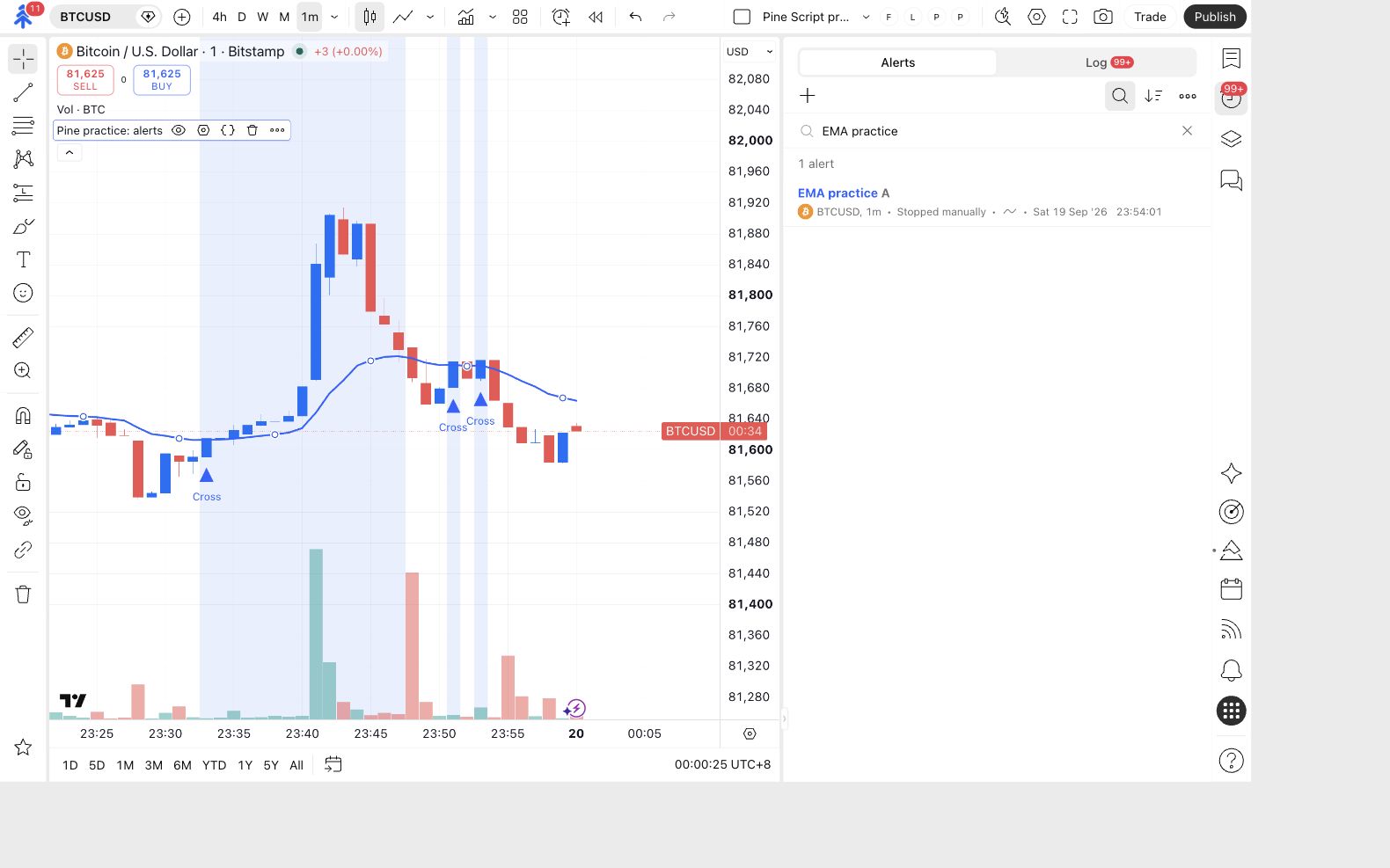
Click the Alerts tab to return to the list. Right-click EMA practice A, then choose Pause at the top of its menu.
EMA practice A is paused, so it cannot keep generating events while you create its replacement.
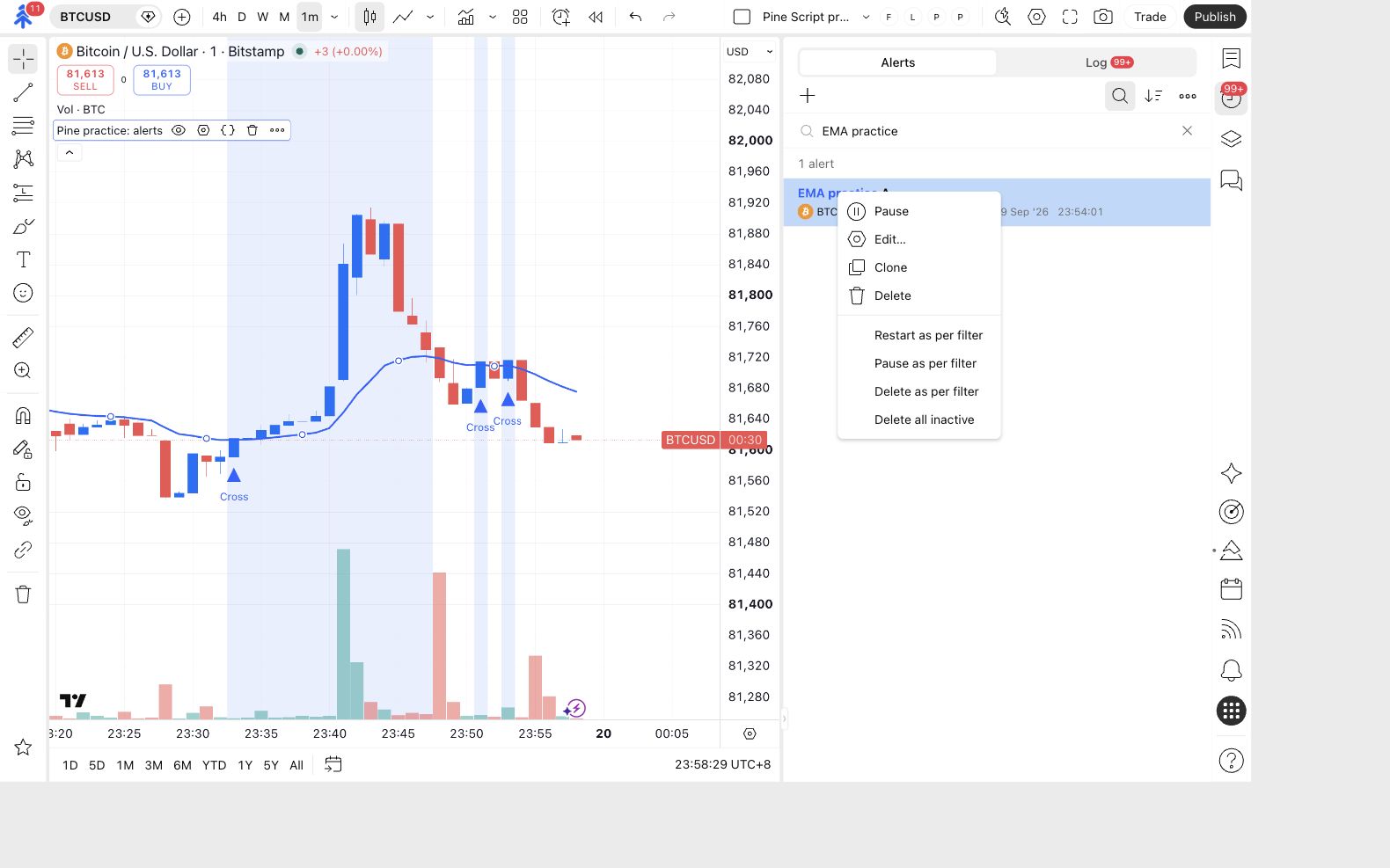
Check that A now says Stopped manually. Leave it stopped while you create B.
Change the chart's practice inputs
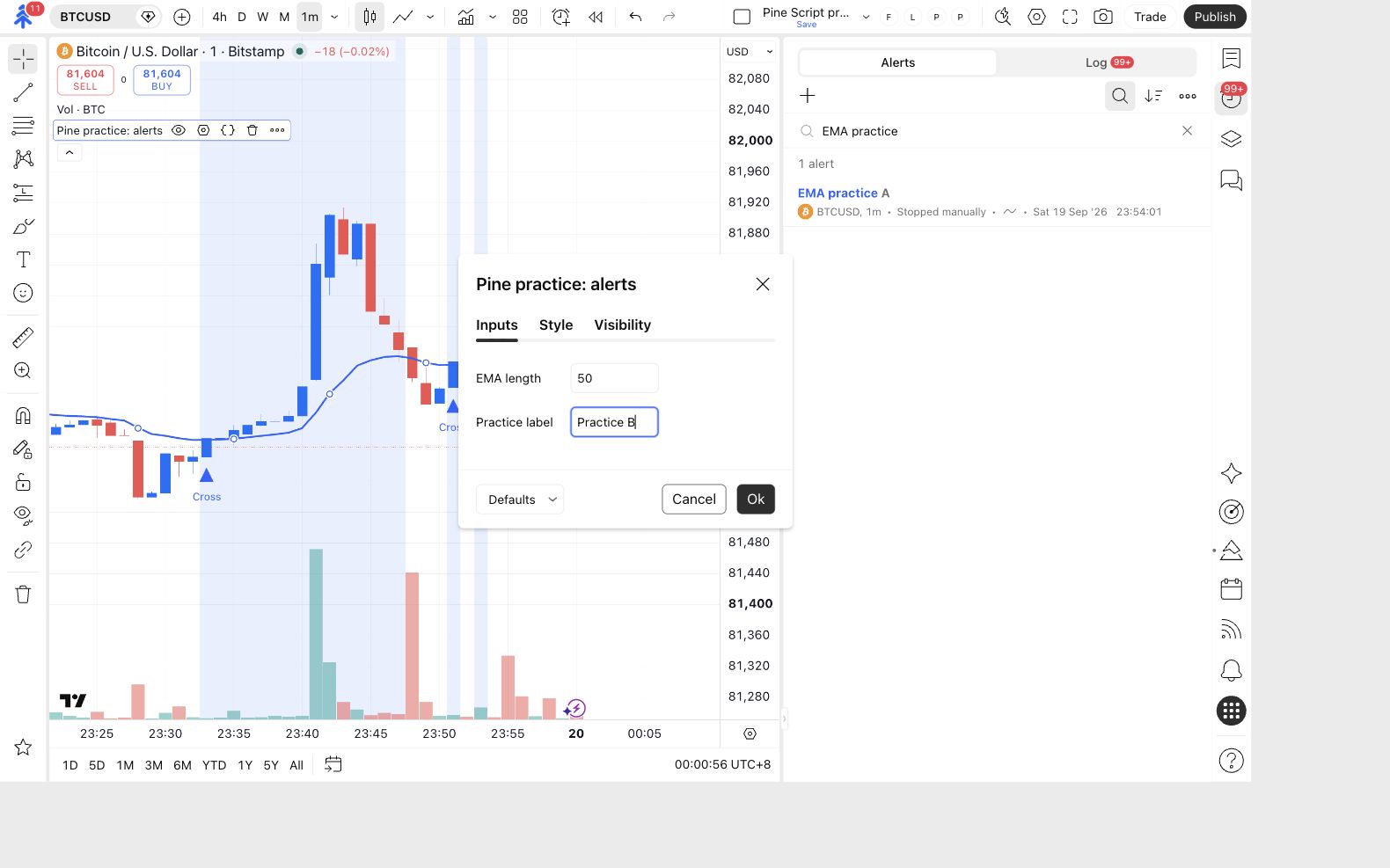
Open the Settings gear for Pine practice: alerts on the chart. In Inputs, set EMA length to 50 and Practice label to Practice B. Click Ok.
The chart now uses EMA length 50 and Practice label Practice B. The earlier alert still has its saved values.
Create the replacement alert
Repeat steps 4–10 to create a new alert. Use these settings:
- Condition: Pine practice: alerts.
- Event: Any alert() function call.
- Interval: 1 minute.
- Notifications: Webhook URL off.
- Alert name: EMA practice B.
Check the alert list: B should say Active, while A still says Stopped manually. If B says Activating, wait for Active.
The new alert captures your current 50 / Practice B inputs. The earlier practice alert remains paused.
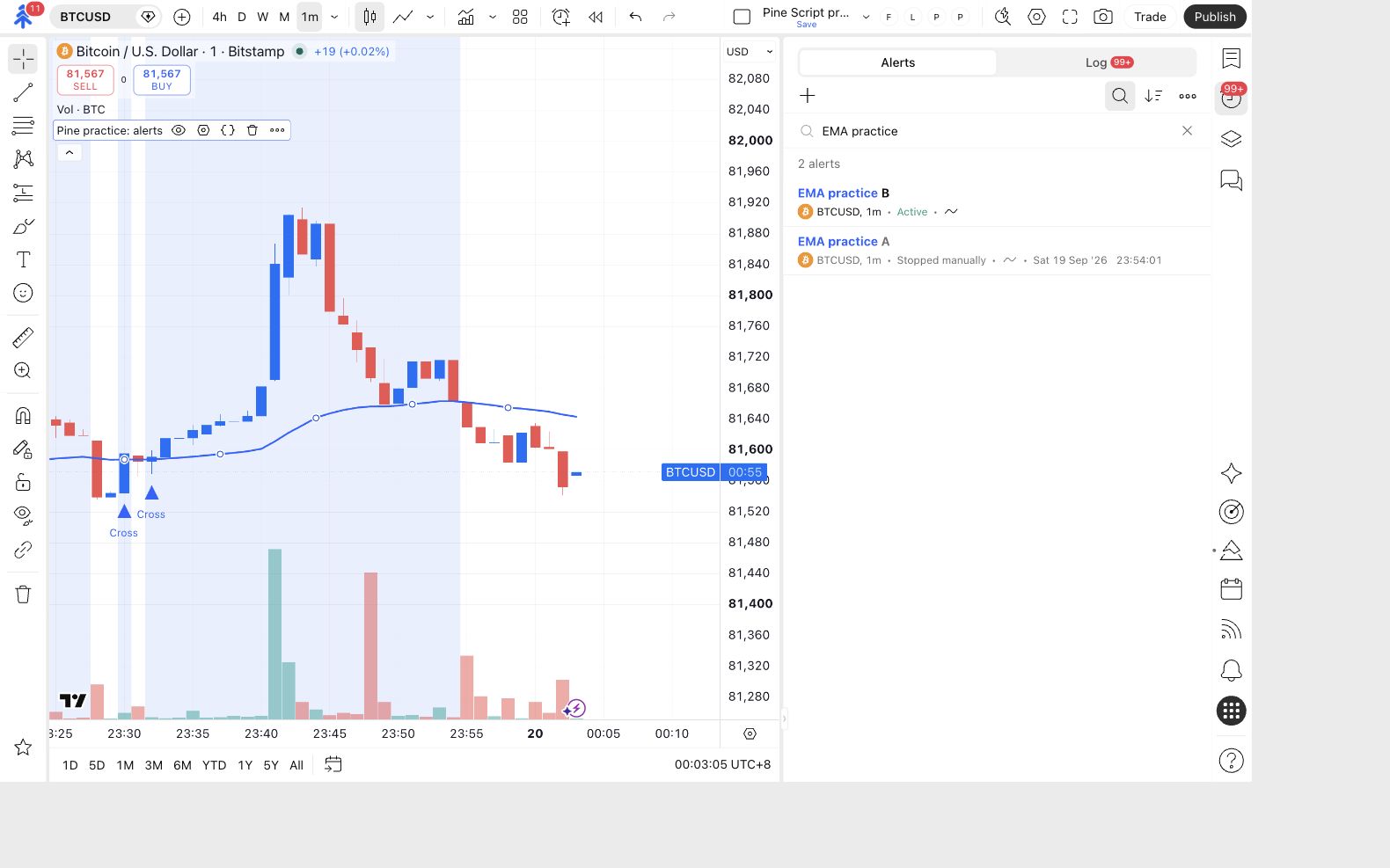
At the next qualifying event, use the Log tab to verify a message beginning Practice B and ending EMA 50.
Renaming A would only change its name. It would not make it capture the new script inputs. For future source-code edits, save and update the chart before creating the replacement alert.
Stop the practice alerts when you finish
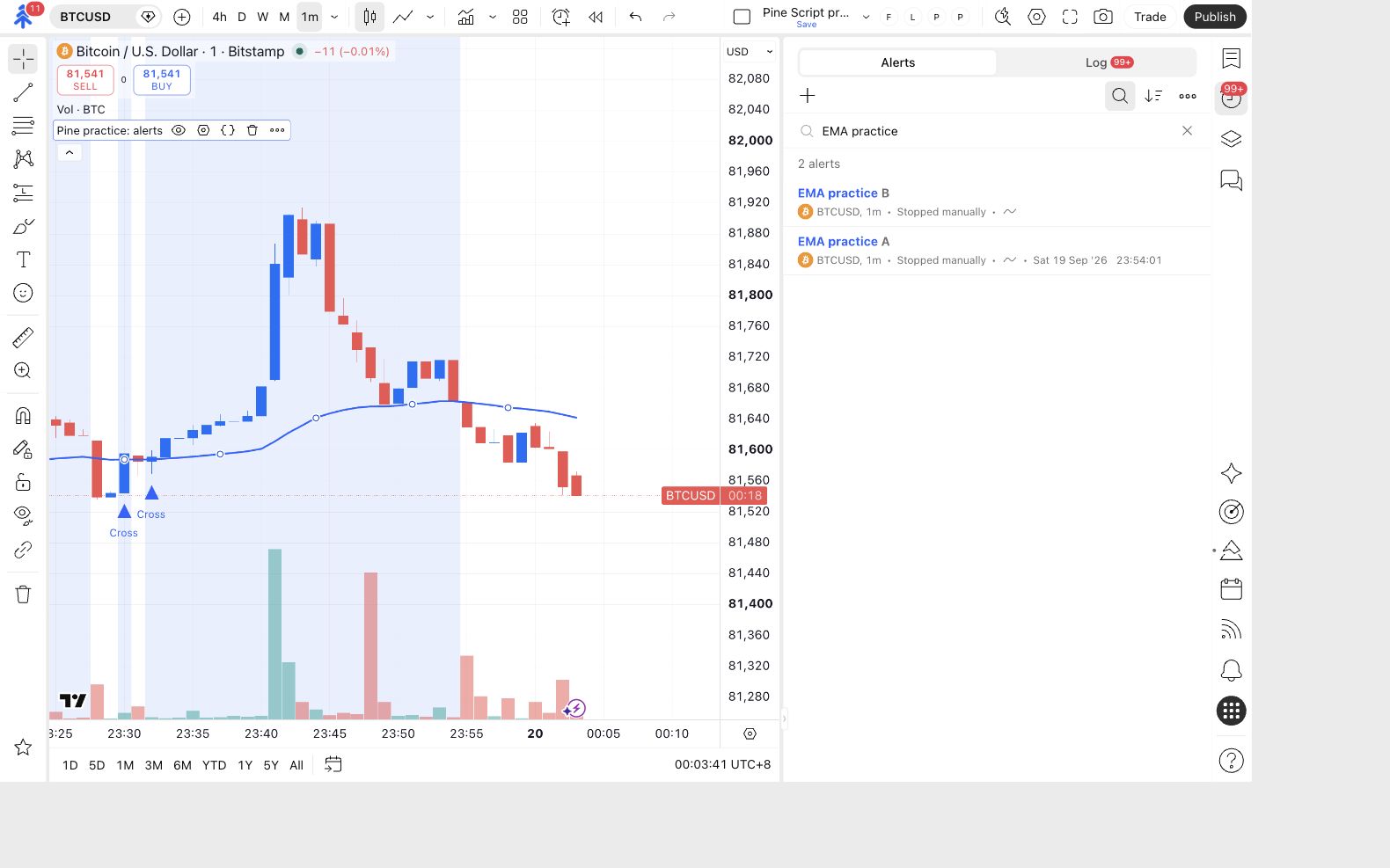
In the Alerts list, right-click EMA practice B and choose Pause. Check both practice rows. If A is still active, pause A too.
Both EMA practice A and EMA practice B show Stopped manually.
If no real event appeared in your own log during the lesson, you have practised configuration and replacement, but your live-message check is still pending.
Carry this into PineConnector
Section titled “Carry this into PineConnector”You now know how to create the correct alert type, find its log and replace its saved settings. Continue with numbers, text and inputs to finish the foundations. Keep Webhook URL off during the practice lessons.
Later, Build a PineConnector message begins the connection stage of this course. It teaches the destination, command, broker symbol and sizing before you enable delivery. Keep PineConnector Syntax nearby, and use the course’s demo-verification lesson when you reach that stage.
The checks remain separate: TradingView generated the message → PineConnector received and processed it → the broker account shows the expected result. A strategy’s simulated order-fill events are another alert mechanism; use the strategy instructions when that is your starting script.