
Work with numbers, text and inputs
Change a number, a message label and a checkbox, then see which part of your script each setting controls.
Builds on: Your first edit


You will change three kinds of values: a number, some text, and an on/off choice. A message preview on the chart lets you see the changes without sending an alert.
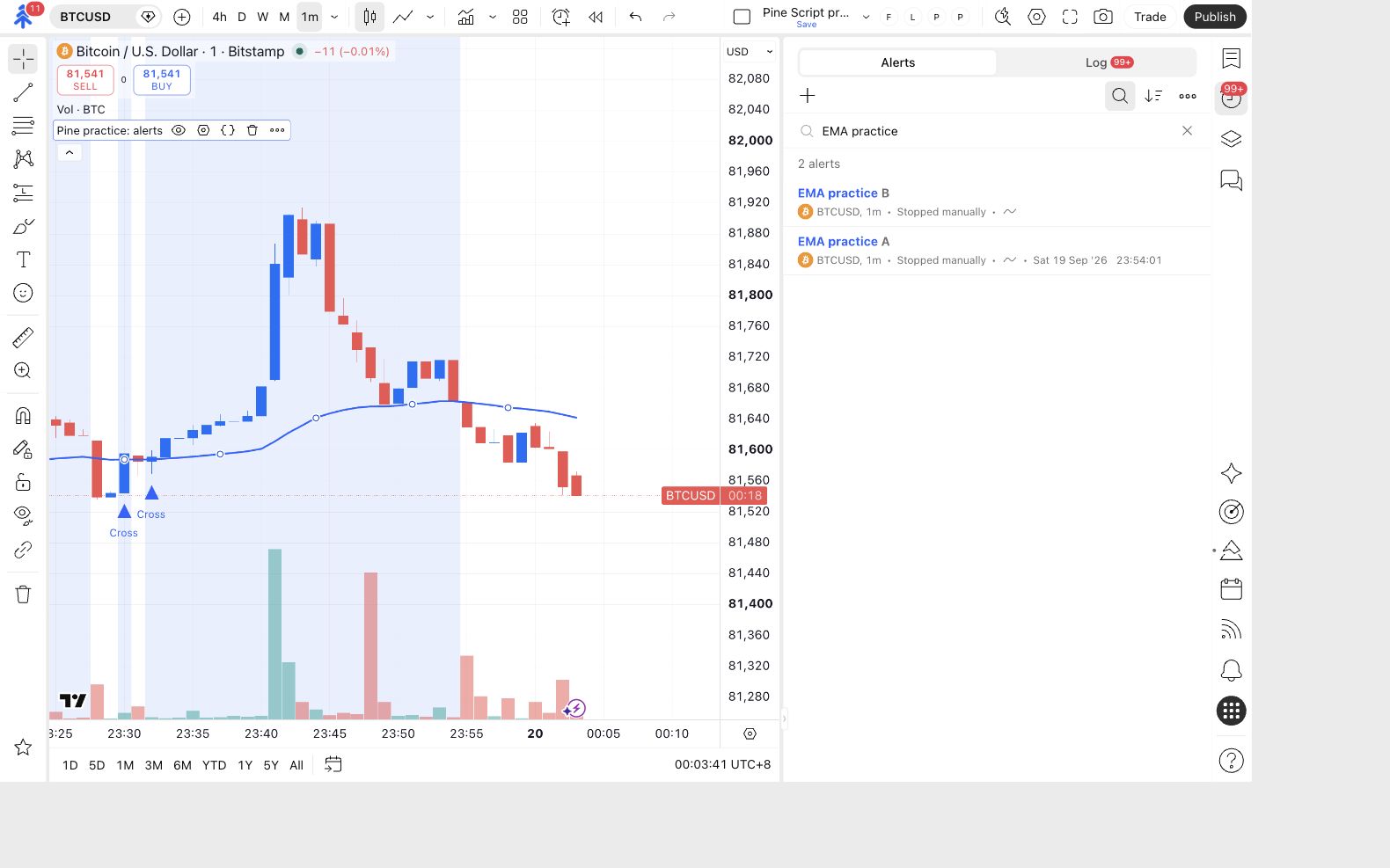
Keep using My EMA practice on the BITSTAMP:BTCUSD, 1-minute candlestick chart. First check that your lesson-3 alerts are paused: both practice rows should show Stopped manually.
Add the inputs and preview
Section titled “Add the inputs and preview”Click Copy on the actual code block below. The screenshots are pictures to follow or enlarge, not controls that change TradingView.
Replace your practice code
Open Pine on TradingView’s right-hand toolbar. Click inside My EMA practice, select all with Cmd+A or Ctrl+A, then paste with Cmd+V or Ctrl+V.
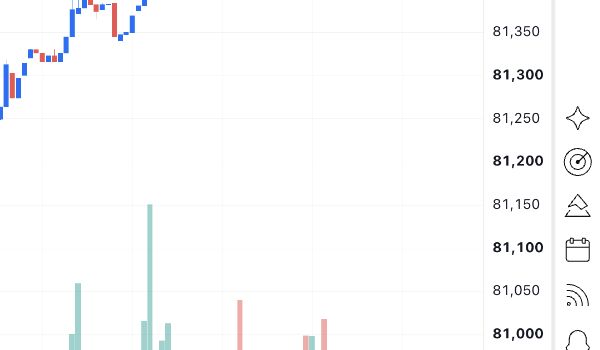
Click the cloud-shaped Save control. Update the chart if asked. If your practice indicator is missing, use the triangle-shaped Add to chart button.
The chart label becomes Pine practice: inputs, with a blue EMA and a Message preview box.
Change the number and text
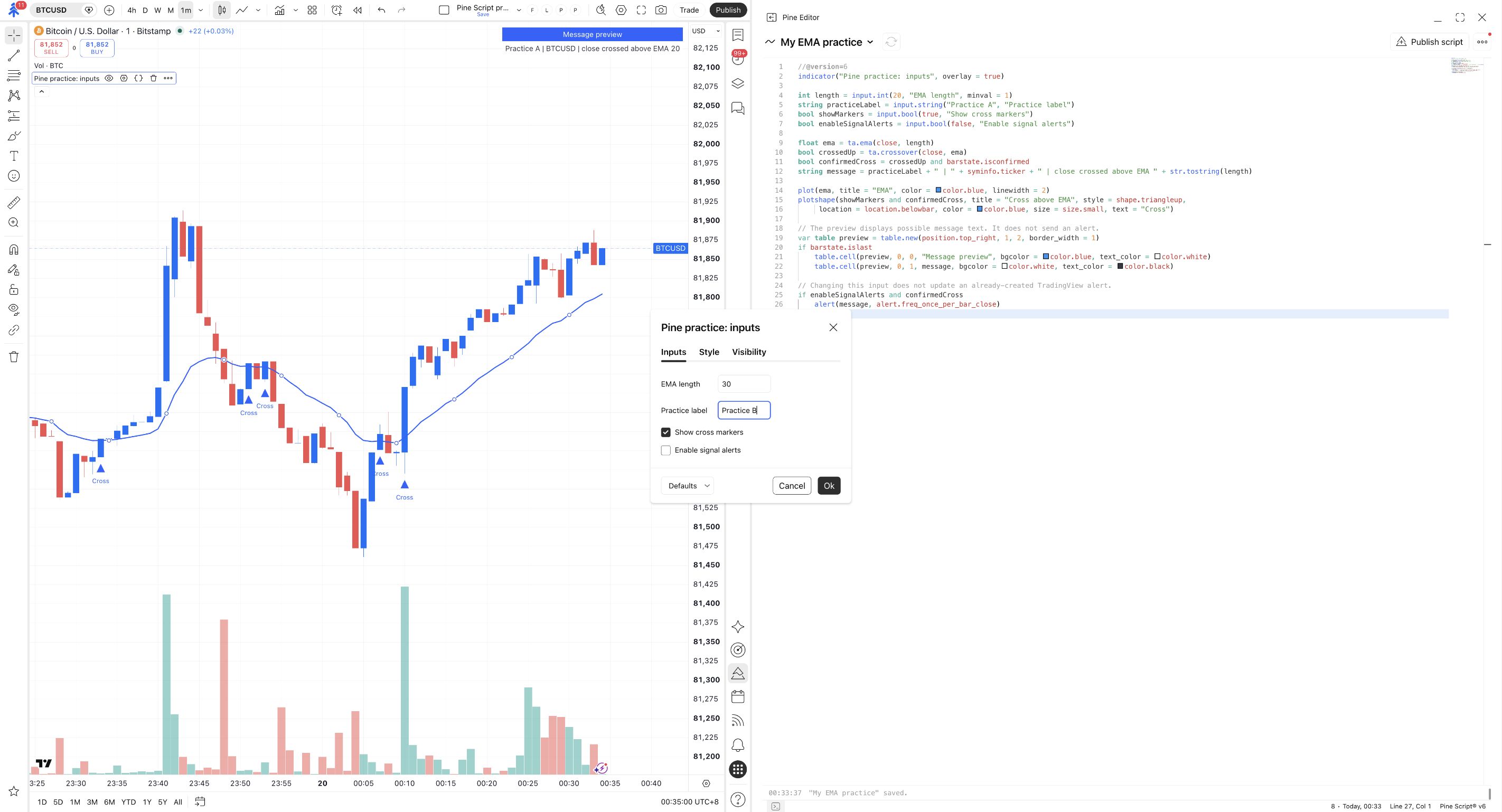
Hover over Pine practice: inputs on the chart and open its Settings gear. Select Inputs.
Set EMA length to 30 and Practice label to Practice B. Leave Show cross markers checked and Enable signal alerts unchecked. Click Ok.
EMA length is 30 and Practice label is Practice B. Enable signal alerts remains unchecked.
Check what changed
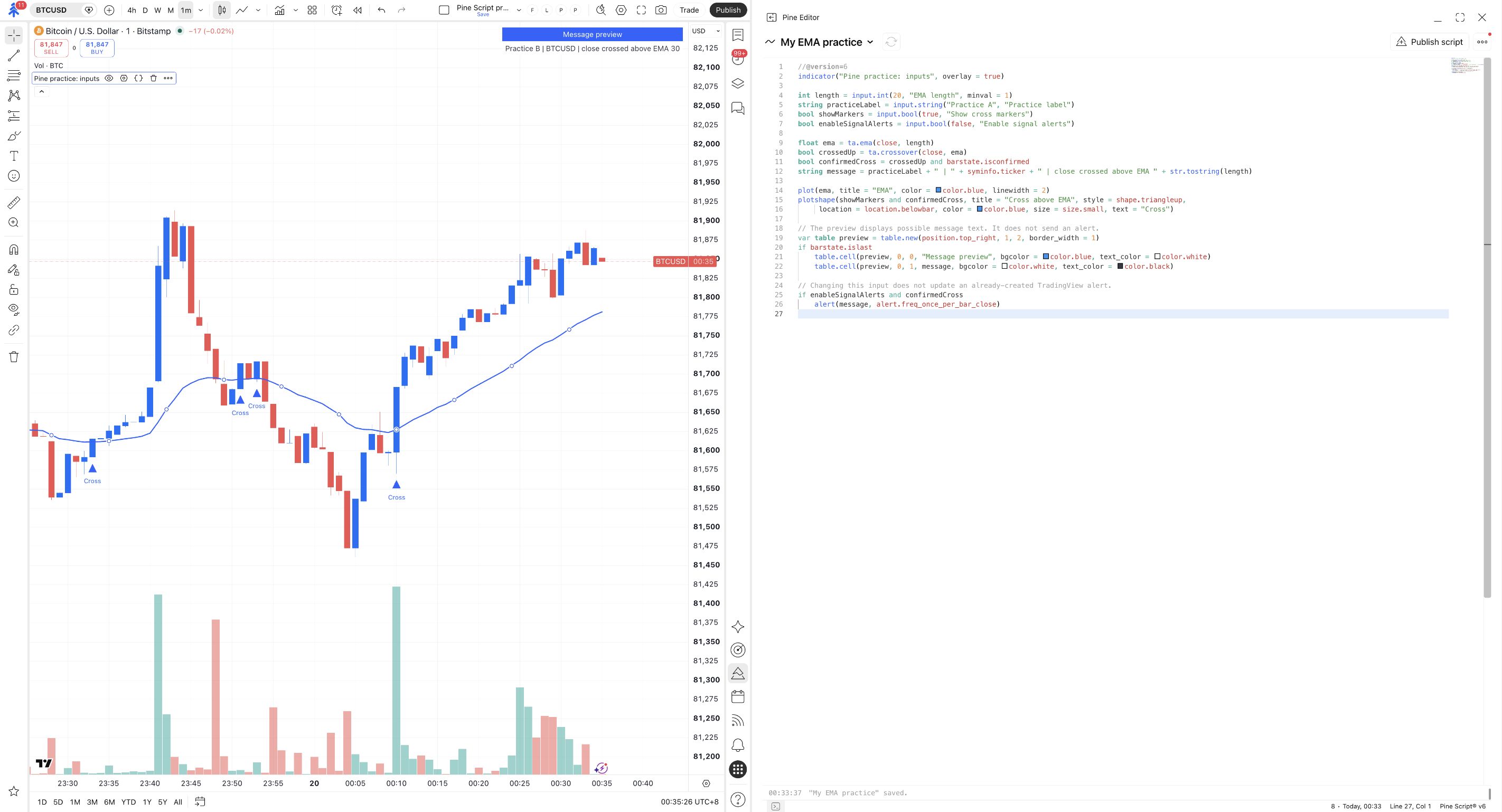
Read the Message preview box on the chart. It shows the message this version would use at its next eligible upward cross.
This is not an alert-log entry. A preview appears even when there has been no new cross and no alert has been sent.
The blue line uses length 30. The preview begins Practice B and ends EMA 30.
Still showing the old values? Reopen this indicator’s Inputs, check the two fields, and click Ok. Do not change an older alert’s name or another indicator’s settings.
Read the types beside the values
Section titled “Read the types beside the values”Find these declarations near the top of your script:
| Word | Meaning | Example in this script |
|---|---|---|
int |
A whole number. | The EMA length, such as 30. |
string |
Text, written between quotes in code. | "Practice B" is a message label. |
bool |
true or false. |
A checked or unchecked setting. |
float |
A number that can have a fractional part. | The calculated EMA price. |
length is the variable’s name. "EMA length" is the label TradingView shows in Inputs. The quoted label and the code’s variable name serve different purposes. TradingView’s type system and input settings provide the full reference.
Separate appearance from behaviour
Section titled “Separate appearance from behaviour”Hide the markers, then bring them back
Open this indicator’s Settings → Inputs again. Uncheck Show cross markers and click Ok. Look at the chart, then reopen the same field and check it again.
Unchecking Show cross markers hides the triangles. The EMA and message preview remain.
That checkbox controls plotshape(...), the drawing instruction. It does not change confirmedCross, and it is not the switch that enables signal alerts. A hidden marker is not proof that a condition has stopped being true.
Before continuing, return EMA length to 20 and Practice label to Practice A. Keep Enable signal alerts unchecked. You do not need to edit the preview-box drawing code.
Check yourself
Section titled “Check yourself”Try: change only Practice label to Morning test. Predict what will happen before clicking Ok.
Show the answer
The preview starts with Morning test. The EMA length and line calculation do not change. The label is text; it does not choose a trading session or enable an alert.
One more check: if you uncheck Enable signal alerts on the chart, is an older running alert automatically paused?
Show the answer
No. A running alert keeps its saved script and inputs. Pause that alert in the Alerts list; changing this chart setting does not update its saved copy.
Finish by restoring EMA length = 20, Practice label = Practice A, and Show cross markers = on. Keep Enable signal alerts = off. Review these fields directly: pasting code with a different default does not reliably reset values already chosen for the chart.