
Check strategy behaviour before connecting
Compare a strategy with its adapted copy and check the differences between simulated orders, alert messages and broker positions.
Builds on: Adapt an existing strategy


Before enabling a strategy’s webhook, explain one complete entry-to-exit cycle. You will compare the original with its adapted copy, check their alert settings, and decide what evidence is still missing.
Have the source and settings from Adapt an existing strategy available. Keep the practice strategy’s Enable order-fill alerts off while inspecting it. If an older alert for this workflow exists, pause it in TradingView’s Alerts list; changing a chart setting does not stop its saved copy.
Compare like with like
Section titled “Compare like with like”Match the chart and settings
For the original and adapted copies, use the same symbol, interval, standard candles, EMA length and available history. Hover over each strategy’s name on the chart, open its Settings gear, then select Properties.
Compare Default order size, Script execution and Order execution delay, as well as the capital and pyramiding values.
A difference in the selected data or strategy properties will not masquerade as a change in the integration code.
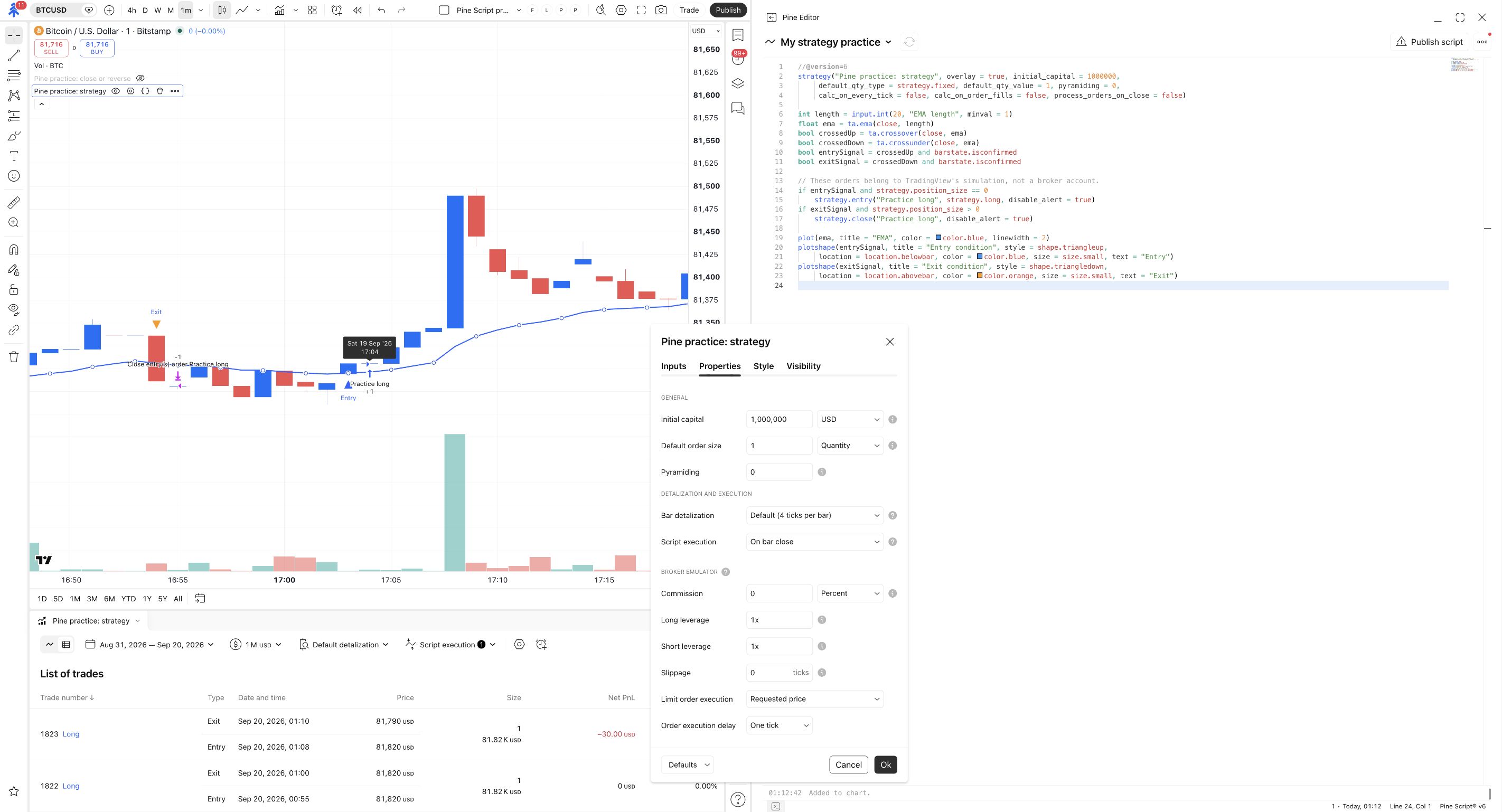
The picture shows the original Pine practice: strategy. Inspect the same fields on your adapted copy. For the supplied practice files, keep these choices:
| Choice | Practice value | What it affects |
|---|---|---|
| Default order size | 1 with Quantity selected |
TradingView’s simulation. It is independent of the PineConnector lot input. |
| Initial simulated capital | 1,000,000 |
Funds available to the simulation. |
| Pyramiding | 0 |
The example does not add successive entries while already long. |
| Script execution | On bar close | The practice rules calculate at the chart bar’s close. Leave the additional execution options unselected. |
| Order execution delay | One tick | The simulated fill follows the order request under the timing taught in this module. |
Inputs and Properties can override the starting values in a saved chart instance. Inspect the actual controls, not only the source declaration. Changing recalculation or fill settings changes the experiment. TradingView’s strategy-properties reference
Inspect one full simulated cycle
Section titled “Inspect one full simulated cycle”Choose a closed trade
In the strategy report below the chart, click the table-shaped Trades control. Under List of trades, choose a closed long trade. Read its Entry and Exit rows, then identify their conditions and simulated fills on the chart.
You can connect the entry and exit in the report to their conditions on the chart.
Switch the report between the original and adapted copies if both are loaded. Confirm that you are reading the intended script before comparing rows.
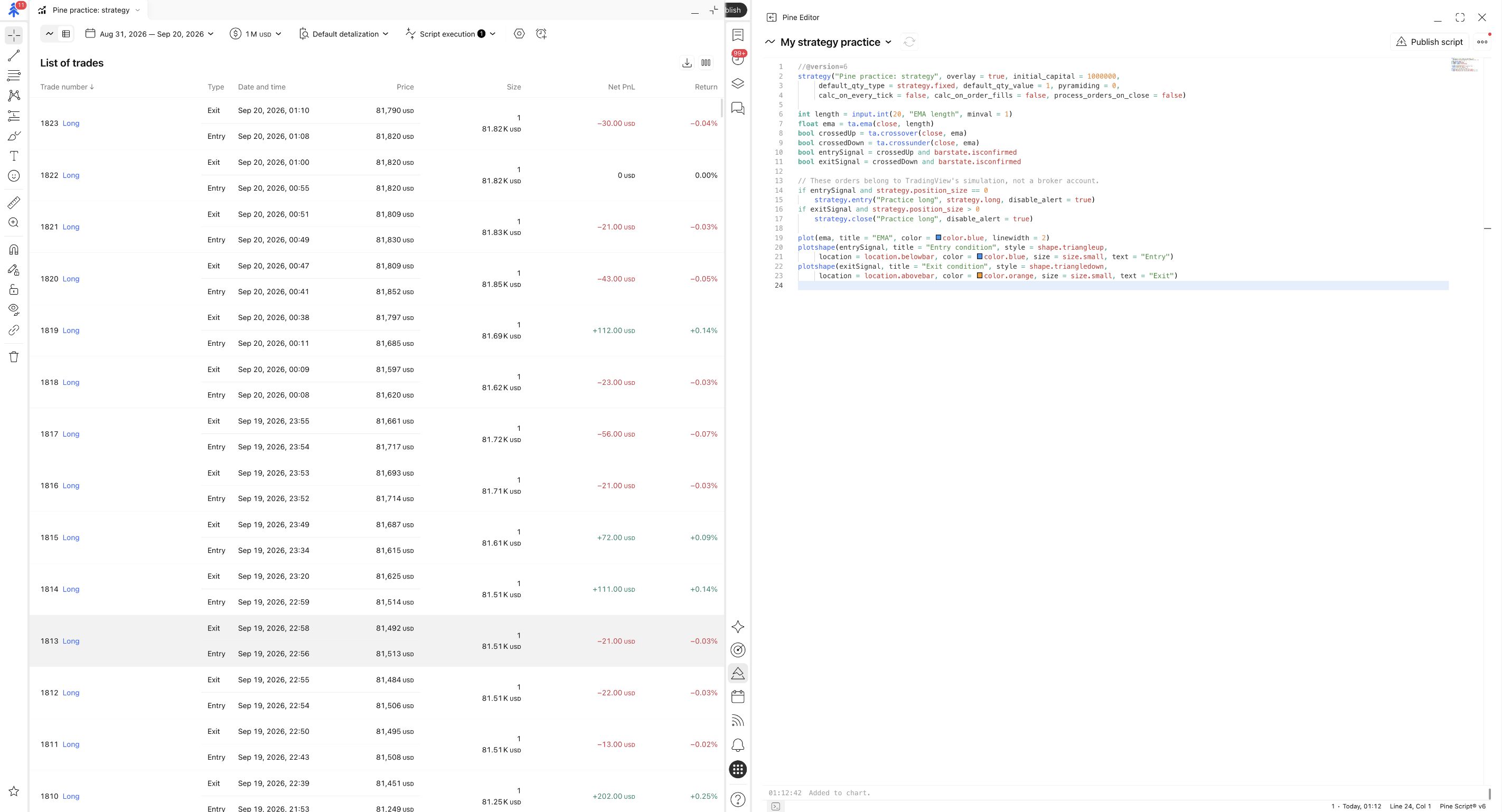
Record your observations in a small note:
| Event | What to record |
|---|---|
| Entry condition | Which rule became true, and on which closed candle. |
| Simulated entry | The strategy entry ID, fill time and simulated quantity. |
| Exit condition | Why this example requested a full close. |
| Simulated close | The closing fill and resulting flat simulated position. |
For the supplied files, adding the message fields should leave the EMA calculation and order conditions unchanged. An unexpected difference is a reason to inspect the copied source and settings before moving on. Two matching examples do not prove every possible strategy case behaves identically.
Watch for a misleading comparison: your custom Entry triangle marks a condition. TradingView’s order marker represents the emulator’s fill. Compare the same kind of event on both copies; do not move the code’s condition merely to line up two different markers.
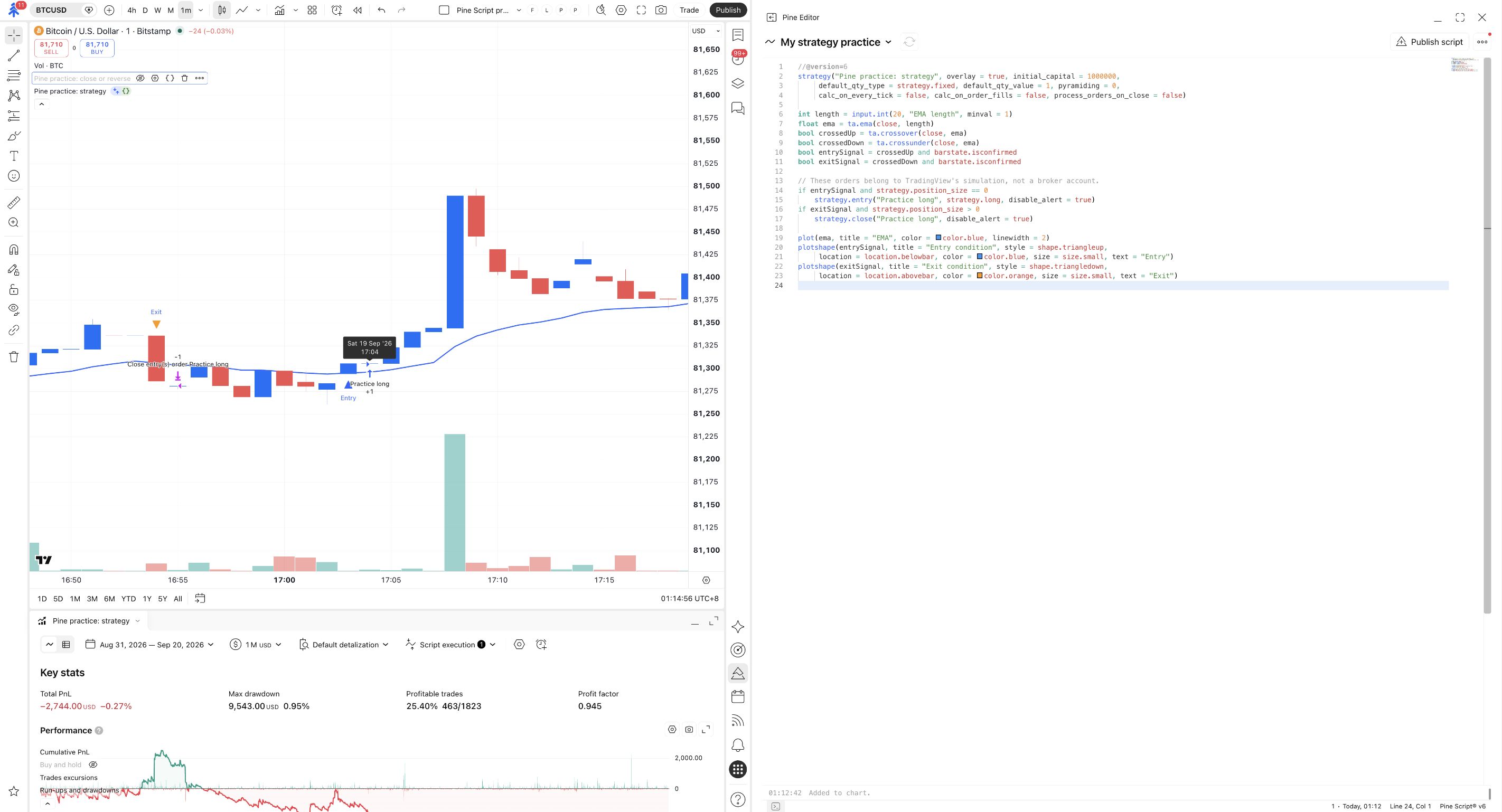
Check the event and the message together
Section titled “Check the event and the message together”The complete connector example uses order fills, attaches alert_message to its entry and close calls, and expects {{strategy.order.alert_message}} in the alert’s Message field. It does not contain an additional alert() entry route.
Before creating that alert, check the intended result for both actions:
| Event | Expected PineConnector request |
|---|---|
| Simulated long entry fill | buy for the intended broker symbol and explicit broker lot amount. |
| Simulated full closing fill | closelong for that broker symbol, within the receiving EA’s position scope. |
If Signal Authentication is required, both messages need the matching secret. A working entry message does not establish that the exit message is correctly configured. Signal Authentication
strategy.order.contracts and strategy.position_size describe the strategy’s simulated quantities. Do not insert them into a broker-lot field without an explicit, verified conversion. The supplied connector avoids that assumption by using a separate Lots per entry input. TradingView’s strategy-alert placeholders
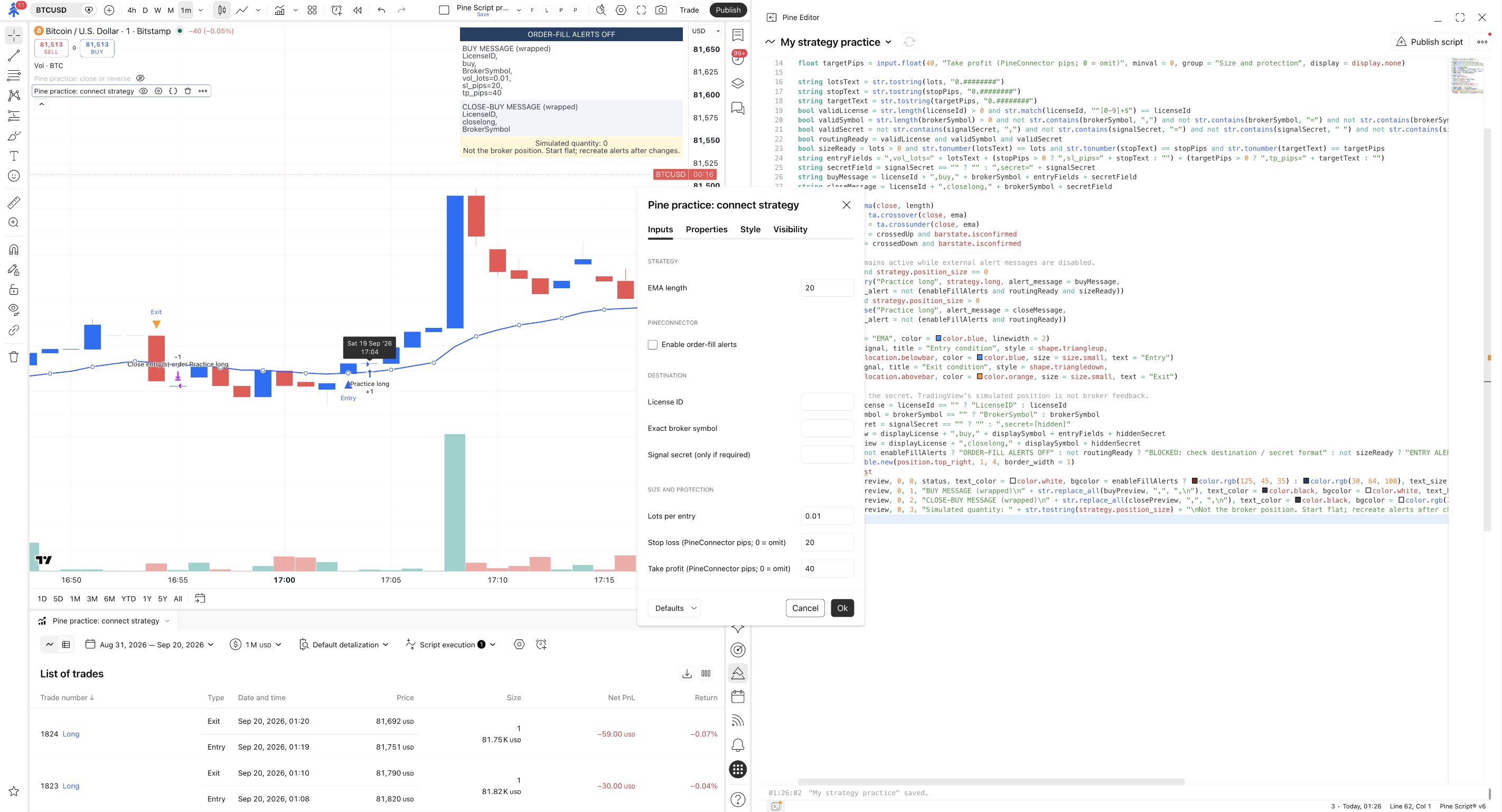
Compare the two quantities: Size 1 in the earlier simulated-trade picture and Lots per entry 0.01 in this example’s message settings. They belong to different systems and are not interchangeable.
Spot the duplicate route
Section titled “Spot the duplicate route”An adapted strategy has a buy in an alert() call and another buy attached to strategy.entry(...). Its TradingView alert listens to both calls and fills. What should you check before enabling the webhook?
Show the answer
Check whether both messages represent the same intended entry. If they do, select one deliberate event route and remove or disable the duplicate path. Also check for older active alerts. A once-per-bar setting on the alert() call does not combine it with a separate order-fill event.
Understand independent broker protection
Section titled “Understand independent broker protection”The complete connector sends an optional broker stop and target with its buy message. Its simulated strategy still exits on the downward EMA cross. It does not place matching simulated stop-loss or take-profit orders.
A zero protection input omits that message field; the receiving EA’s settings may still supply a protective value. Inspect the actual accepted stop and target rather than inferring their absence from the script’s zero input.
That means the broker can close first while the strategy remains long. The preview’s simulated quantity will still describe TradingView’s state. A later closelong request can then reach a broker scope whose positions no longer match the simulation.
For partial exits, pending orders, multiple entry IDs or reversals, return to the mapping table in Adapt an existing strategy. Each case needs its own entry, exit, cancellation and position-scope checks. A successful compile does not supply those mappings.
Separate the evidence before moving on
Section titled “Separate the evidence before moving on”Use Verify your setup on demo for the actual connected test. Follow the same future event through each stage:
- Strategy: the intended simulated entry or closing fill occurred.
- TradingView log: the corresponding message has the expected action and values.
- PineConnector: the message was received and its processing result matches the request.
- Demo account: the expected position, size and protection are present, with no duplicate or unintended affected trade.
If a stage is missing, record it as unverified. A profitable strategy report, a received webhook or a compiled script cannot fill in the missing evidence.
Final exercise for this module
Section titled “Final exercise for this module”Write two short sentences for your chosen strategy: “It enters when…” and “It exits when…”. Then identify its alert event source, broker symbol, sizing unit and the positions its closing command can affect.
Show the answer for the course example
It requests a simulated long entry after a confirmed upward EMA cross while the simulator is flat. It requests a simulated full close after a confirmed downward cross while long. Its connector messages follow the fills, use the separately entered broker symbol and fixed lot size, and close matching buys within the EA’s scope. Broker stop and target orders can close independently, so the two position states must be checked separately.