
Verify your setup on demo
Follow one indicator event through TradingView, PineConnector and the intended broker demo account.
Builds on: Connect an indicator
You will check the complete path: TradingView event → PineConnector processing → the intended broker order. This is a user-run demo exercise. The course screenshots show interface examples, not proof that your account has passed these checks.
Before starting, complete Test your setup, including its separate broker-order check, and review the indicator’s generated message. Keep the review alert paused.
Prepare the receiving account
Section titled “Prepare the receiving account”Check the connection and its actual settings
Open Portal → Connections. Select the intended demo account beneath the chosen License ID and check Terminal info. For hosted settings, open Edge → instance → EA Settings. Follow the hosted settings procedure if a change is needed; applying restarts the terminal and interrupts signal execution.
Review Magic Restriction, Pyramiding and Close on Reverse. These affect what the receiving EA can do with an entry or close request. The pictured values below are examples, not a prescription.
The visible stop/target checks in this exercise assume Shadow Targets is off. If your receiving setup uses it, review that feature’s separate monitoring behaviour before this test; the broker may see different protective levels.
You know the destination account, connection ID, EA version and position scope.
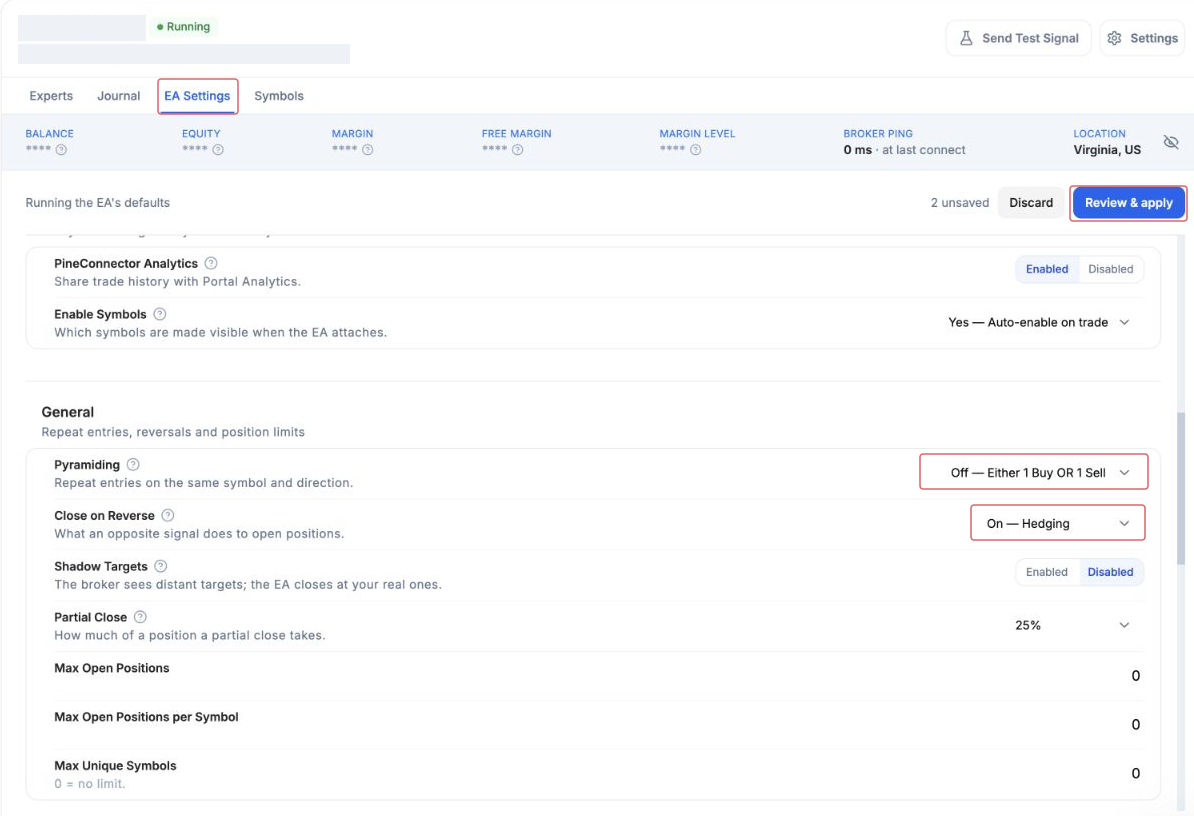
For a self-hosted setup, inspect the EA on the receiving terminal. Changing an EA on another computer does not change an Edge instance. If you cannot establish the intended scope, resolve it with Support before enabling this exercise.
Match the chart and broker instrument
Use a TradingView chart for the instrument you intend to automate. If you keep the course’s BTCUSD chart, verify the corresponding crypto instrument on your broker account. Do not leave an unrelated example symbol in the message accidentally.
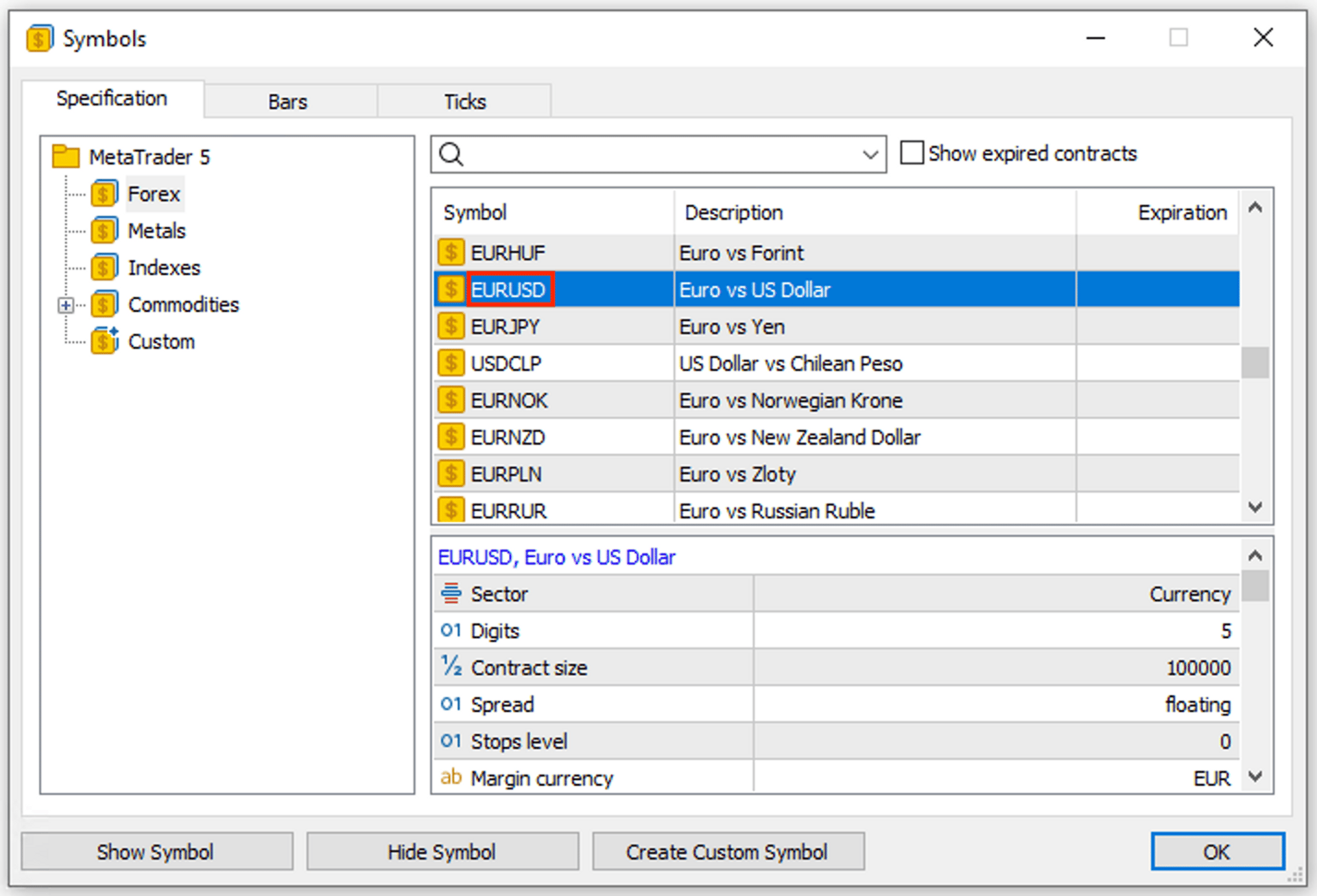
Confirm the broker’s exact symbol, current trading session, permitted lot size and stop distances. A chart receiving live quotes does not prove that the broker’s instrument is open for trading.
Your signal chart corresponds to the intended broker instrument, whose session and order requirements have been checked.
Start with a clear demo position state
Open the demo account’s positions and history. Finish any earlier course test before continuing. Read the two message previews again: your intended buy and closelong for the same broker symbol.
The script does not know whether the broker is flat. A future close-buy event may arrive before a new buy event. That event is not evidence of a completed entry-and-exit cycle.
There are no existing course or unrelated positions that the first close request could confuse.
Create one connected demo alert
Section titled “Create one connected demo alert”Enable the reviewed script inputs
Open the gear beside Pine practice: connect indicator, then Inputs. Check Enable PineConnector messages and click Ok.
Do not reuse the earlier paused review alert. Create a new alert so the saved copy includes these reviewed settings.
The current chart shows the exact destination, sizing and protection you intend to test.
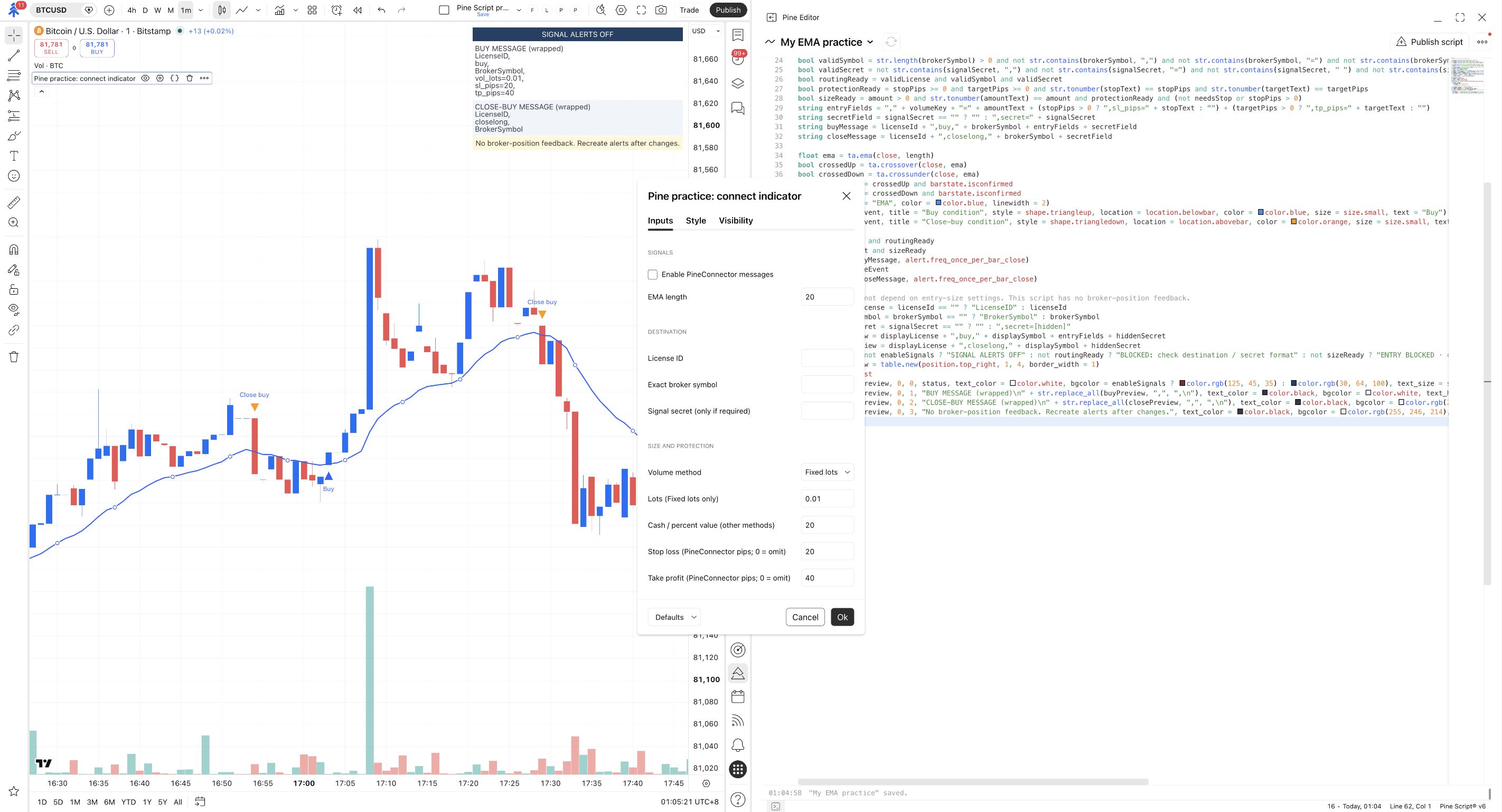
This picture shows the starting off state and the control to use. At this step, switch it on only after reviewing your own demo values; the screenshot is not evidence that your current Inputs are enabled.
Choose the script event again
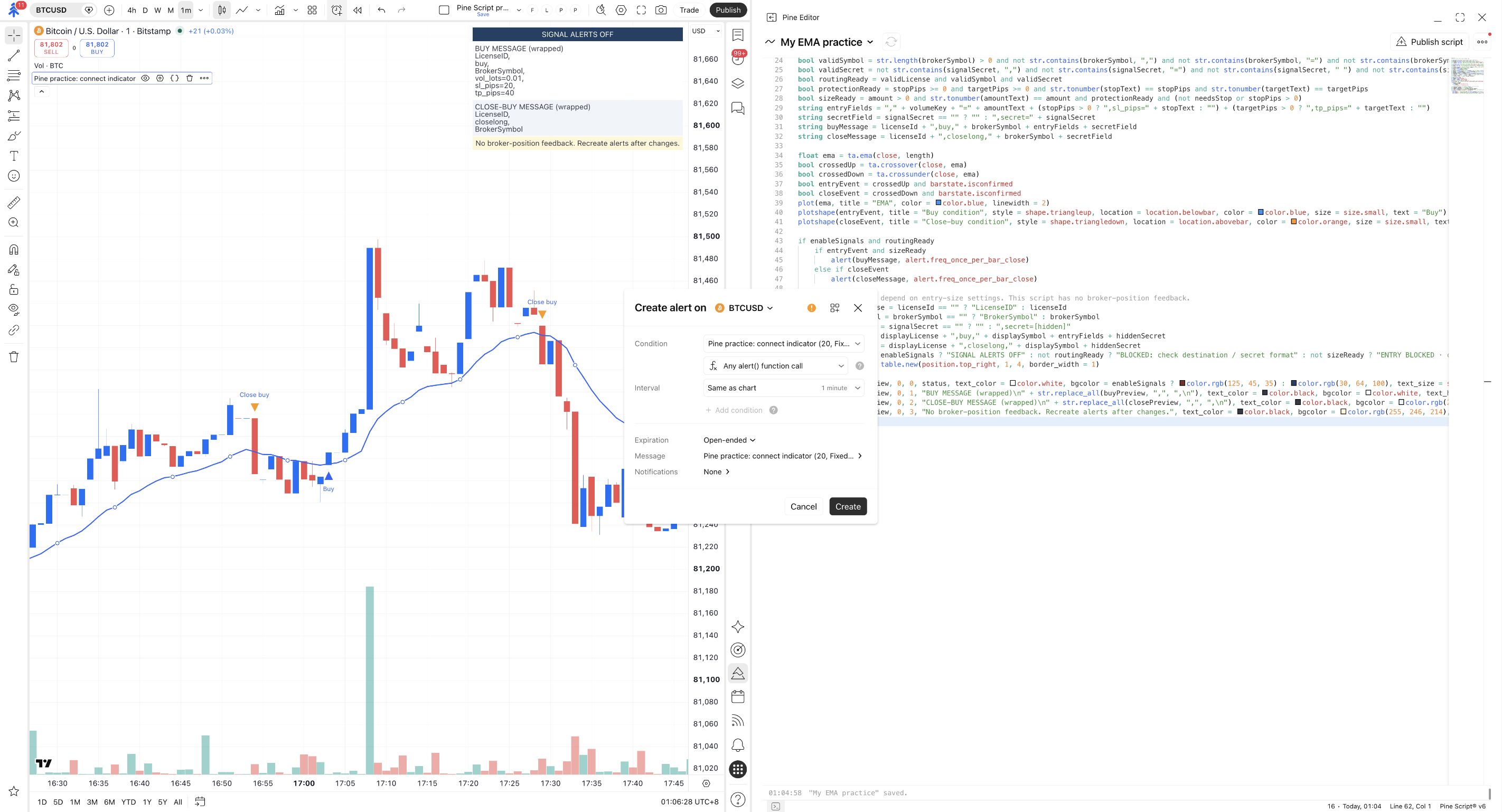
Open Create alert. Choose Pine practice: connect indicator, select Any alert() function call, and check the interval. Under Message, name it PC demo connection.
The script supplies its complete message. Do not add a strategy placeholder or a second message template.
The new alert listens to Any alert() function call on the intended symbol and interval.
Add the delivery address
Open Notifications, check Webhook URL, and paste the address below. Click Apply to return to the alert dialog.
Webhook URL is checked and contains the canonical PineConnector address.
Paste into TradingView's Webhook URL field, not the Message field.
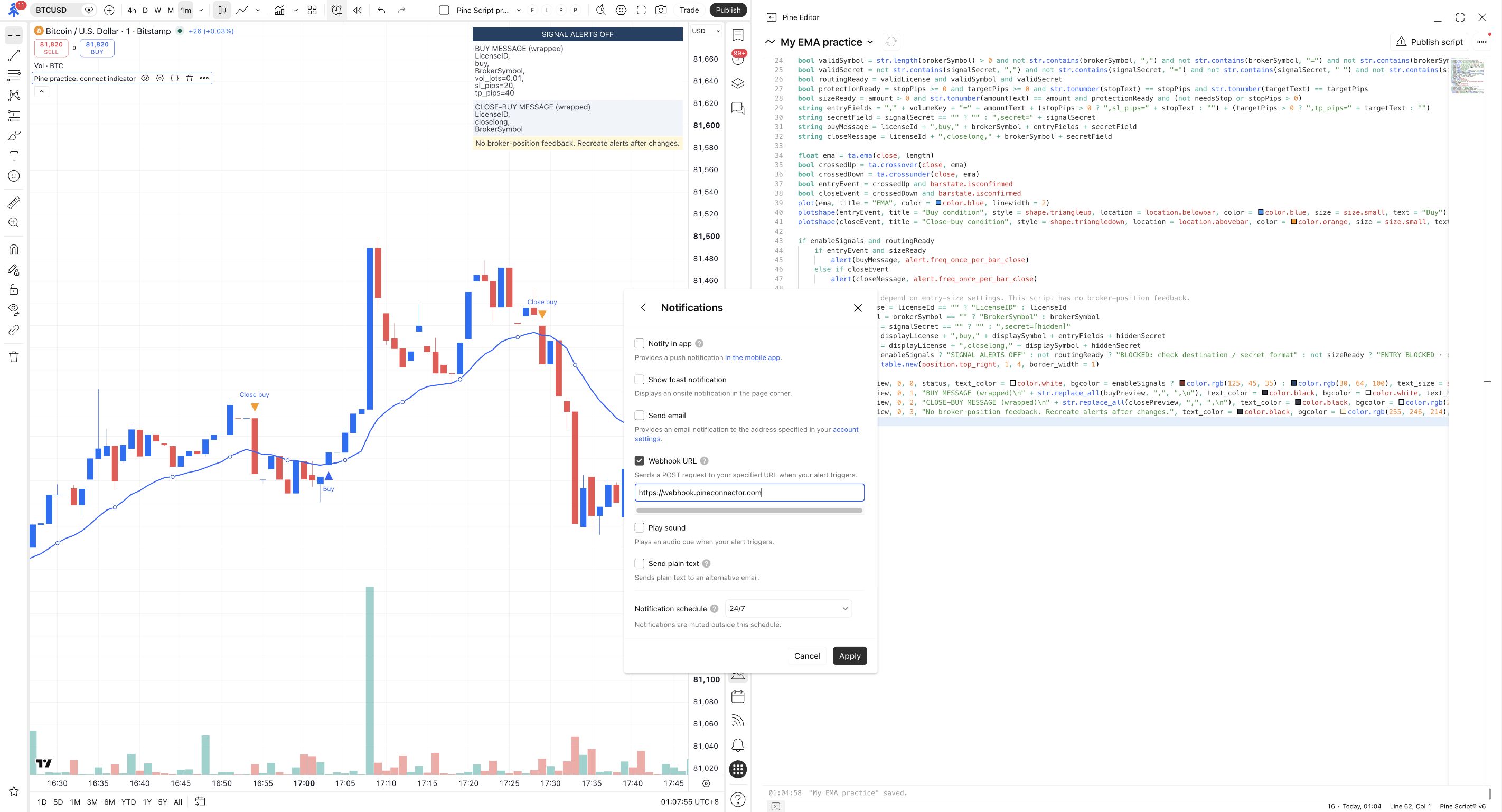
Webhook access must be available on your TradingView account, and 2-factor authentication must be enabled. If the option is unavailable, the connected test is incomplete; do not substitute another address.
Review and create the demo alert once
Recheck all receiving accounts are the intended demo accounts, the symbol and size are correct, the message inputs are complete, and the event type is correct. Then click Create once.
Stay with the demo test. After the first new buy event appears in TradingView’s Log, pause this alert while you trace that event through the next checks. Do not create extra copies while waiting.
One PC demo connection alert is active, while older course alerts remain paused.
Follow the evidence through each service
Section titled “Follow the evidence through each service”Read the actual TradingView event
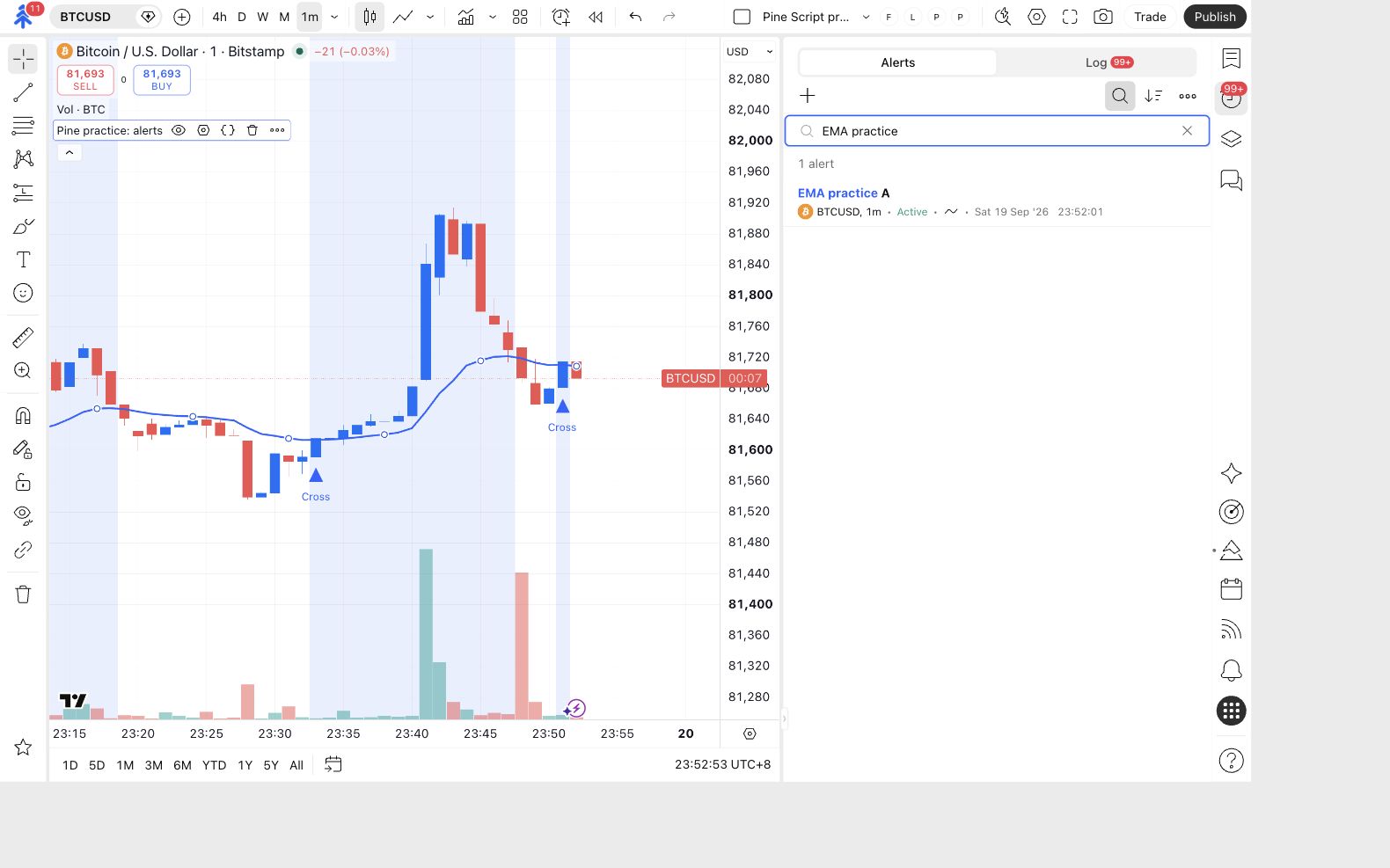
Open Alerts → Log. Find PC demo connection and inspect the message. Compare the License ID, broker symbol, explicit size and protection fields with your plan.
Nothing fired? Check for a new confirmed buy crossing, the active alert state and the saved script/input version. Historical chart markers do not create old messages.
You have the event time and the complete buy message that actually fired.
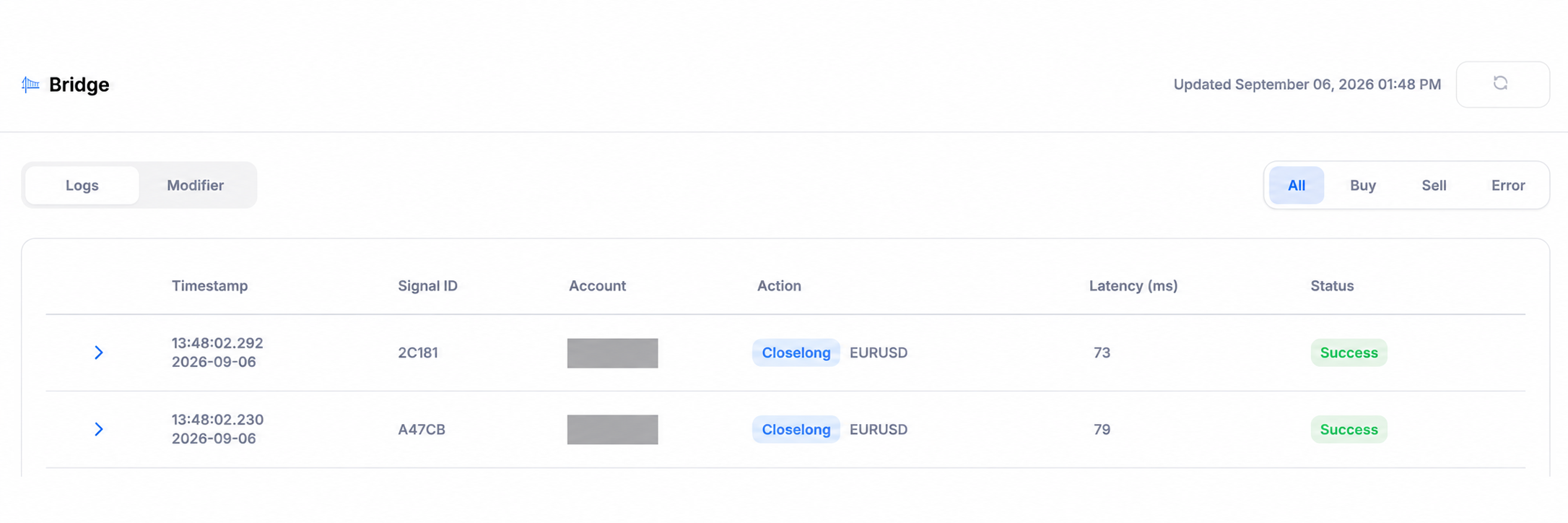
Match that event in Bridge
Open Portal → Bridge. Find the matching record and expand its details. Read its processing result and any error.
A new Bridge record matches the event's time, destination, action and symbol.
Verify the broker position
Open the same broker account in its MT5 mobile app, web terminal or desktop terminal. Inspect its Trade/positions view. On desktop MT5, use the Trade tab in the lower Toolbox panel.
The intended demo account contains the expected position with the expected symbol, direction, volume and protection.
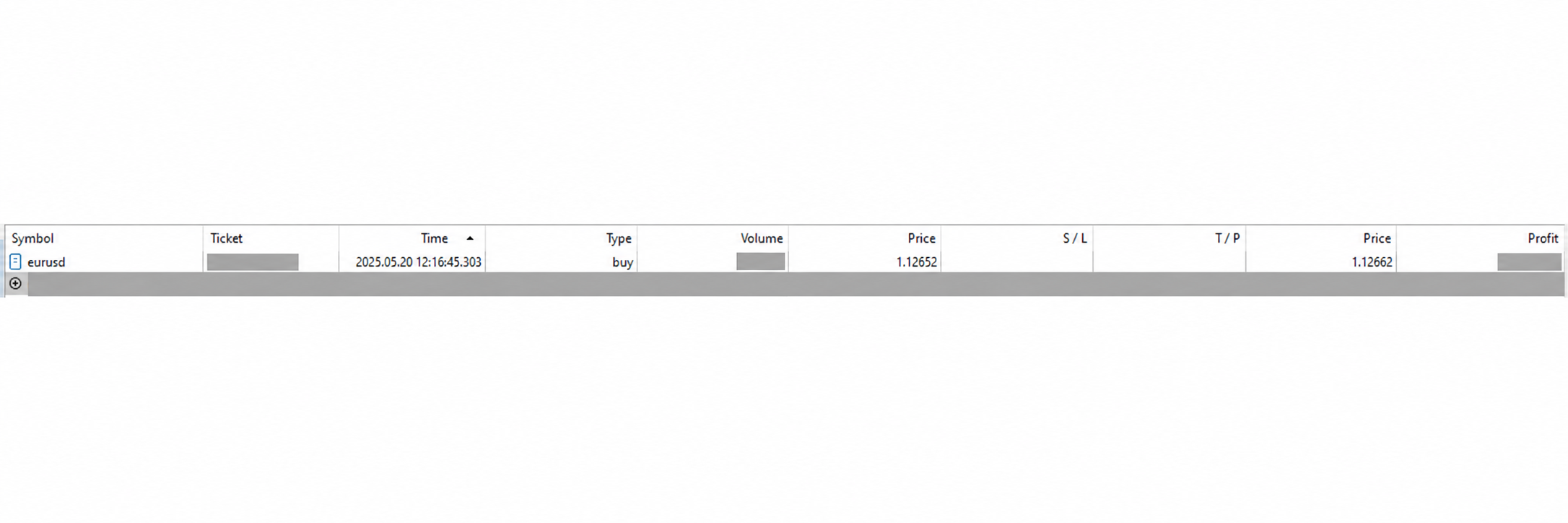
| Verify | Compare against |
|---|---|
| Account | Your intended demo account, including other accounts sharing the ID. |
| Symbol and direction | Exact broker symbol and Buy. |
| Volume | The chosen fixed lots, or the receiving EA’s calculated volume for the reviewed loss-based method. |
| Stop and target | Requested units, correct side, and the actual accepted prices. |
| Duplicates | No additional unintended position from another alert or retry. |
A Bridge success status is one checkpoint. It does not replace the broker check. If the order is missing or different, read Experts and Journal at the matching time. On Edge, open your instance in Portal and select those log tabs; on a self-hosted terminal, open them in MT5.
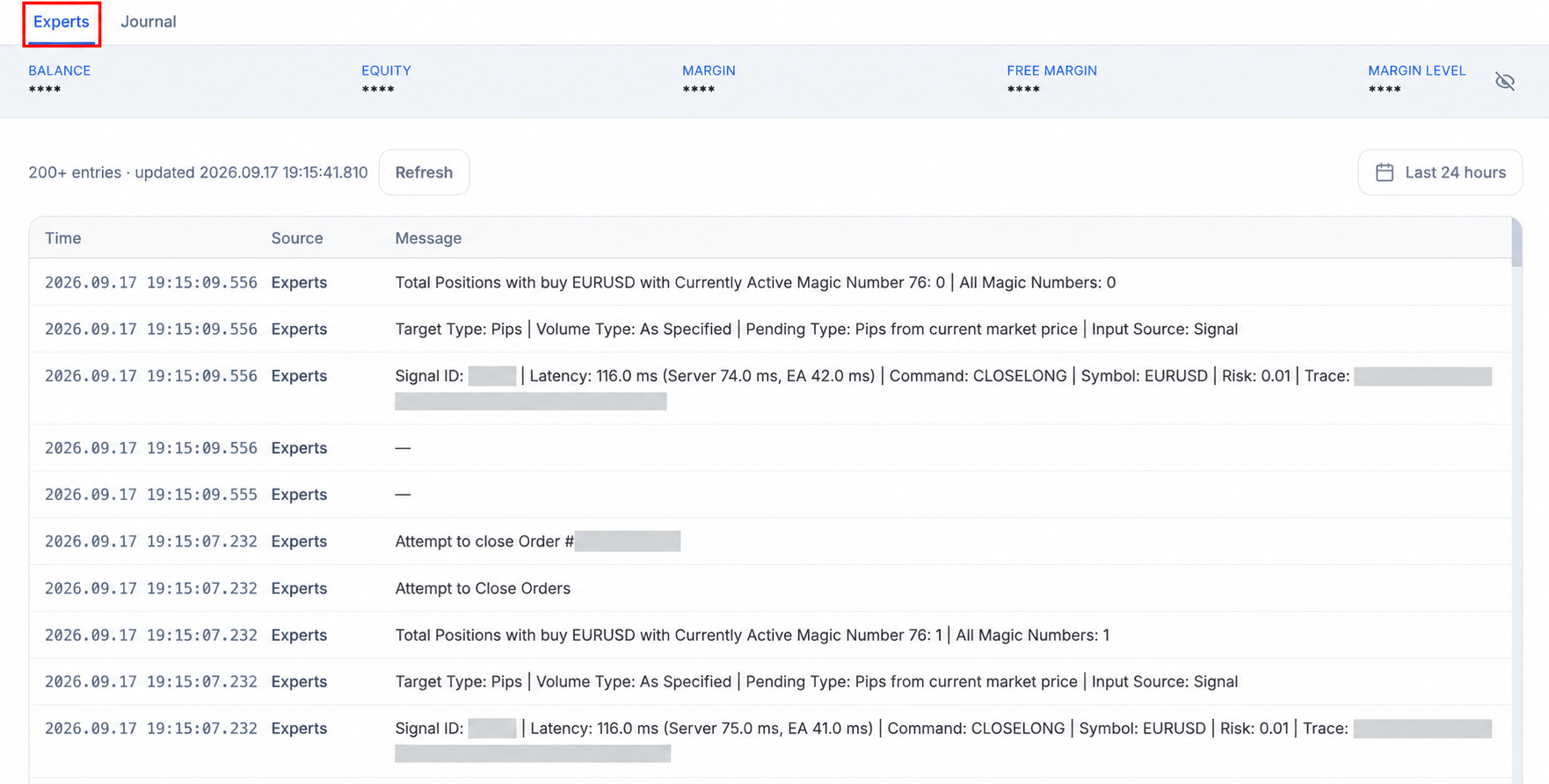
Before any retry, inspect positions and history. A missing notification does not prove the earlier request failed. Follow An alert is missing or EA errors for the failed stage.
Finish the exercise
Section titled “Finish the exercise”Close the course demo position through the broker interface. Confirm it has closed, keep PC demo connection paused, and turn Enable PineConnector messages off in the current chart Inputs. Turning the input off alone does not stop a saved alert.
Check your understanding: TradingView and Bridge both show the event, but no position appears. Is the course test complete?
No. Check the intended account’s positions and history, then the matching Experts and Journal records. The missing broker outcome must be explained before retrying. You have verified earlier stages, not the complete order path.
Complete means: your own new event, matching processing record and expected demo broker outcome have been checked, with no unintended duplicate. If a stage remains unverified, keep that stage pending and the trading alert paused.