
Choose trade size and protective stops
Choose explicit volume, stop and target fields, then check their units in the message preview.
Builds on: Build a message


You will choose what a size number means, add a stop and target, and inspect the resulting message. Continue with My message practice from Build a PineConnector message. This preview still cannot send alerts.
The starting 0.01 lots, 20 pips and 40 pips are examples. A broker may reject those values or apply different contract specifications. Your permitted size and distances must come from the intended instrument and account.
Start with a fixed number of lots
Section titled “Start with a fixed number of lots”Open Size and protection
Open the Settings gear beside Pine practice: message preview, then select Inputs. Find Size and protection.
Choose Fixed lots. Set Lots (Fixed lots only) to 0.01 for this preview exercise.
Volume method is Fixed lots; the separate lots and cash/percent inputs are visible.
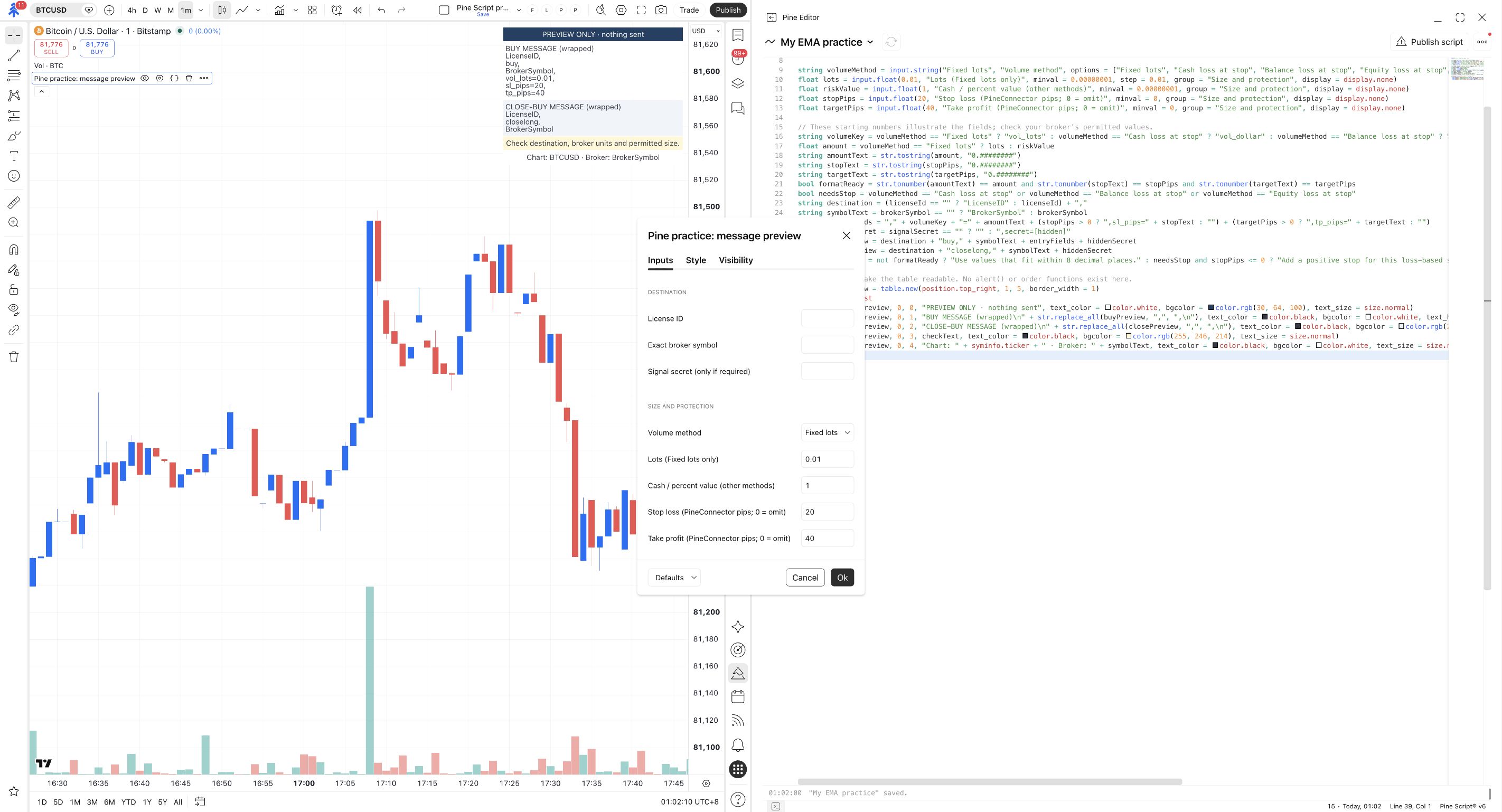
Fixed lots uses the Lots field. The Cash / percent value field is ignored in this mode. In the preview, look for vol_lots=0.01, not risk=0.01.
Add explicit stop and target distances
Set Stop loss (PineConnector pips; 0 = omit) to 20 and Take profit (PineConnector pips; 0 = omit) to 40. Click Ok.
Read the buy preview. It should end with the size, stop and target fields below, followed by a hidden-secret marker only if you supplied a secret.
The preview contains sl_pips=20 and tp_pips=40.
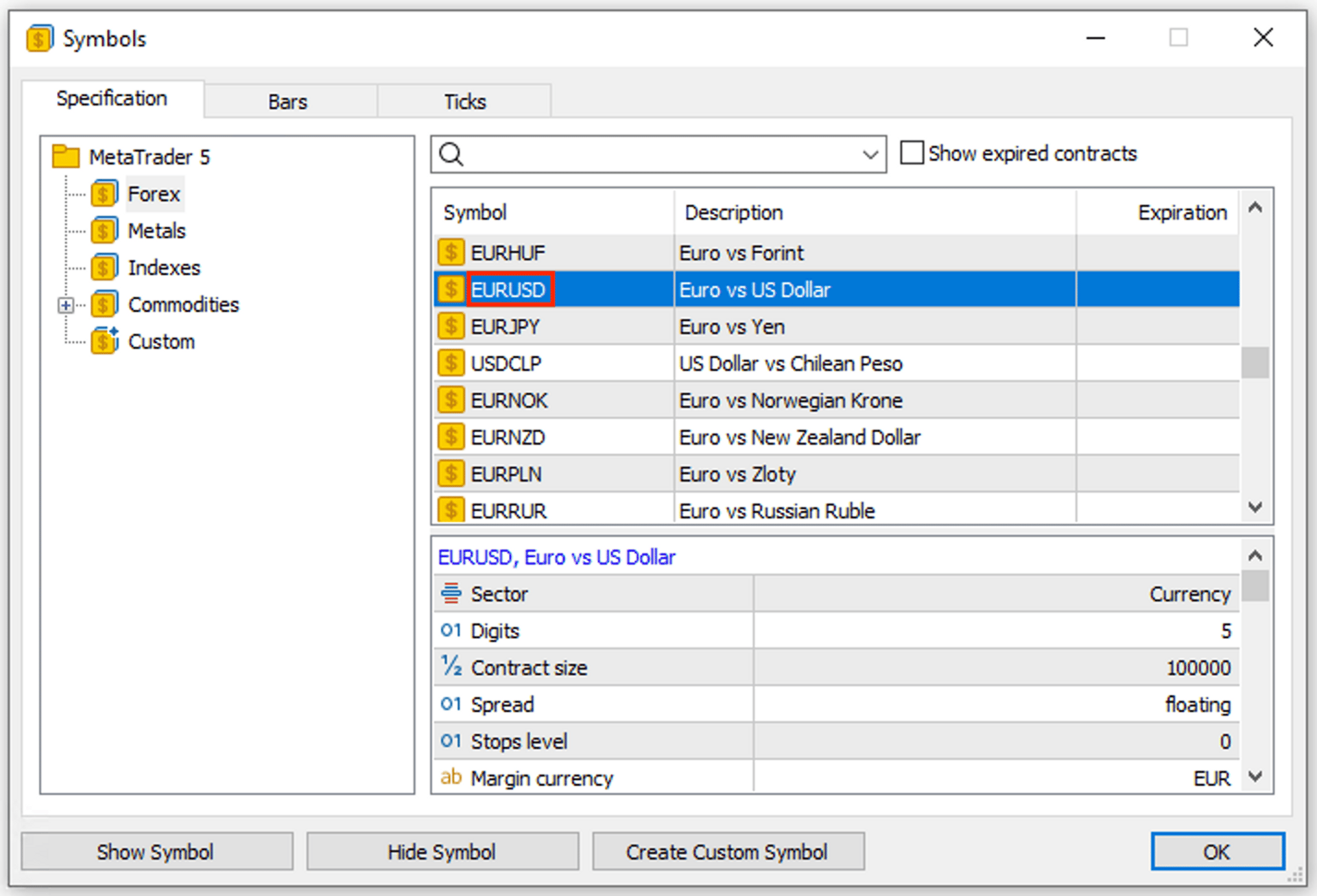
One PineConnector pip is ten broker-symbol points. On five-decimal EURUSD, 20 pips is a price distance of 0.00200. Do not carry that price distance over to BTCUSD, gold or an index. The point size belongs to the broker symbol, not the chart’s name. Pip units
Read the broker's contract specification
On desktop MT5, find the instrument in Market Watch, right-click it and open Specification. On another broker interface, open that instrument’s contract details. MetaTrader’s specification guide
Compare your intended lot size and distances with the broker’s requirements. If you cannot find these values, ask the broker before connecting a trading alert.
You have the permitted lot minimum, maximum and increment, plus the point size and stop-distance rules.
Change the sizing method, not just the number
Section titled “Change the sizing method, not just the number”The same number can mean very different things. Select one method for an entry:
| Volume method | Input used | Message field | Meaning of 1 |
|---|---|---|---|
| Fixed lots | Lots | vol_lots= |
One lot. |
| Cash loss at stop | Cash / percent value | vol_dollar= |
One unit of the receiving account’s currency planned at the stop. |
| Balance loss at stop | Cash / percent value | vol_pct_bal_loss= |
1% of balance planned at the stop. |
| Equity loss at stop | Cash / percent value | vol_pct_eq_loss= |
1% of equity planned at the stop. |
| Balance as margin | Cash / percent value | vol_pct_bal_margin= |
1% of balance allocated as margin; not a 1% loss limit. |
Cash loss, balance loss and equity loss require a positive stop in the same message. The EA calculates their lot size using the stop distance and broker details. Execution, costs and broker limits can change the actual loss. Volume reference
Preview a cash-loss instruction
Return to Inputs. Choose Cash loss at stop, set Cash / percent value to 20, and keep the stop at 20. Click Ok.
The request now means a planned loss of about 20 in account currency at the stop. It does not mean 20 lots, and it does not always mean US dollars.
The size field changes to vol_dollar=20; the stop field remains sl_pips=20.
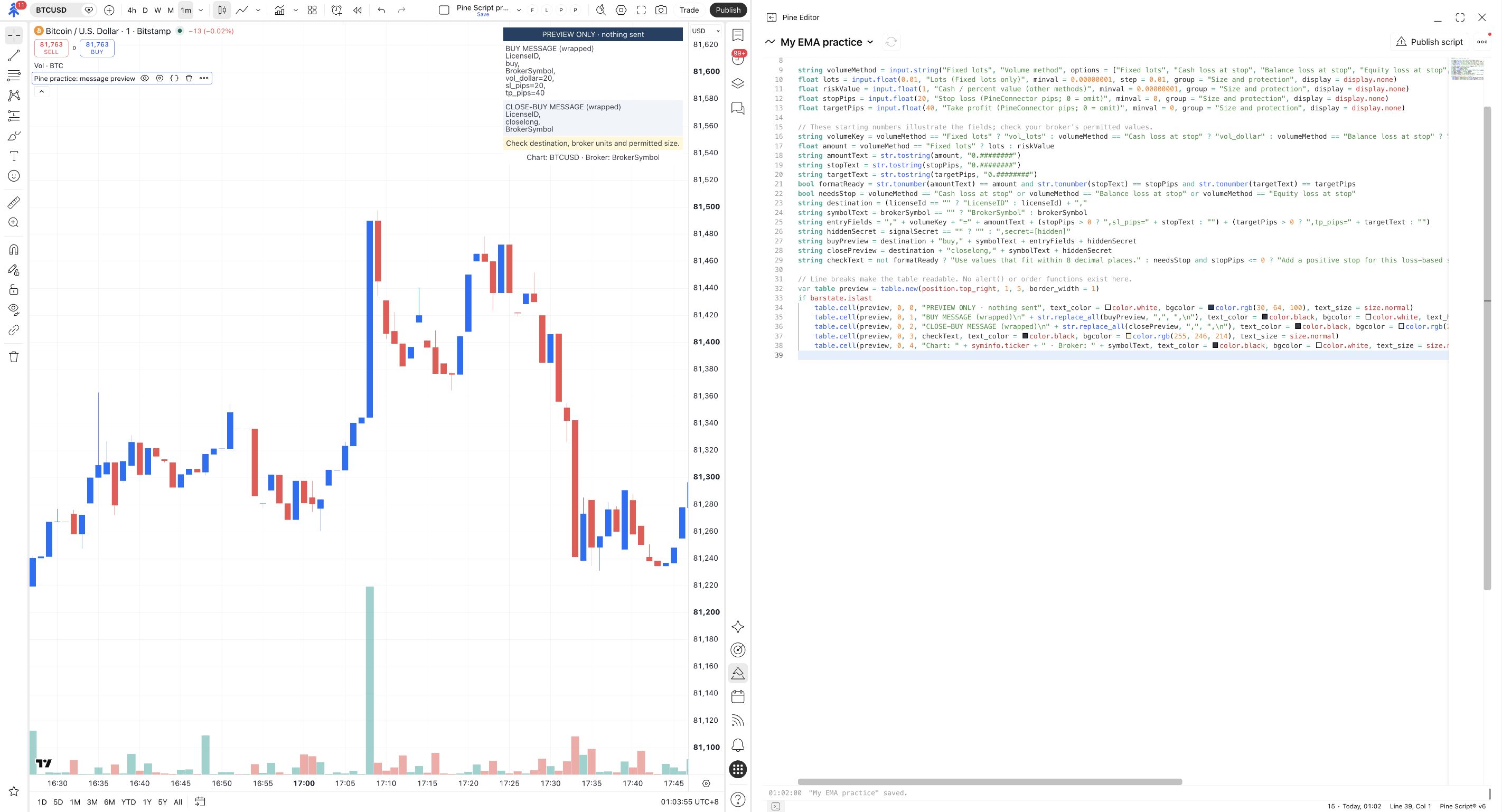
The preview builds the instruction; it does not calculate the broker’s final lot size. Verify the actual volume at the broker in the demo lesson.
Find an invalid combination without sending it
While still using Cash loss at stop, set the stop to 0 and click Ok. Read the yellow check row.
Restore a positive stop before continuing. Do not copy a loss-based instruction with its stop missing.
The preview asks you to add a positive stop for this loss-based size.
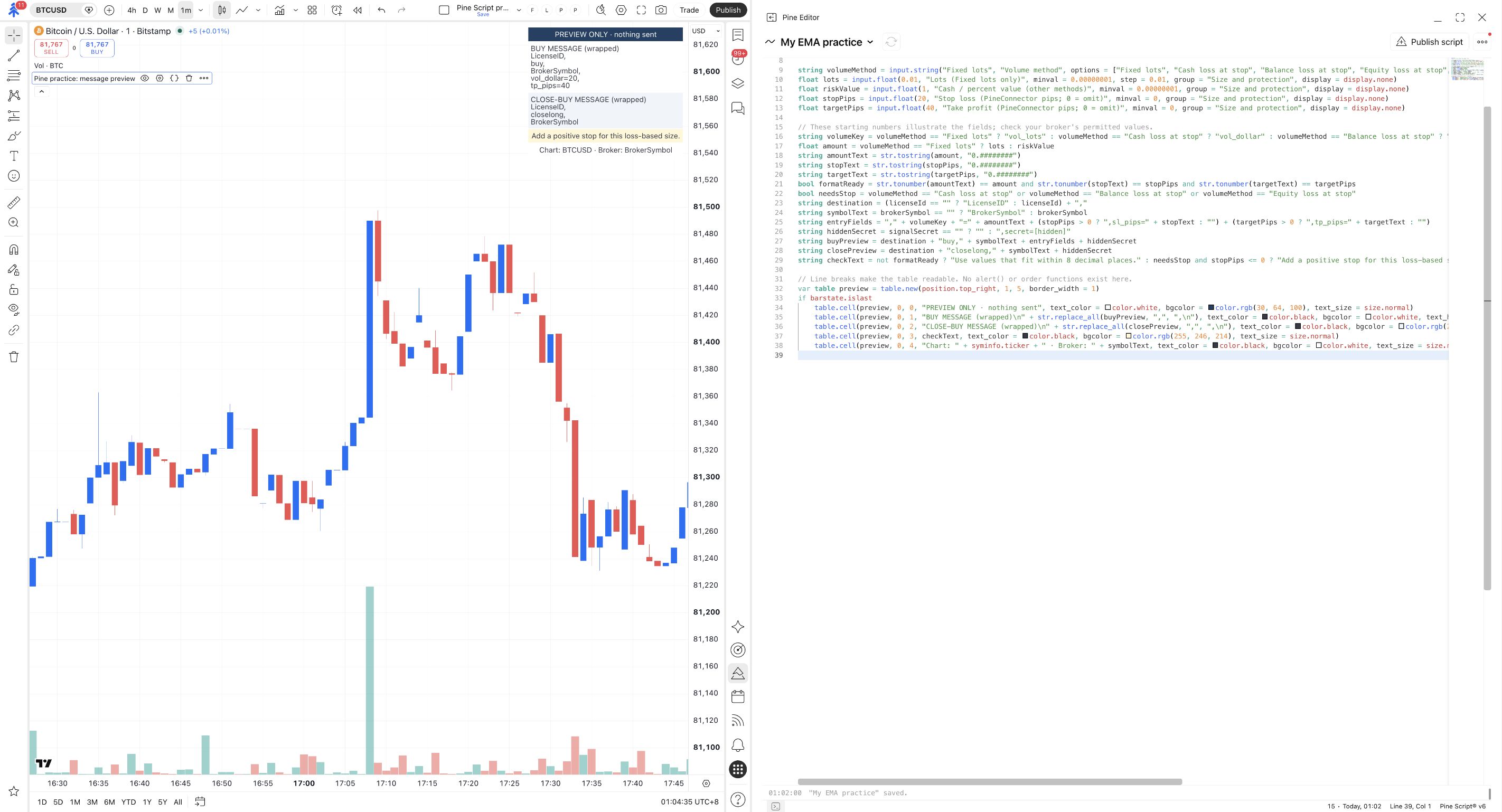
In this course’s scripts, zero means the script omits that stop or target field. The receiving EA’s configuration may still supply a value, so an omitted field does not establish that a resulting position has no stop or target. It is also not a command to remove an existing broker stop. Inspect the receiving settings and actual position; existing-position modifications use separate commands.
Recognise older settings when you meet them
Section titled “Recognise older settings when you meet them”New examples use explicit fields. In an older message, risk= follows the EA’s Volume Type, while sl= and tp= follow Target Type. The EA’s Setting also controls whether legacy values come from the signal or EA inputs. risk=1 therefore has no universal meaning.
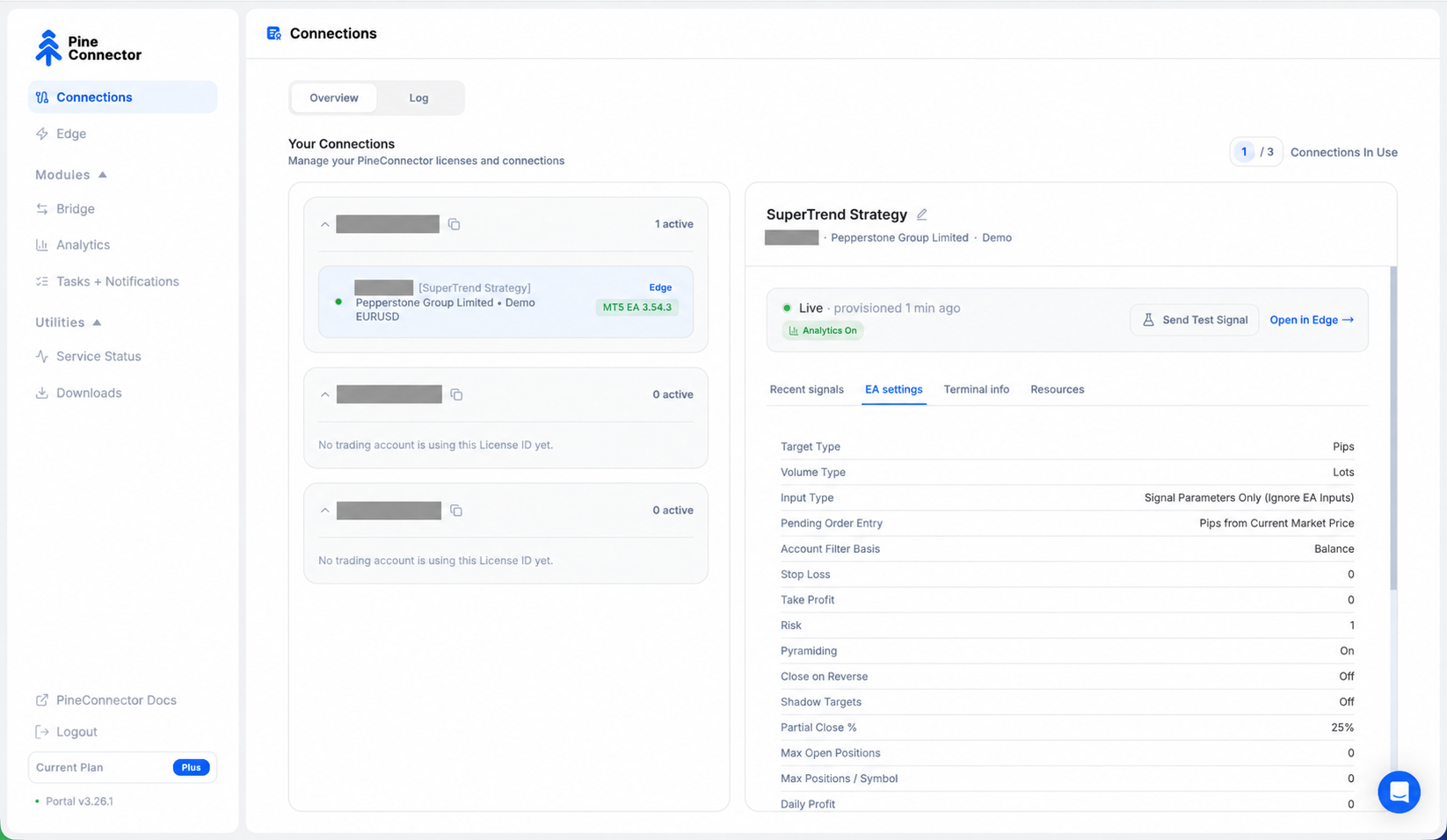
Current explicit fields take priority over the corresponding setting-dependent values, but do not bypass pyramiding, position scope, filters or broker rules. On Edge, open Edge → instance → EA Settings and follow the hosted settings procedure to review and confirm changes; applying restarts the terminal and interrupts signal execution. Changing a local EA does not change Edge. Ask Support if the available controls do not establish support for your workflow. See EA settings for the setting meanings.
Try it yourself
Section titled “Try it yourself”In the preview, request a planned cash loss of 20 with a 40-pip stop. Which fields should you see? Does the preview prove what lot size the broker will receive?
Check your answer
You should see vol_dollar=20,sl_pips=40, plus any target you retained. The Lots field is ignored. The preview does not prove the resulting lot size; the receiving EA calculates it from broker information, and the broker may apply volume limits.
Before the next lesson, choose your intended demo settings deliberately. Keep a note of the method, its value, stop units and target. Do not carry the exercise’s cash-loss settings into a connected alert by accident.