
Adapt an existing strategy
Add a complete PineConnector order-fill mapping to the practice strategy, then identify what must be reviewed in another script.


Connect the practice strategy’s simulated entry fill to a PineConnector buy message and its simulated closing fill to closelong. You will first inspect those messages with sending disabled, then use the same method to review an editable strategy of your own.
Before this lesson, complete Choose strategy alert events, Choose trade size and protective stops, and Verify your setup on demo. Keep earlier alerts for this practice workflow paused.
Load the complete adapted example
Section titled “Load the complete adapted example”The example is a long-only market-entry/full-close strategy. It has one TradingView entry ID, no pyramiding, no partial exits and no pending orders. Its PineConnector size is a separate fixed-lot input.
Replace the strategy practice source
Click Copy below. In TradingView, open Pine and your saved My strategy practice file. Click inside its code, select all with Cmd+A / Ctrl+A, and paste.
My strategy practice contains the complete adapted source, with no missing fragments.
Save and inspect the chart
Save with Cmd+S / Ctrl+S or the cloud-shaped Save control. Use Update on chart if shown. If the strategy is not already on the chart, click Add to chart.
The chart lists Pine practice: connect strategy and its message preview says ORDER-FILL ALERTS OFF.
The strategy can still draw simulated trades while its external messages are off. That is expected. The preview does not send a test order.
Fill in the destination and size
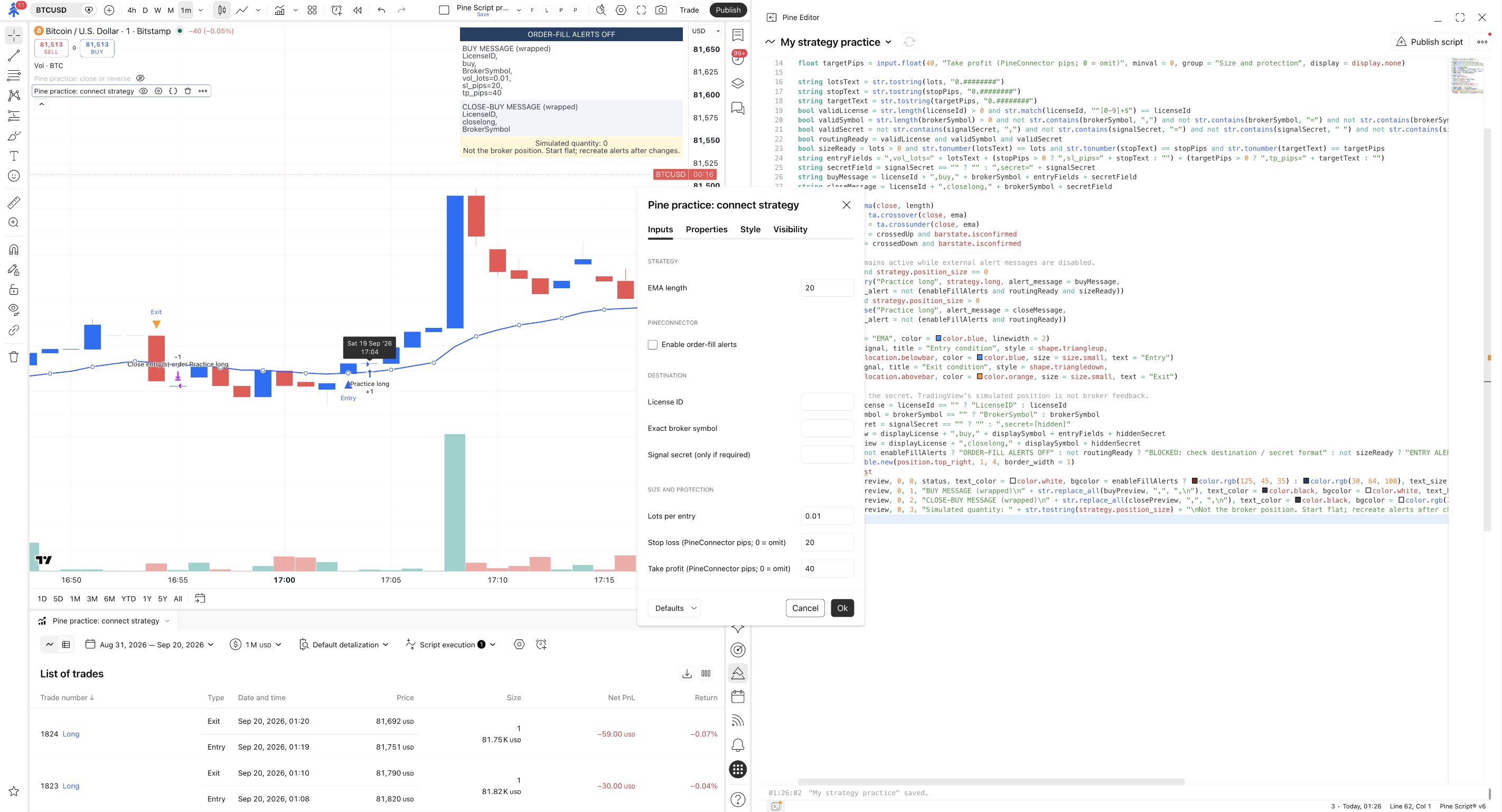
Section titled “Fill in the destination and size”Hover over Pine practice: connect strategy in the chart’s indicator list, click its Settings gear, and open Inputs. Keep the enable switch unchecked while filling in the other fields.
The captured destination fields are blank deliberately. Enter your own values privately; neither the screenshot nor a placeholder identifies a valid receiving account.
| Input | What to enter or check |
|---|---|
| EMA length | Start at 20 to match the practice rules. |
| License ID | The ID for the intended demo connection. The source leaves this blank. |
| Exact broker symbol | The receiving broker’s exact symbol, including suffix and case. This also starts blank. |
| Signal secret (only if required) | Your configured Signal Authentication key when required. It is added to both entry and close messages. |
| Lots per entry | Your chosen demo size in MetaTrader lots. 0.01 is an example default, not a universal broker minimum. |
| Stop loss (PineConnector pips; 0 = omit) | A broker-valid protective distance. The example starts at 20; 0 omits the stop parameter. |
| Take profit (PineConnector pips; 0 = omit) | A broker-valid target distance. The example starts at 40; 0 omits that parameter. |
Click Ok and read the two preview rows on the chart. Check the action, destination symbol, lot size and protective distances. A supplied secret appears as [hidden] in the preview; the actual message uses the value you entered. Keep the saved script and its inputs private.
Zero means this script sends no corresponding field. It does not guarantee an unprotected new broker position: the receiving EA’s input-source settings may supply their own stop or target. Check Signal or EA inputs and the actual broker outcome. Omitting a field also does not remove protection from an existing position.
Match the market as well as the spelling. If the chart is BTCUSD, choose the corresponding broker market. Typing an unrelated symbol changes the request’s destination; it does not turn a Bitcoin condition into a signal calculated from that other market. If your broker has no suitable market, use a chart and broker symbol that correspond before continuing.
The format guards catch missing or malformed fields and numbers that would be rounded when converted to message text. They do not verify your License ID, authentication key, broker symbol, minimum lot size or stop distance. Review the actual Syntax reference and the account you are using.
Read the entry and close mapping
Section titled “Read the entry and close mapping”| TradingView event | Attached message |
|---|---|
| The Practice long entry fills | buy, the exact broker symbol, vol_lots=, any positive sl_pips= / tp_pips=, and the optional secret. |
| The matching simulated full close fills | closelong, the exact broker symbol, and the optional secret. |
alert_message is attached to both order calls. Their disable_alert arguments keep messages off until enabled and correctly formatted. An invalid entry size blocks entry messages; it does not suppress a close message whose destination is valid.
The TradingView ID Practice long links the simulated entry and close. PineConnector’s closelong command instead acts on matching broker buys within the receiving EA’s scope. It does not search MetaTrader for that Pine order ID. Review Magic Restriction and strategy separation before sharing a destination with other trading activity.
Create the matching order-fill alert
Section titled “Create the matching order-fill alert”First inspect the behaviour checks in the next lesson. Keep the integration disabled until you can explain its entries, full closes, size and protective-stop behaviour.
Start with the intended scope flat
Read the preview’s Simulated quantity. If it is not 0, keep sending off while waiting for the strategy’s closing event. Separately inspect the actual demo account. The preview is not broker-position feedback.
The strategy's simulated quantity is 0, and the receiving demo scope has no existing position to confuse with the test.
Use a dedicated empty demo scope. Do not assume an old or unrelated position belongs to this strategy.
Enable the reviewed message route
Return to Settings → Inputs, turn on Enable order-fill alerts, and click Ok. If the preview reports a blocked field, correct it before creating the alert.
The preview says that future simulated fills can send broker instructions.
Select fills and the attached message
Open Create alert. Select Pine practice: connect strategy and Order fills only if an event selector is shown. A strategy with no alert() calls may omit that selector.
Open Message, replace its contents with the placeholder below, give the alert a recognisable demo name, then click Apply.
The alert uses the strategy's order-fill messages rather than a generic description.
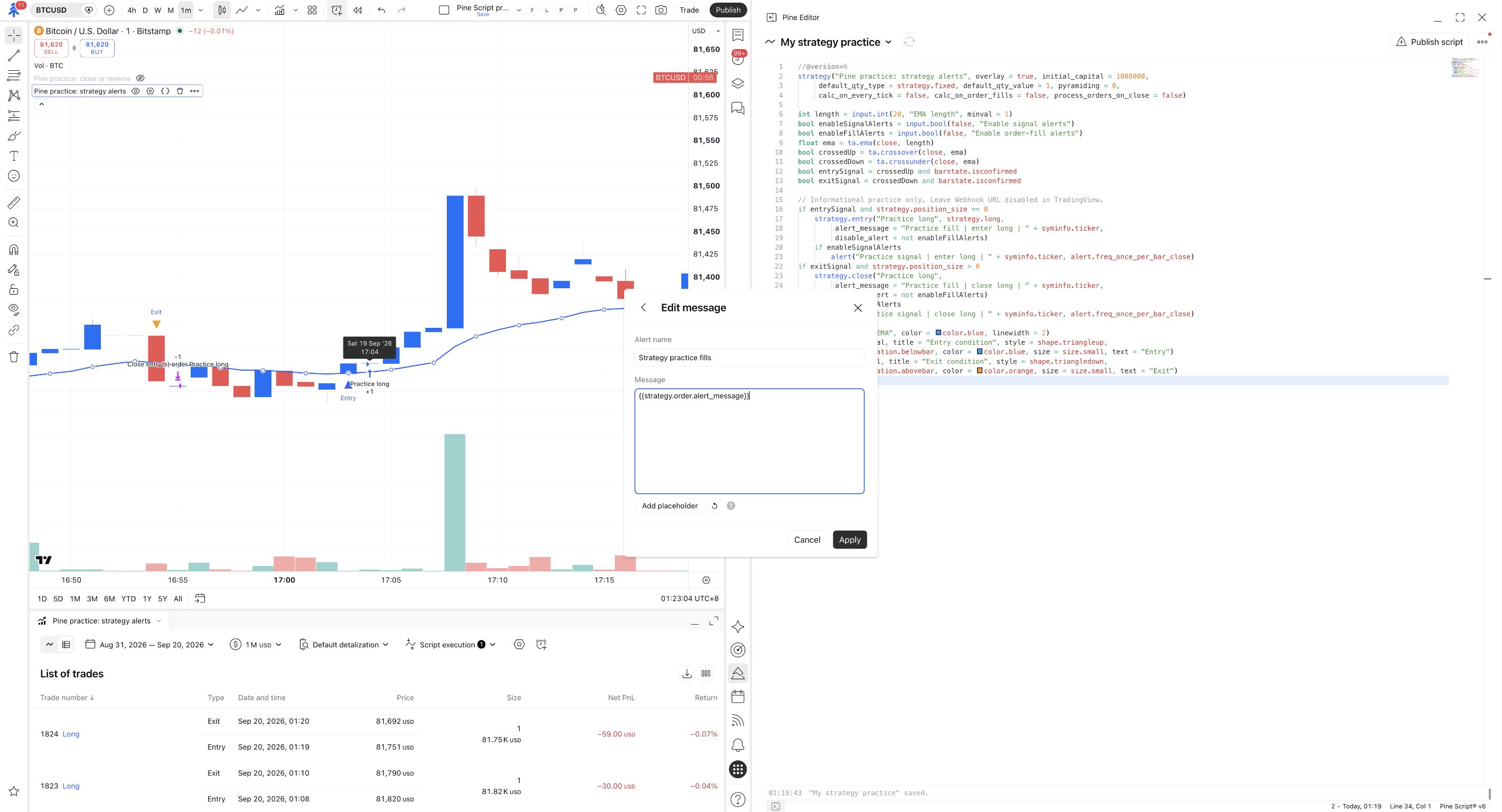
This picture is from the informational Strategy practice fills exercise. Use the same Message field and exact placeholder here, but choose the appropriate new name below for this connection test. The pictured name does not select an account or make an alert a demo alert.
Choose the same symbol and interval as the reviewed chart. For an initial message-only check, keep Webhook URL off, name the alert Strategy message review, and inspect a future entry and close in TradingView’s log. No broker outcome is established by that check.
For the connected demo test, pause the message-only alert first. Confirm the simulator and intended broker scope are flat, then create a fresh alert named PC strategy demo with the same reviewed inputs and order-fill placeholder. In Notifications, enable Webhook URL and use the destination from Verify your setup on demo. Follow that lesson’s account, symbol, size, protective-order and duplicate checks. Keep entry and automated-exit evidence separate; pausing after an entry stops later alert messages, so it does not also verify the strategy’s exit path. TradingView requires two-factor authentication for webhook alerts.
If an outcome differs, pause the alert and inspect the existing position and logs before repeating anything. Changing an input or switching the chart’s enable setting off does not update the already-running alert; use Update automation without duplicate alerts.
Finish the strategy test deliberately
Section titled “Finish the strategy test deliberately”- In Alerts, pause Strategy message review, PC strategy demo, and any replacement you created for this exercise. Verify Stopped manually for each one. Leave unrelated alerts alone.
- Inspect the intended demo scope’s positions and history. Record whether the strategy’s close, a protective order or another action closed the test position. A paused alert cannot be relied on to send a later exit.
- If a course test position remains open, close that position through the broker interface as described in the demo cleanup, then confirm the result. Keep an unobserved automated exit recorded as pending; a manual cleanup is a different action.
- Open Pine practice: connect strategy → Settings → Inputs, uncheck Enable order-fill alerts, and click Ok. Check the saved-alert list again; the chart switch alone does not stop an older snapshot.
Apply the method to your own source
Section titled “Apply the method to your own source”Start with a separate editable copy of the original, saved under a new name. For an open-source chart script, its Source code control opens the source; use Create a working copy when TradingView presents it. A protected script needs an author-provided alert route or no-code setup. TradingView’s source-access guide
Before adding messages, locate every order-producing call and write down the intended broker action. Only apply this example’s mapping directly when the original has the same simple market-entry/full-close behaviour. Keep the strategy’s conditions and calculations intact while adding its alert-message layer.
| If the original uses… | Resolve this before connecting it |
|---|---|
| Partial exits | Map the requested partial quantity explicitly. A closelong message requests a full close of matching buys. |
| Limit/stop entries or cancellations | Decide whether to mirror a simulated fill or place and manage a broker pending order. Those are different workflows. |
| Several entry IDs or pyramiding | Identify which broker positions each entry and exit may affect. A Pine ID alone does not isolate a broker position. |
| Short entries or reversals | Define the close/open sequence and size for each direction; this long-only source does not implement them. |
| Several License IDs | Review every receiving account and duplicate route. Repeating a message creates another request. |
If the code needs a language upgrade, do that separately. For a compiling v5 script, TradingView documents Manage script → Convert code to v6. Compare its behaviour after conversion; changing //@version alone is not a migration. For older versions, follow Convert Pine Script versions and the official v6 migration guide.
Check your understanding
Section titled “Check your understanding”Your broker stop closes the demo buy, but TradingView still shows a simulated long position. Has strategy.position_size failed to update a live broker position?
Show the answer
No. It reports TradingView’s simulated position. The broker-side stop is separate from this strategy’s simulated exit rule. Pause and inspect the mismatch; the code has no broker feedback that can resynchronise the two positions.