
Update automation without duplicate alerts
Pause an old alert, review a changed script and create one replacement with a fresh saved configuration.

You will change one input, prove which configuration is saved in each alert, and replace the old alert without leaving two copies running.
Use the course’s isolated demo setup. Start with the course position closed and its connected alert paused. Pausing an alert does not close a broker position or cancel its broker-side stop/target. Resolve the demo position first; do not depend on a paused alert to send its later exit.
Separate the three places a change can live
Section titled “Separate the three places a change can live”| Place | What it contains |
|---|---|
| Saved script file | The source and its input defaults. |
| Script instance on the chart | The source applied to that chart and the currently selected Inputs. |
| Running TradingView alert | A saved copy of the script, Inputs, symbol and interval from alert creation. |
Changing the file or chart does not rewrite an existing alert’s saved copy. Input defaults can also differ from retained chart-input values. TradingView’s saved-alert behaviour
Pause and identify the old version
Section titled “Pause and identify the old version”Find the exact alert you are replacing
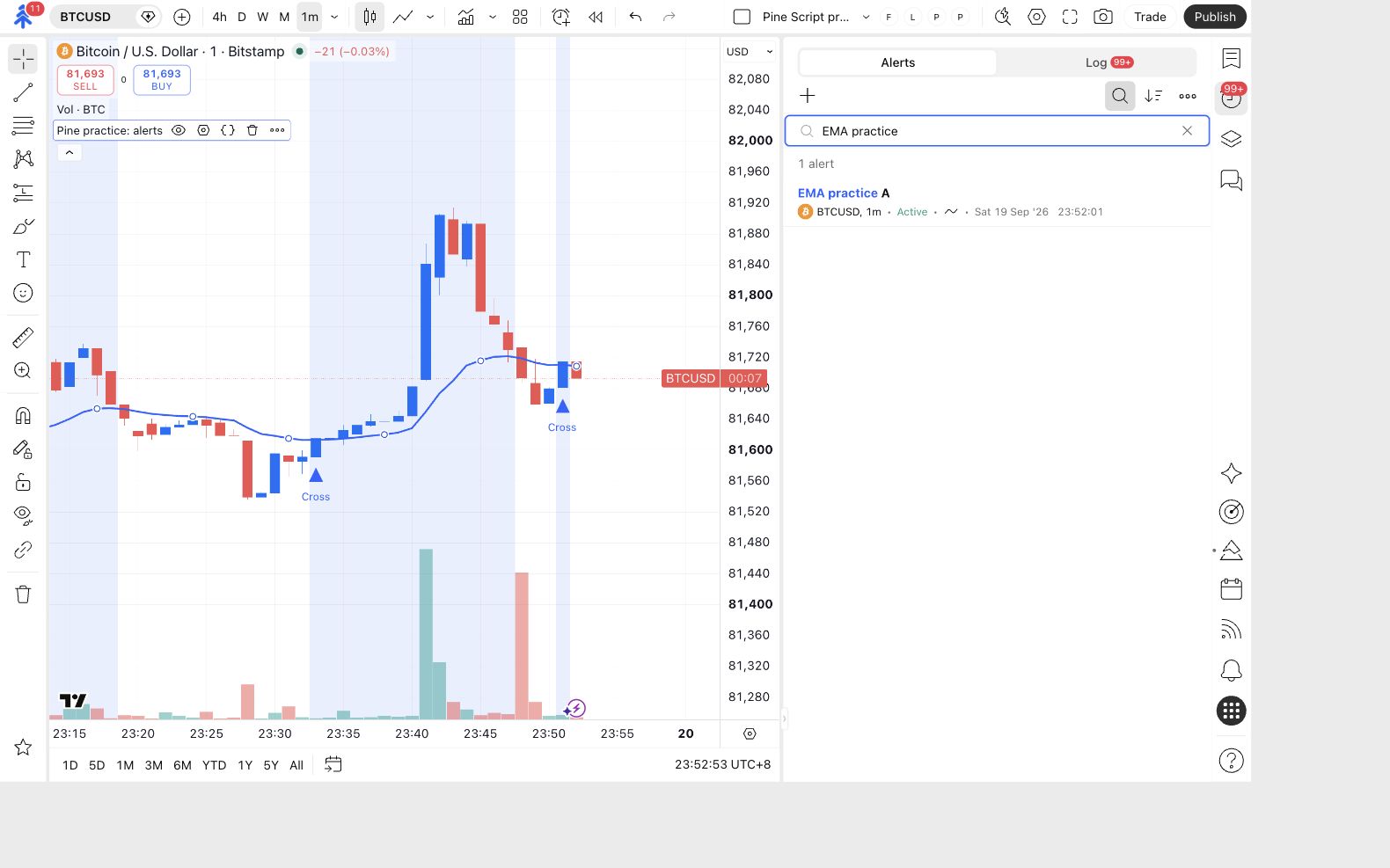
Open Alerts on TradingView’s right-hand toolbar. Use the search control to find your course alerts. Check their names, symbols, intervals and statuses before changing anything.
Write a short private note of the old version’s EMA length, destination, size and protection. Do not put License IDs or secrets in a public screenshot or support example.
You have identified PC demo connection and any older course copies on this symbol.
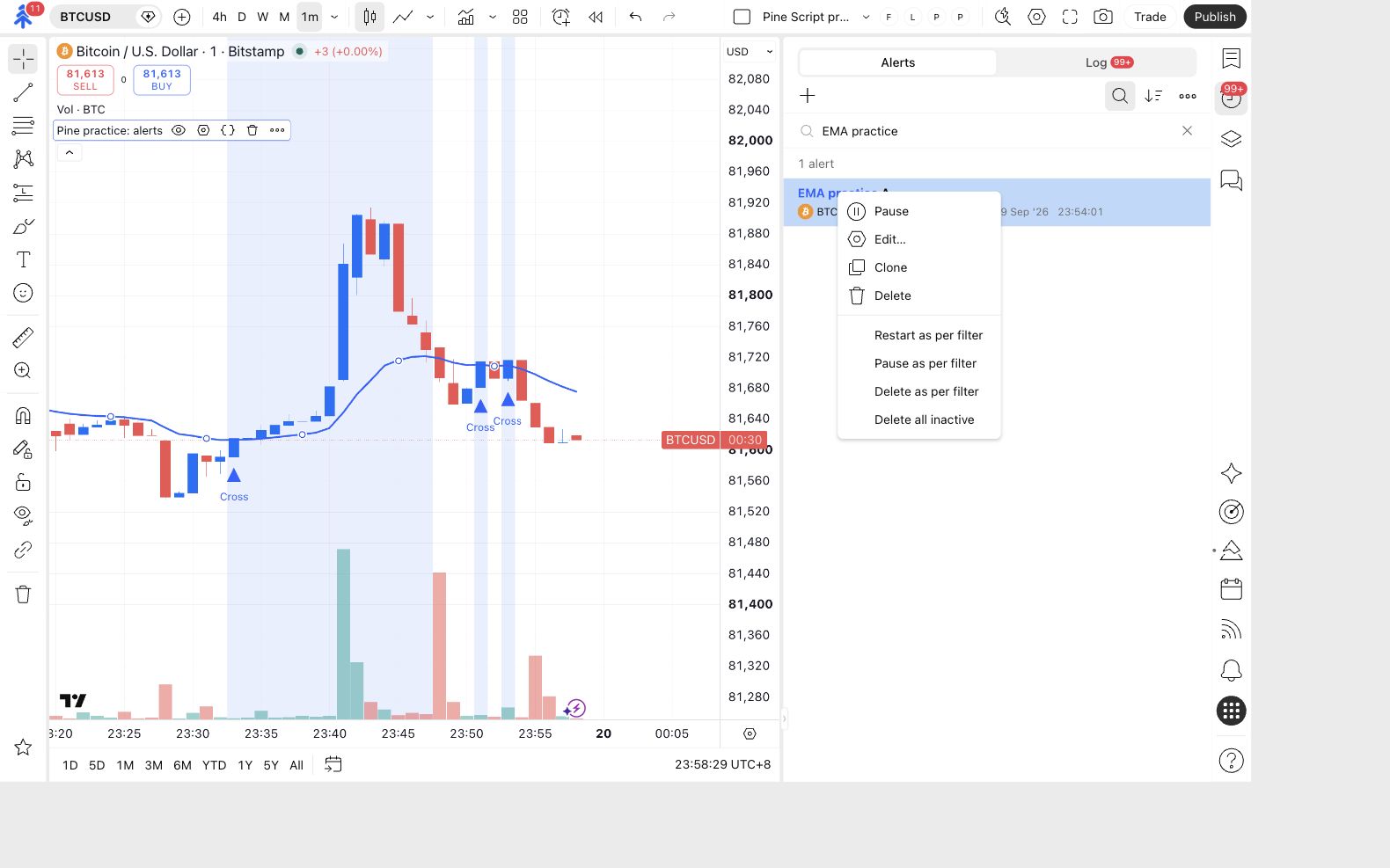
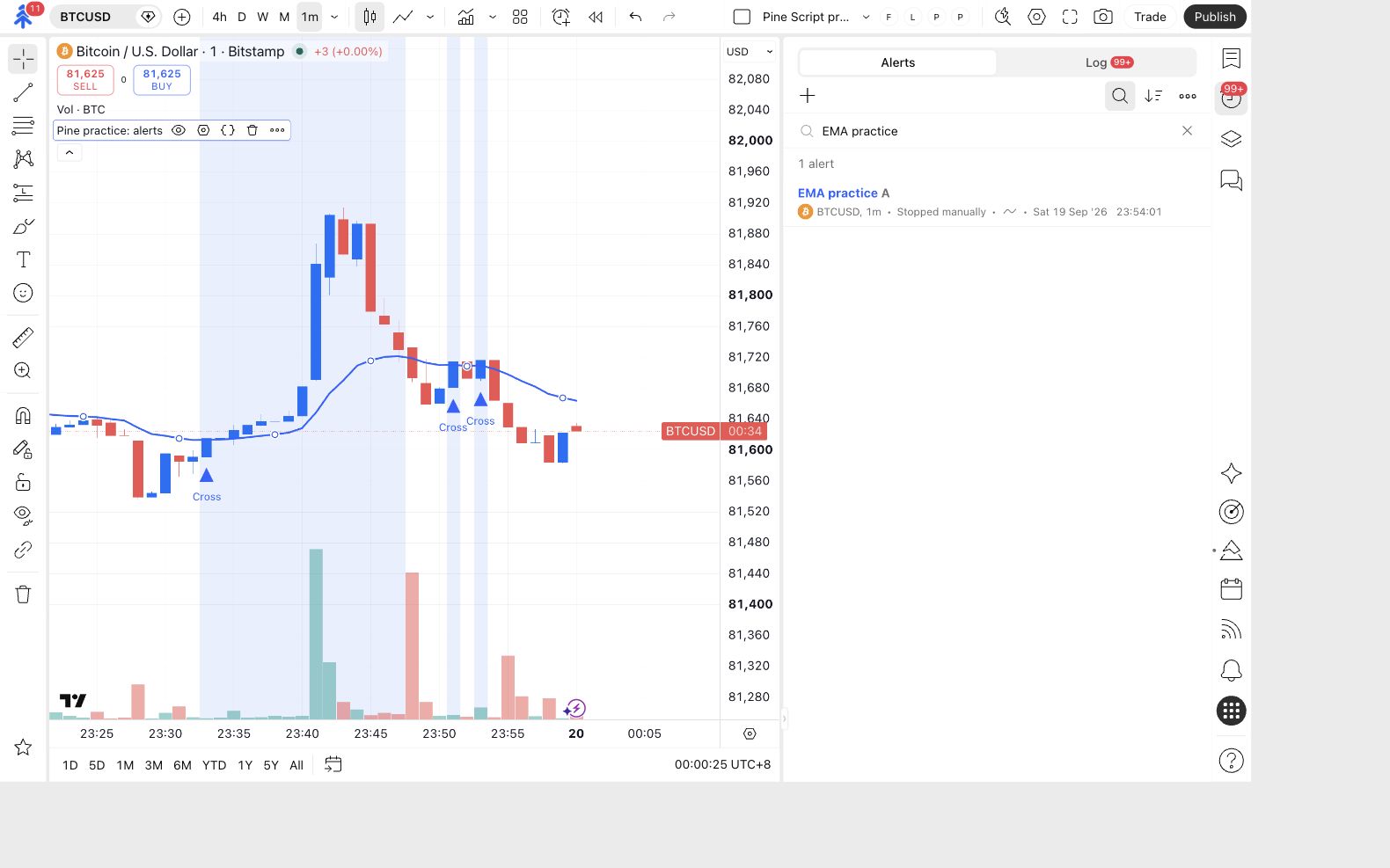
The pictures in this section show the earlier EMA practice A/B exercise. Use the same controls on the specific PC demo connection alert you are updating.
Pause the old alert and verify its state
Right-click the old course alert and choose Pause. Check its status in the list. Pause any duplicate course copies as well.
Then open Pine practice: connect indicator → Settings → Inputs and uncheck Enable PineConnector messages. The chart switch and the saved-alert status are separate checks.
The old alert shows Stopped manually.
Make and inspect one change
Section titled “Make and inspect one change”Change the chart's EMA length
In My connection practice, open the chart indicator’s Inputs. Change EMA length from 20 to 50 and click Ok.
Confirm the blue EMA and the chart’s markers are recalculated. Reopen Inputs to check the displayed value. Leave Enable PineConnector messages off while inspecting.
The chart uses length 50 while the old alert remains stopped with its earlier saved values.
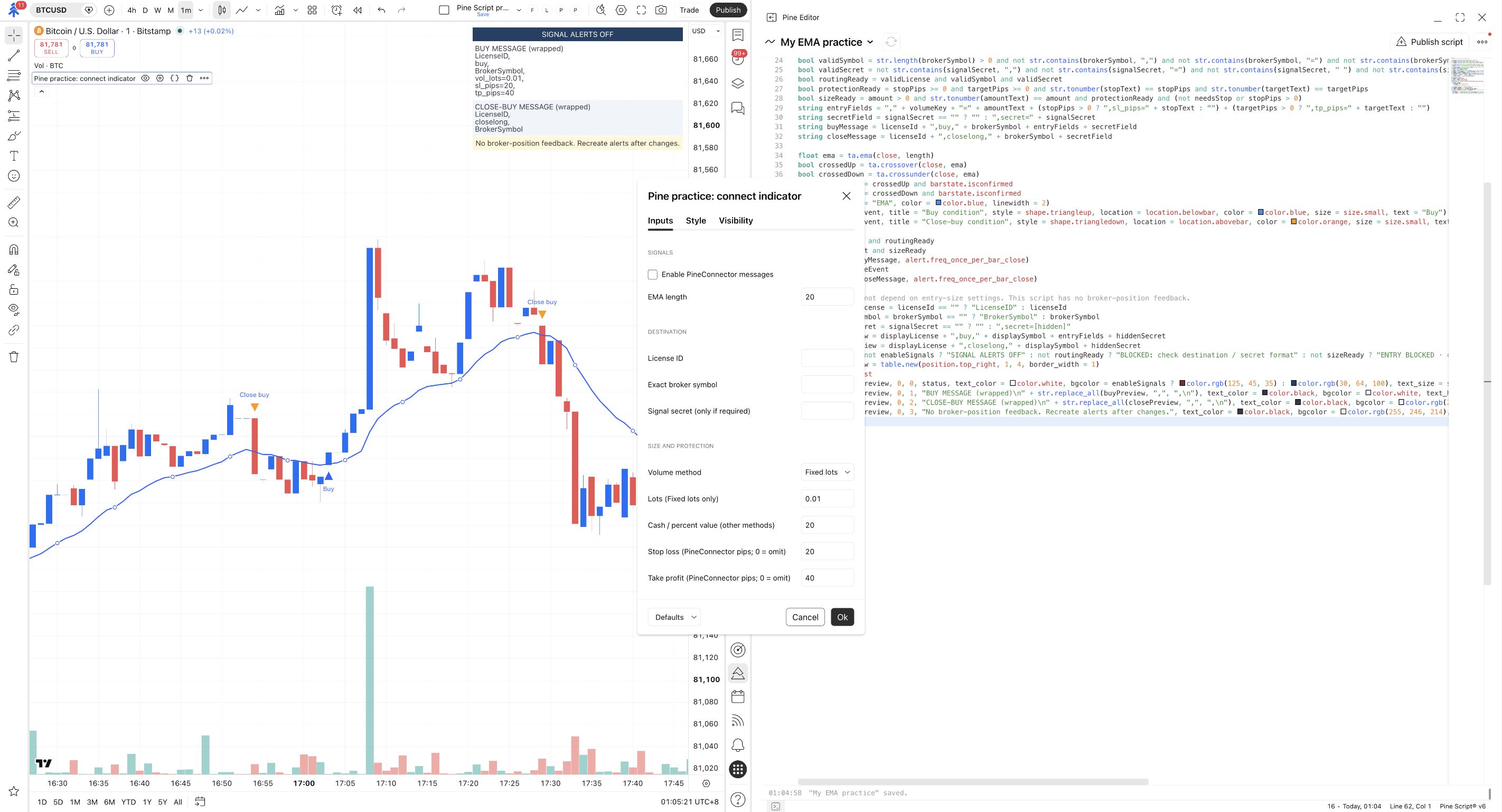
The screenshot is a control-location reference. Enter 50 for this exercise and read your current Inputs; do not assume that the pictured value is your new state.
Review the complete message settings again
Review License ID, Exact broker symbol, authentication, Volume method, the relevant size value, stop and target. Compare both chart message previews with your private note.
If you changed source instead of an input, save it and apply it to the chart first. Then review Inputs explicitly: replacing source does not guarantee that earlier selections reset to the new defaults.
Only the intended signal rule changed; the receiving destination, size and protection are still correct.
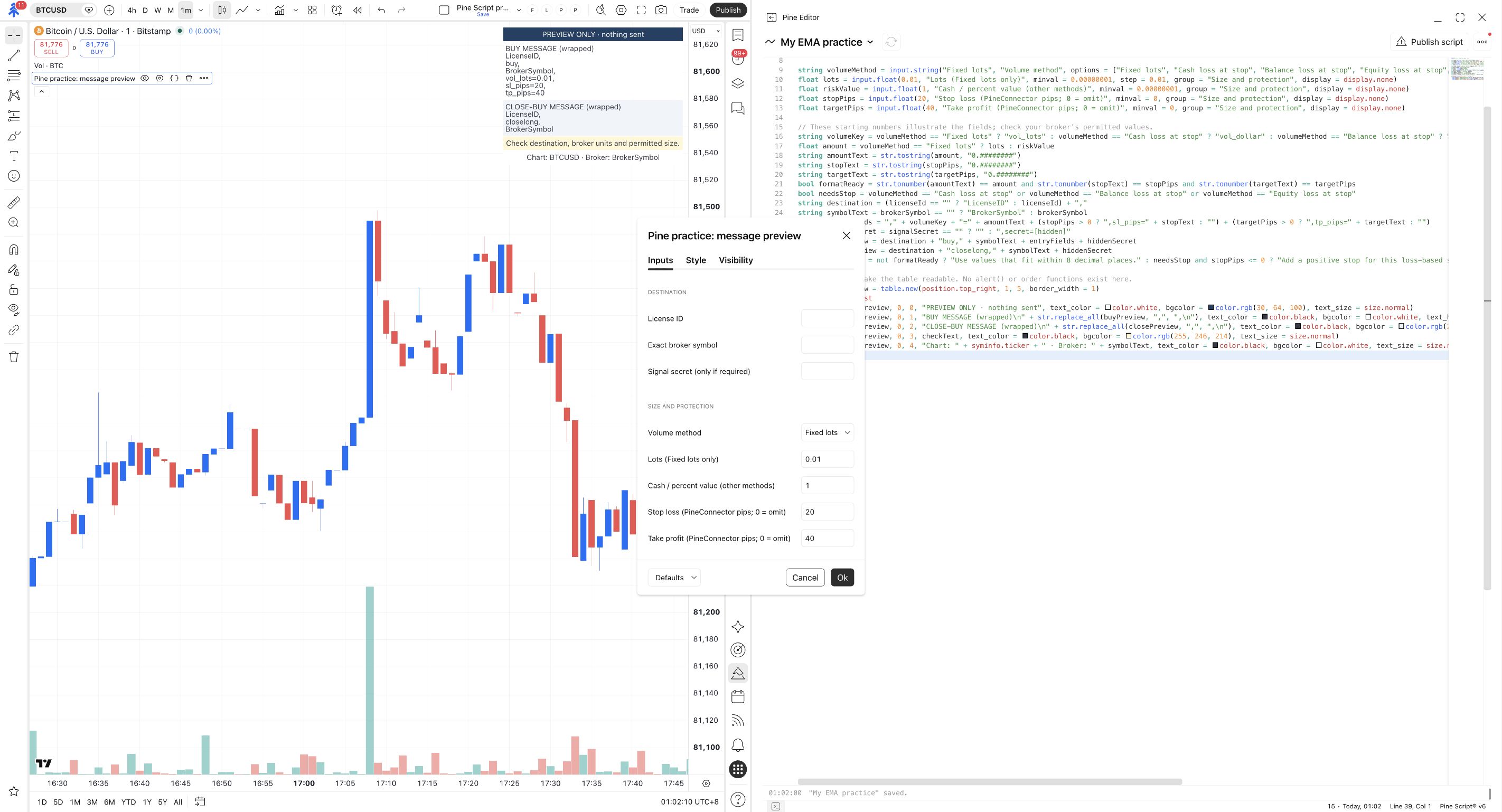
For an example you can explore without touching your account, create a sample alert below, change its input, and compare the saved panel. This illustration does not inspect or alter your real TradingView alert.
Create a sample alert, then change the script settings. Which values does the saved alert keep?
- EMA length
- 20
- Message label
- Practice A
No sample alert yet. Create one to capture the current script values.
- EMA length
- —
- Message label
- —
First, create the sample alert with length 20 and message label Practice A.
This is a local teaching example, not a TradingView control. Practice A and Practice B are message labels, not PineConnector commands. Nothing is sent and no orders are placed.
Read the complete example
- Begin with EMA length 20 and message label Practice A. There is no saved sample alert yet.
- Create the sample alert. It captures length 20 and message label Practice A.
- Change the current script to length 50 and message label Practice B. The saved sample alert still contains length 20 and Practice A.
- Recreate the sample alert. It now captures length 50 and Practice B. Further script changes still do not update it automatically.
Create one fresh saved copy
Section titled “Create one fresh saved copy”Enable the reviewed inputs before creating the replacement
Check Enable PineConnector messages in the chart Inputs and click Ok. Confirm the preview status and messages.
Now create a new alert from Pine practice: connect indicator. Select Any alert() function call, check the symbol and interval, and name it PC demo connection v2.
The current chart is prepared with the intended length 50 configuration.
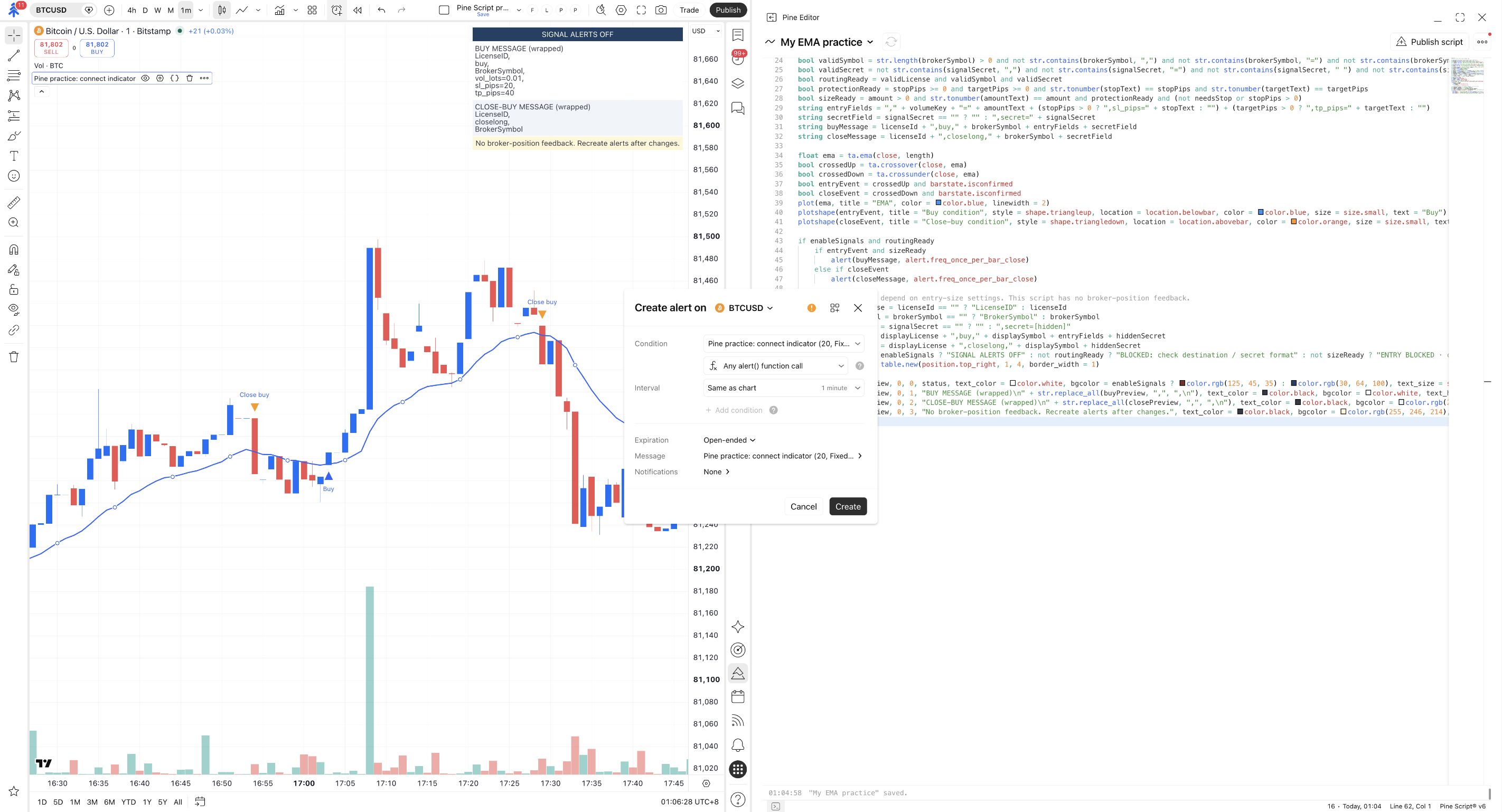
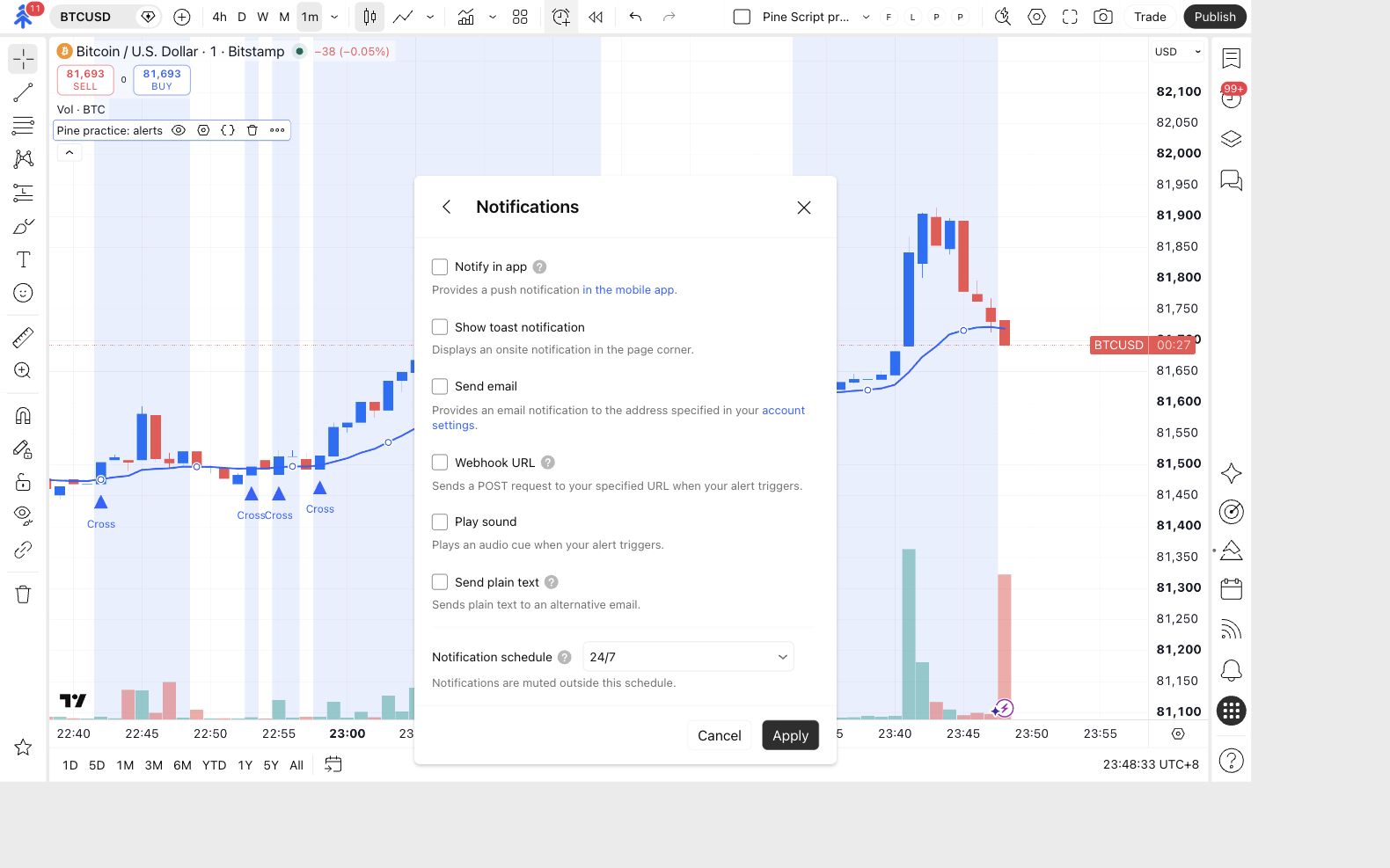
Review the replacement without broker delivery first
In the new alert’s Notifications, clear Webhook URL. For quiet practice, leave other notification options off. Apply the settings, review the new alert, then click Create once.
Keep the old alert stopped. Inspect the new alert’s next event in Log using the message checks from Connect your indicator.
The new alert records future events in TradingView while Webhook URL remains off.
No new event yet? The changed EMA can change when the next crossing happens. Do not treat an empty log as proof of failure or create several extra alerts. Pause the replacement if you cannot continue observing it.
Repeat the demo delivery check when the review is complete
Pause the disconnected v2 review alert. Follow Verify your demo setup to create a fresh connected alert from the reviewed Inputs, using a distinct name such as PC demo connection v2 verified.
Repeat the actual event, Bridge and broker checks. A changed input can change the trading events even when the message text looks the same.
One reviewed connected replacement is active; the earlier versions remain stopped.
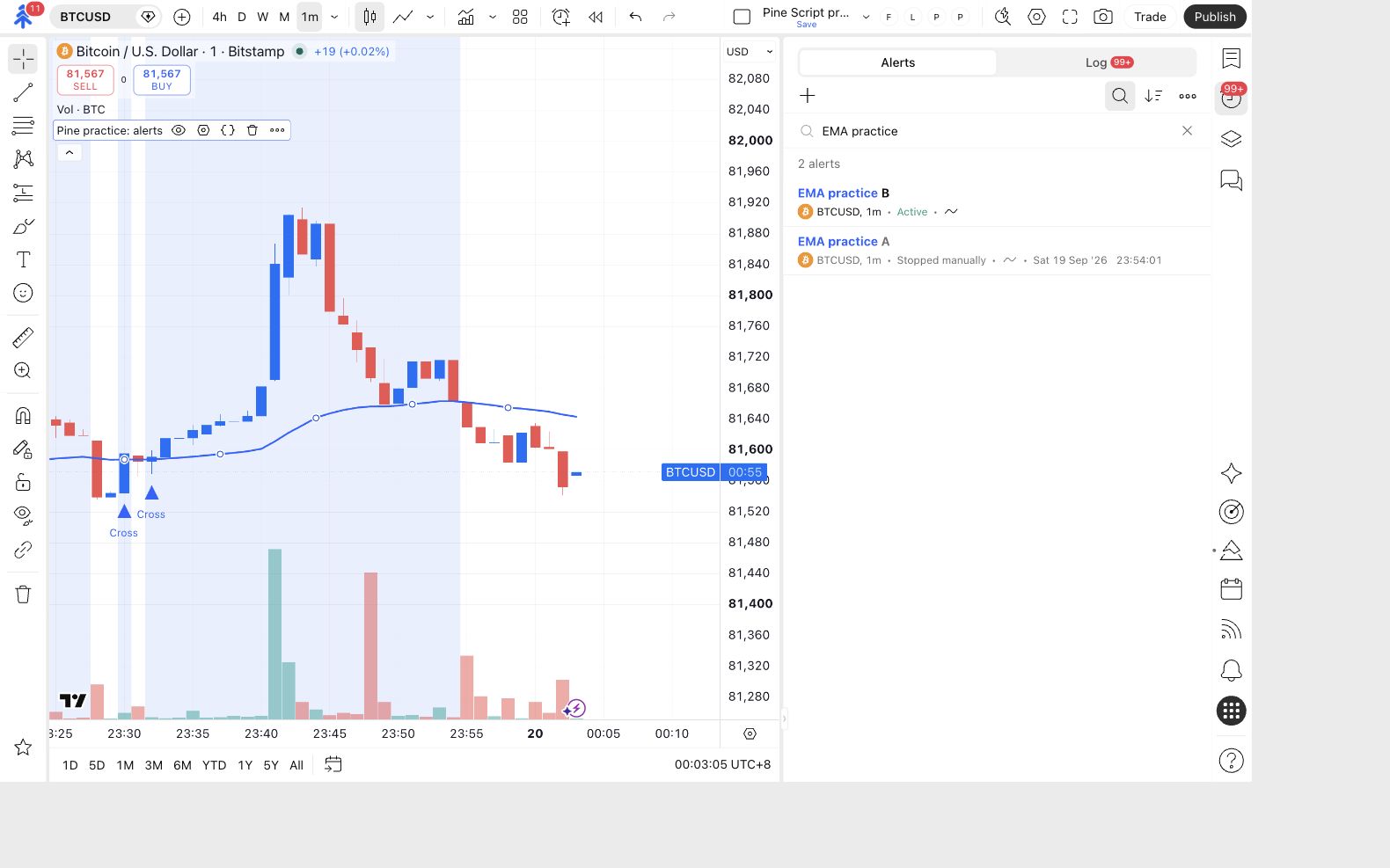
This earlier practice picture illustrates the intended one active replacement / old version stopped pattern. Confirm that pattern using your actual alert names. An alert saying Active has been created; it has not thereby passed the broker check.
Finish or undo the change
Section titled “Finish or undo the change”For the course exercise, close any resulting demo position, pause the replacement, verify Stopped manually, and turn Enable PineConnector messages off in the chart Inputs.
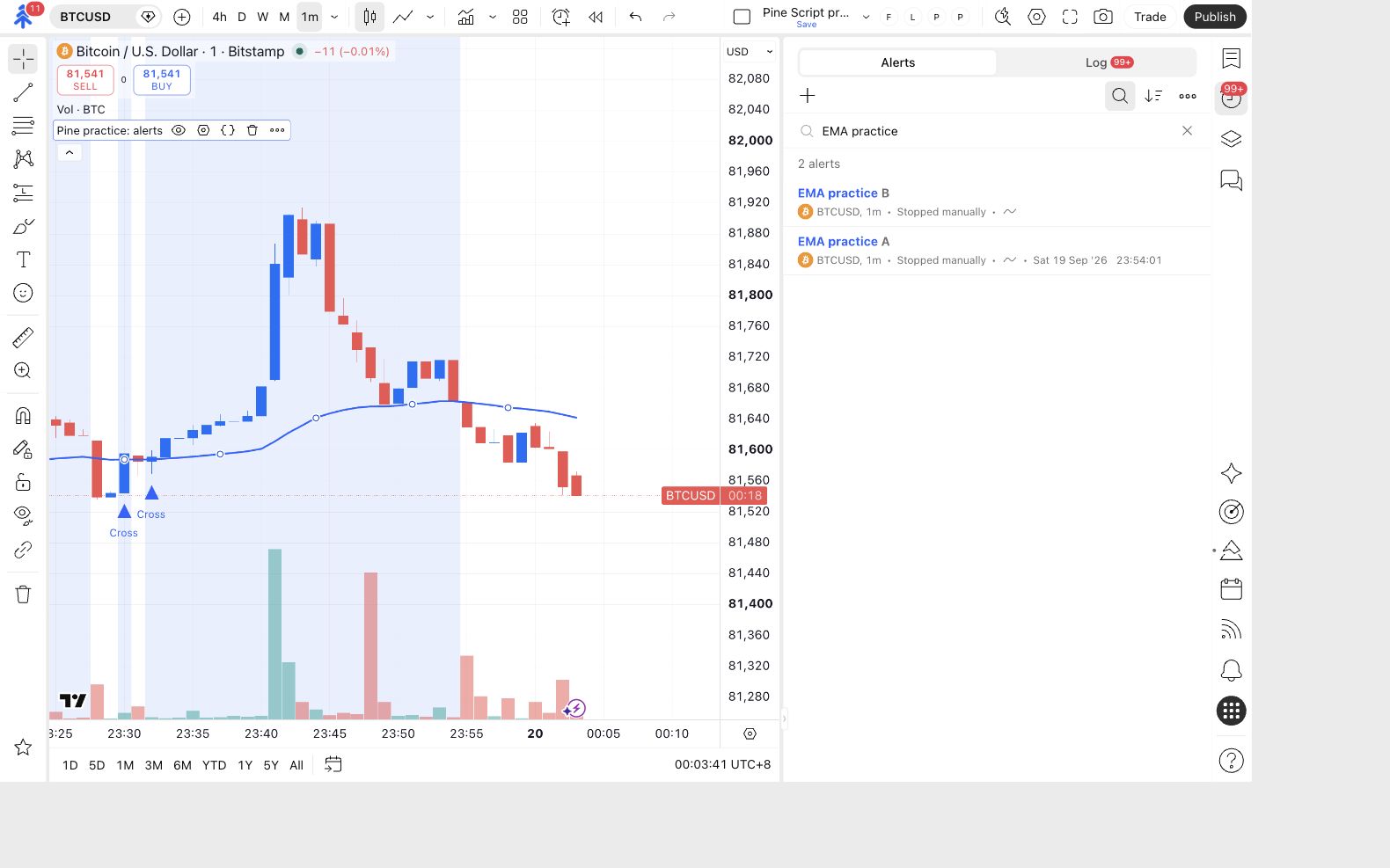
To return to length 20, first pause the changed alert and check the broker’s current position state. Restore the reviewed chart settings, then create and verify a fresh alert. Reverting code does not reverse an order that has already reached the broker, and restarting an old alert does not prove that its saved inputs match today’s chart.
Try it yourself
Section titled “Try it yourself”You changed the current script to length 50 and unchecked Enable PineConnector messages, but the old alert still shows Active. Can the old alert continue to generate messages?
Check your answer
Yes. It uses its saved script and Inputs. Pause that alert in the Alerts list and verify its status. The current chart’s switch does not rewrite the saved copy. Then review whether any earlier event reached the broker before proceeding.
Your completion check: you can identify which version each alert represents, keep old copies stopped, inspect the replacement’s actual output, and verify the demo outcome separately from its Active status.