
Connect your indicator
Inspect generated buy and close-buy messages in TradingView before enabling webhook delivery.
Builds on: Indicator alert methodsBuild a messageSize and protective stops


You will connect your entry and exit conditions to their messages, then inspect a future message in TradingView’s Log. Keep Webhook URL off throughout this lesson. PineConnector delivery begins in the next lesson.
Finish the message and sizing exercises first. For the live-message check, you need your intended demo connection’s License ID, exact broker symbol, reviewed sizing, any required signal secret, and an available TradingView script-alert slot. Without those, you can inspect the disabled chart preview and leave the live-message check pending.
Add the indicator that builds both messages
Section titled “Add the indicator that builds both messages”Create a new working copy
Pause earlier practice alerts. Open Pine, then choose Create new → Indicator from the script-name menu. Copy the complete script below and replace all starter code.
You have a separate indicator for the connection exercise.
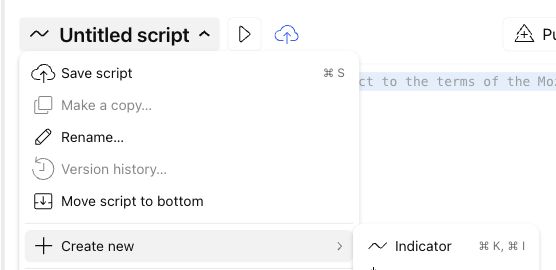
Save and add it to the chart
Save the new file as My connection practice. Click Add to chart. Remove or hide an earlier course indicator if it makes the new labels difficult to identify.
Markers are visible while alerts are off? That is expected. The script can draw historical conditions without generating a running alert or sending messages.
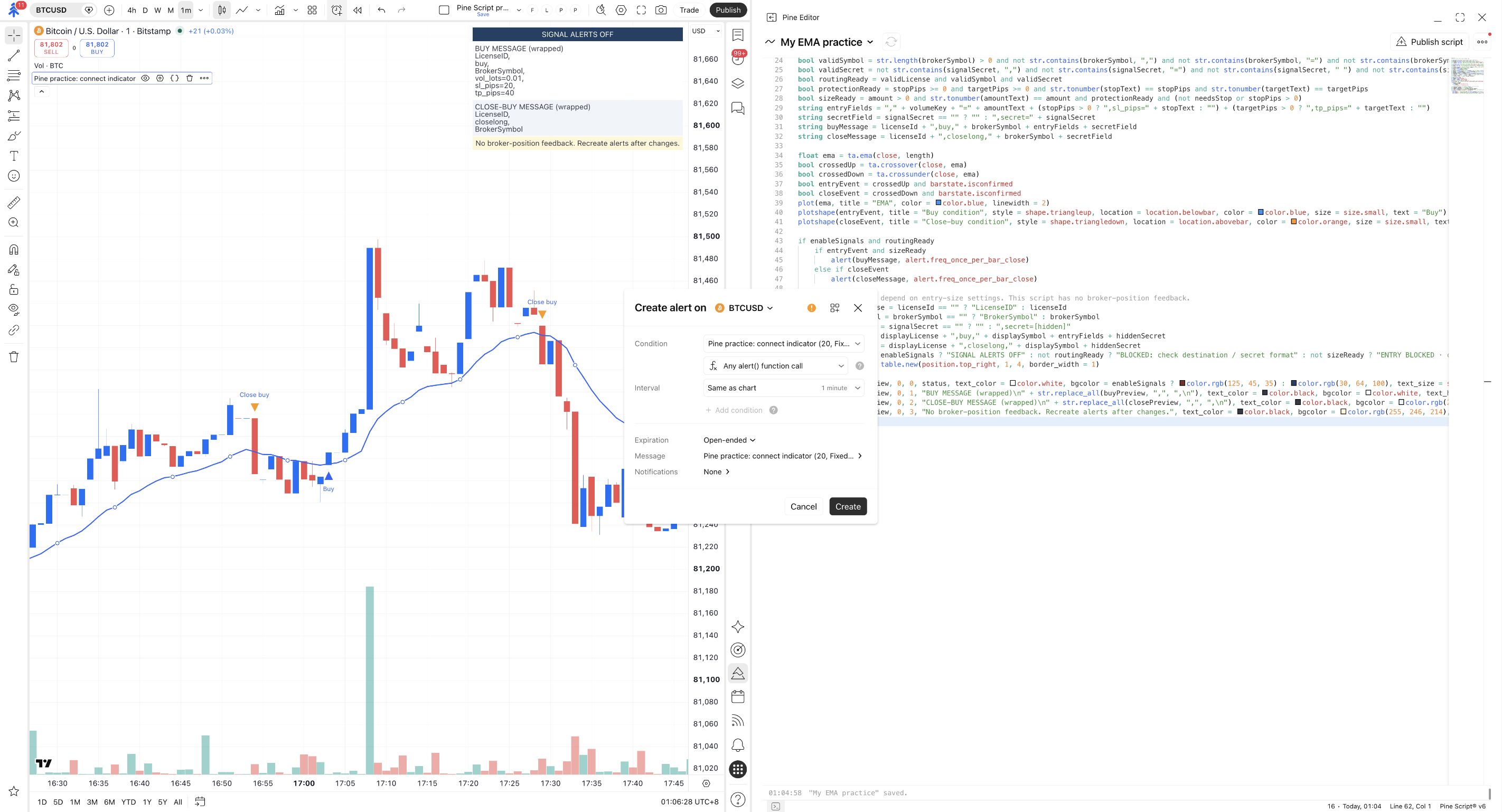
Pine practice: connect indicator appears with an EMA, Buy and Close buy markers, and a SIGNAL ALERTS OFF table.
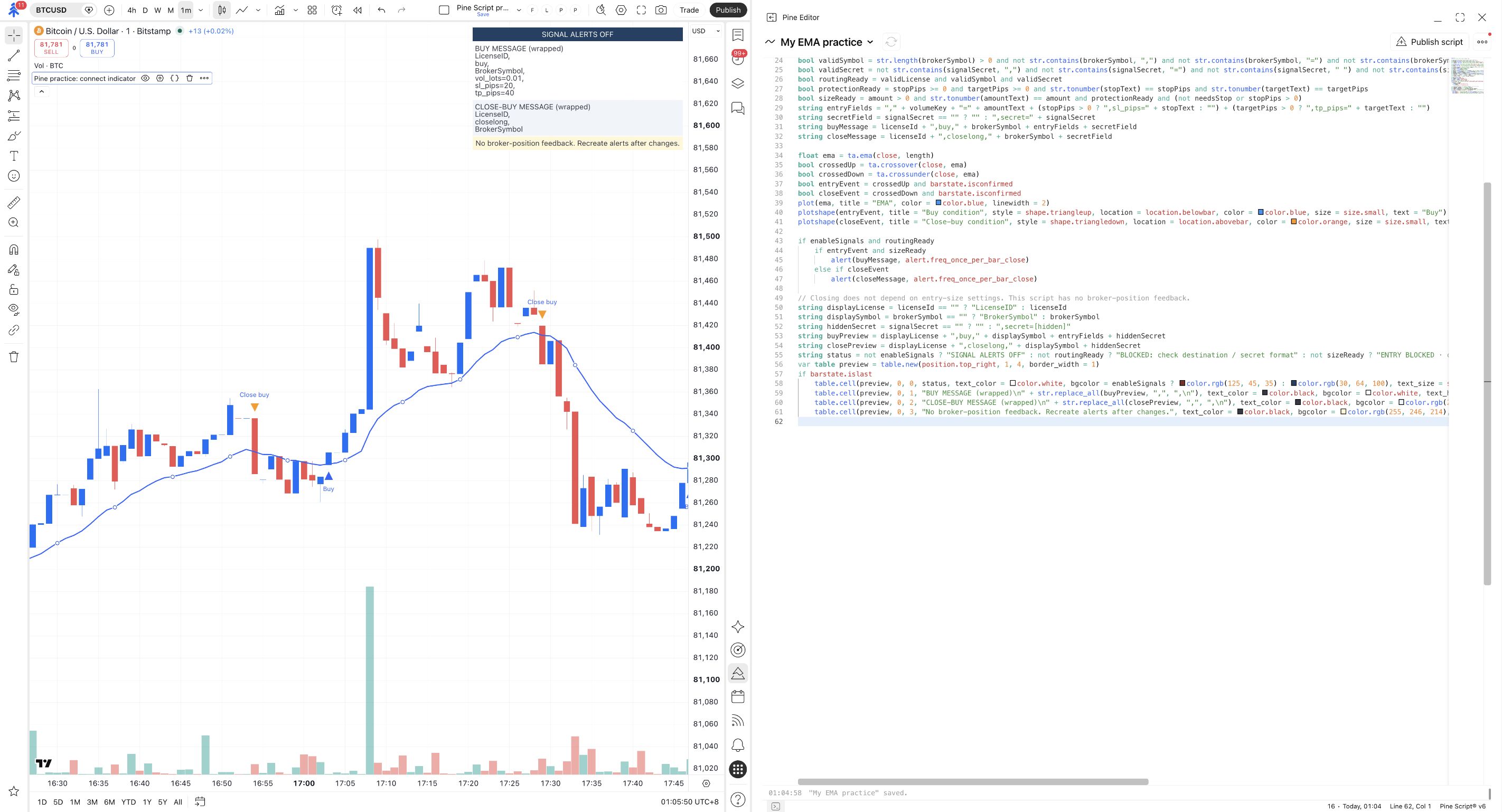
Check the switch, not just the source default. Open Inputs and confirm Enable PineConnector messages is unchecked after loading. TradingView can retain values on an existing chart instance when source changes. The distinct label separates this control from the earlier text-only practice switch; your current Inputs are still what matters.
| Confirmed chart event | Message built |
|---|---|
| Close crosses above the EMA | buy, with the chosen size and any stop/target fields. |
| Close crosses below the EMA | closelong, to request closing matching buys. |
This indicator does not open short positions. It also does not receive broker-position feedback: a marker tells you what its chart condition did, not whether a broker position exists.
Review Inputs while signal alerts remain off
Open the gear beside Pine practice: connect indicator, then Inputs. Keep Enable PineConnector messages unchecked.
Enter your demo License ID, Exact broker symbol, and required Signal secret privately. Choose the size, stop and target you reviewed in the previous lesson. Do not assume settings from another script were copied here.
The buy and close-buy previews show the intended destination and symbol, with the size only on the entry.
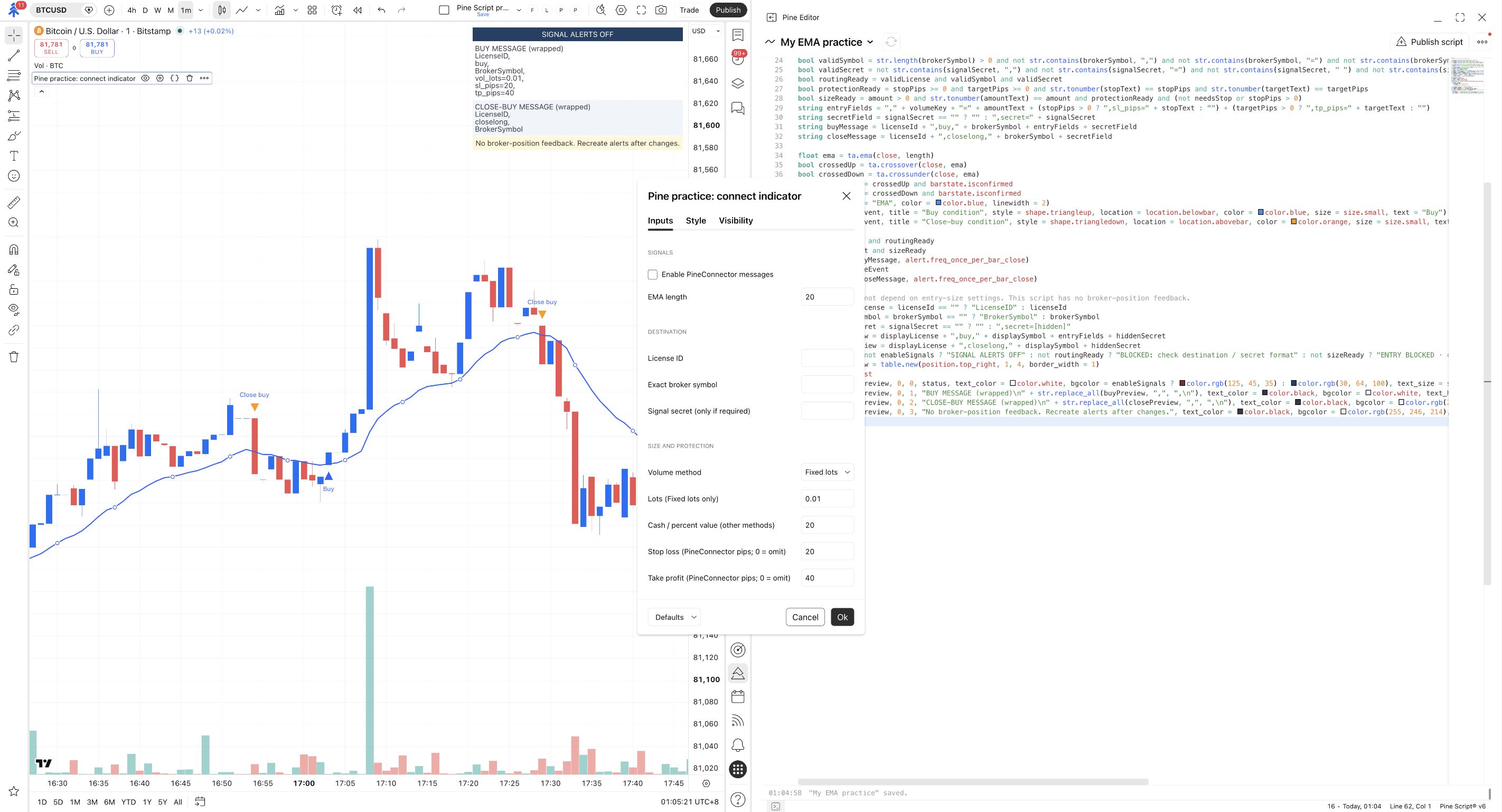
Read both messages on the chart before continuing. A configured secret is masked only in the preview; it will be included in the actual alert message. Keep that message and its log private.
Still says LicenseID or BrokerSymbol? One of the destination inputs is blank. The size is different from your plan? Check which Volume method is selected and which value field it uses.
Test the message inside TradingView
Section titled “Test the message inside TradingView”Enable the script's future signal events
Return to Inputs, check Enable PineConnector messages, then click Ok. Do this before creating the review alert so its saved copy contains the intended setting.
BLOCKED appears? Read the status. The script rejects empty or malformed routing fields and invalid entry sizing. Its basic checks do not verify account ownership, broker support or that a secret matches Portal.
The chart table says ENABLED: future chart events can send messages.
If it says ENTRY BLOCKED · close signals remain enabled, correct the entry-size/stop combination. The script deliberately does not use entry-size validity to suppress an otherwise valid close message.
This course example accepts numeric License IDs and single-line symbol/secret values without spaces, commas, equals signs or tab characters. Numeric message values must fit within eight decimal places. These are the example’s format checks, not proof that an ID exists, a secret matches Portal or the broker permits the values. Do not silently change a real symbol or secret to make it pass; resolve an unsupported format before proceeding.
Choose the correct alert event
Open Create alert from the chart toolbar. Under Condition, choose Pine practice: connect indicator, then choose Any alert() function call.
Confirm that the alert’s interval matches your chart. A generic Crossing comparison is not the event used by this code.
Condition selects Pine practice: connect indicator and Any alert() function call.
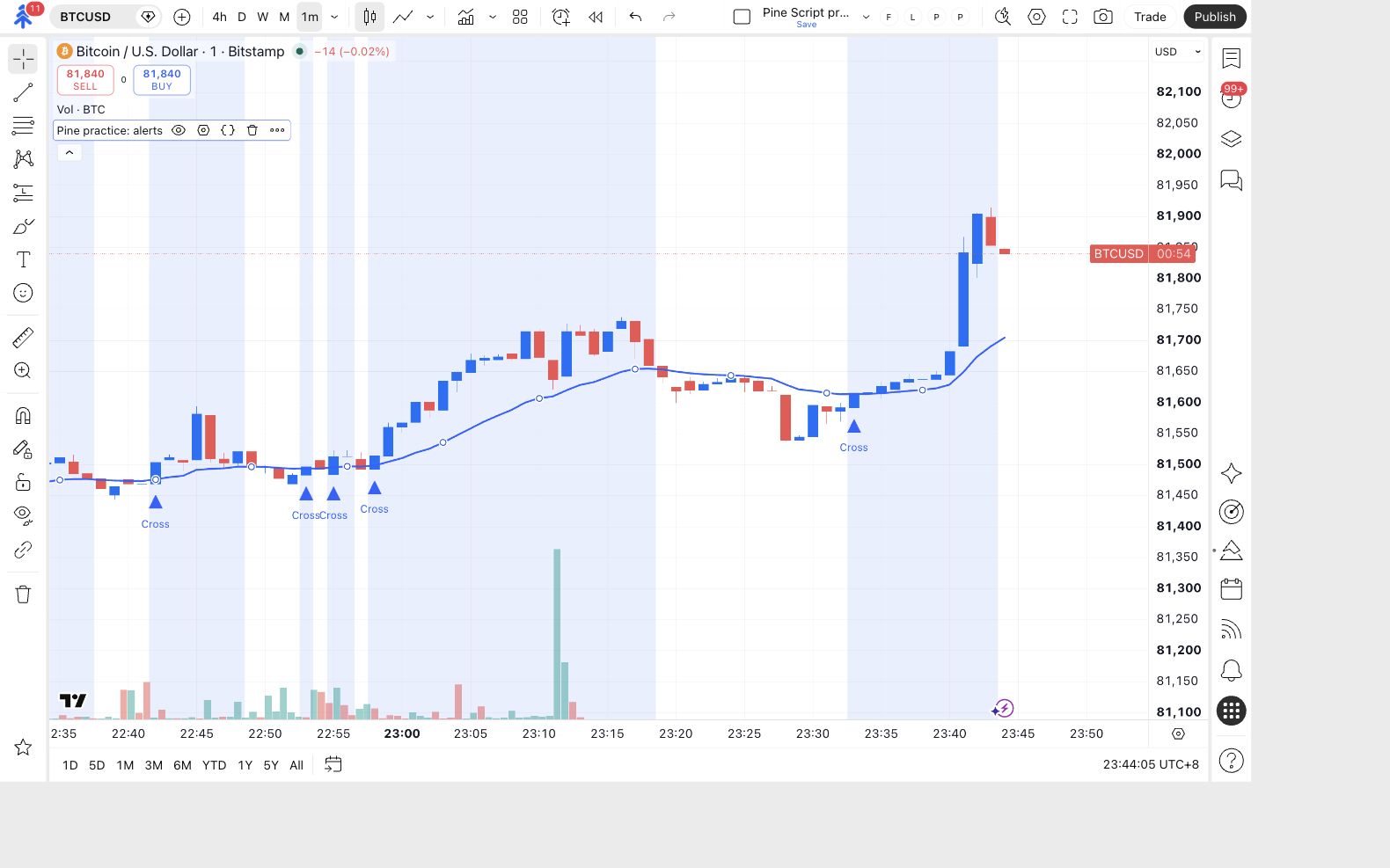
Keep notifications disconnected and name the alert
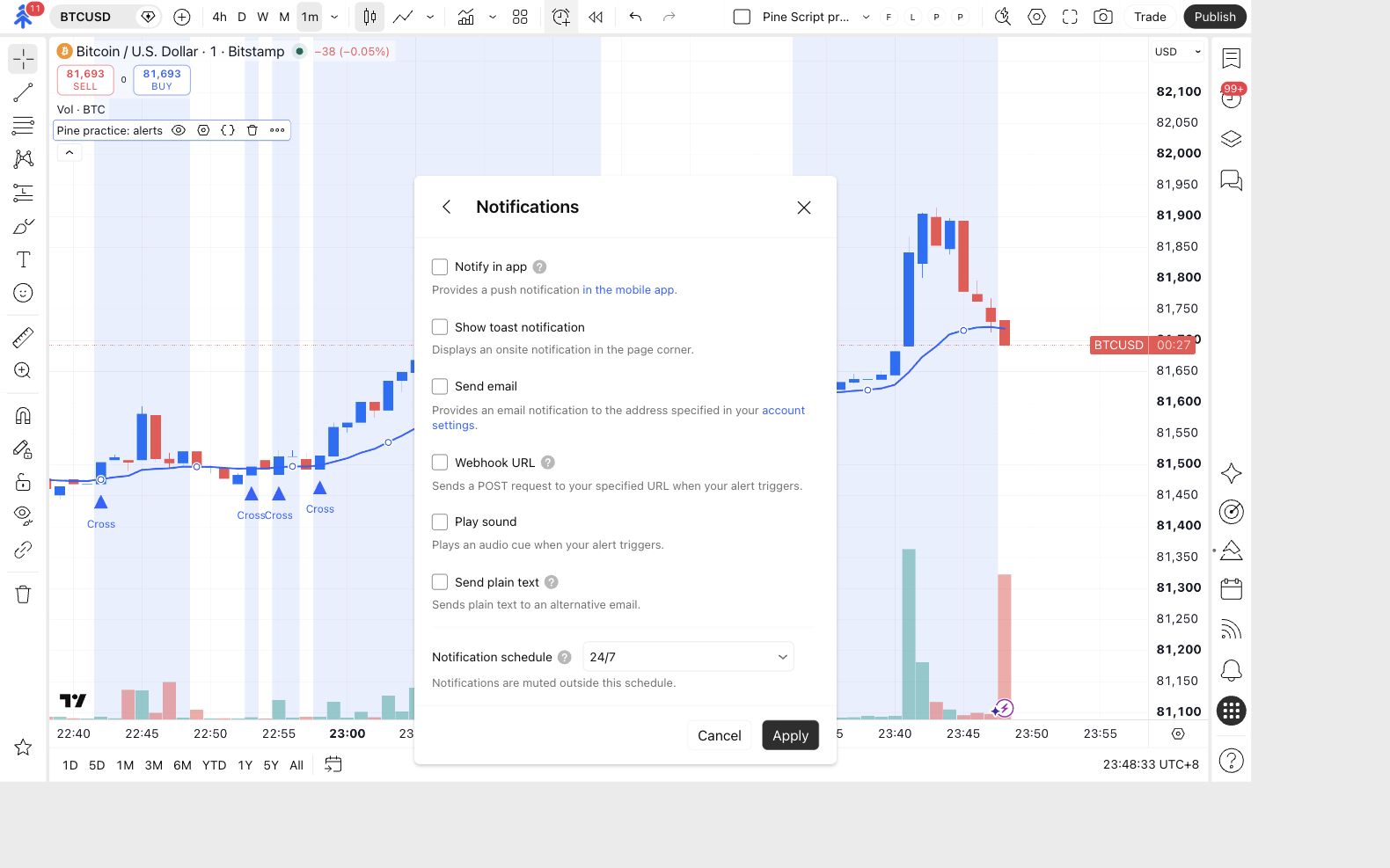
Open Notifications. Clear Webhook URL; leave the other notification options off for quiet practice. Click Apply.
Open Message, name the alert PC message review, then click Apply. The script supplies the message body; do not add a second PineConnector template here.
The review alert has no webhook destination.
Create one review alert
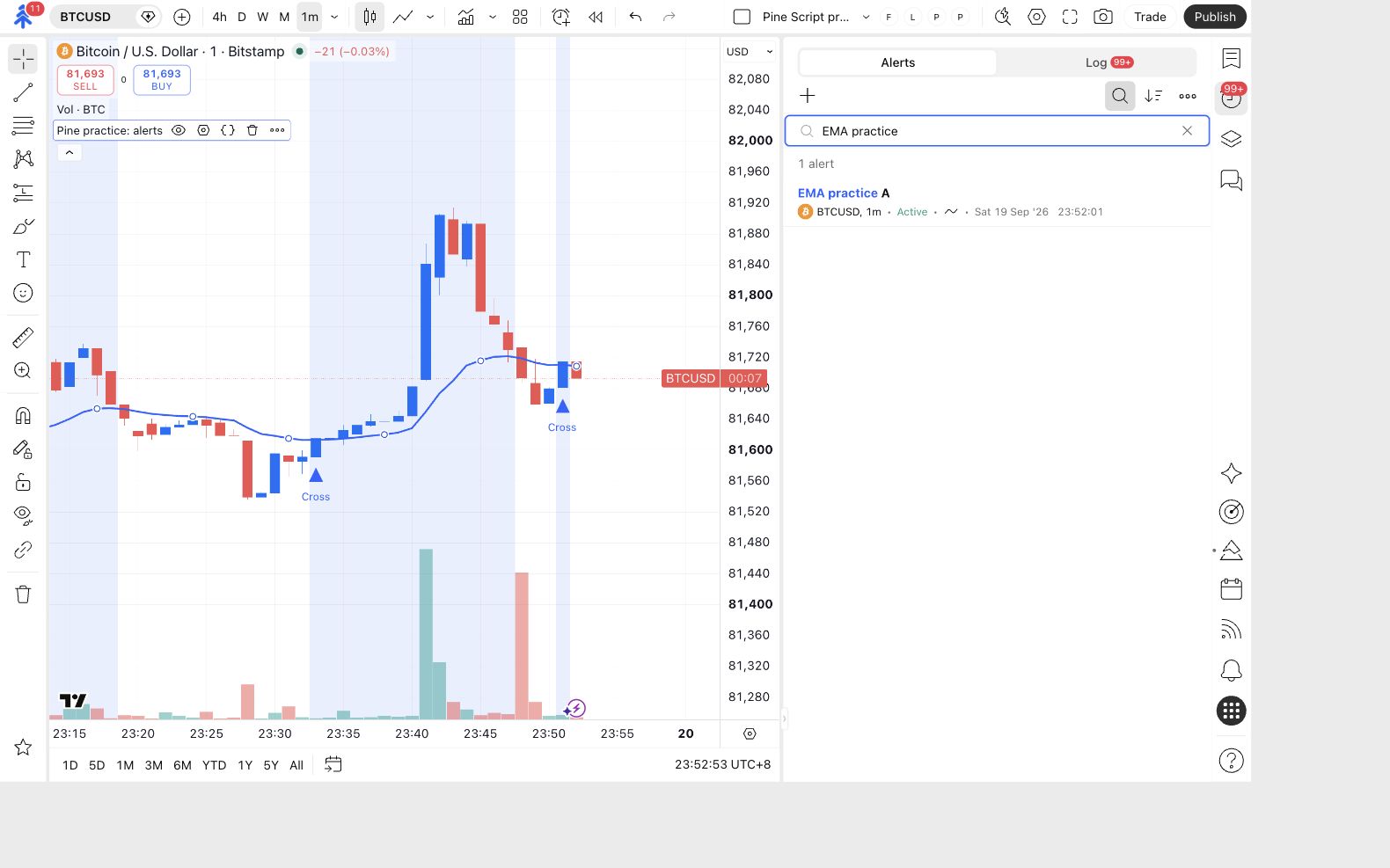
Recheck the indicator, event, interval and Notifications: None, then click Create. In the right-hand Alerts panel, search for PC message review.
No alert slot is available? The alert was not created. Keep the live-message check incomplete; a chart preview cannot replace it.
PC message review appears as Active in TradingView's Alerts list.
The picture below shows the same Alerts → Log controls from the earlier practice lesson. Your current alert is named PC message review.
Inspect a future message
Open Log. After a new confirmed crossing, find your review event and read its message. Historical markers do not generate past messages when you create an alert.
The first event may be a close-buy condition. In this disconnected exercise it is still useful for checking the message; it does not prove there was a buy position.
The Log contains the actual message from a new confirmed Buy or Close buy event.
| Check | Expected |
|---|---|
| License ID and broker symbol | Your reviewed destination values, without placeholders. |
| Buy event | buy plus your explicit volume field and chosen protection fields. |
| Close-buy event | closelong, with no entry-volume field. |
| Authentication | Your configured secret= appears on both message types when required. |
| Duplicates | One event from this alert for that confirmed crossing. |
If no new crossing occurs, leave this check pending and pause the review alert when you finish observing. Do not repeatedly create replacement copies to make an event happen.
Finish the disconnected test
In the Alerts list, right-click PC message review and choose Pause. Confirm Stopped manually. Then uncheck Enable PineConnector messages in the chart indicator’s Inputs.
Changing the chart input alone does not stop an existing alert’s saved copy. Always check the alert list.
The review alert is paused and the current chart script has signal alerts off.
Try it yourself
Section titled “Try it yourself”Find the code that builds the close-buy message. Explain why it contains the authentication field but omits the lot size, stop and target fields.
Check your answer
Authentication is still required when it is enabled for the destination. closelong requests closing matching buys; it does not request a new position with a new size or targets. The entry-only fields therefore belong on the buy message.
Your completion check: both message definitions are correct, at least one future event has been inspected when available, and webhook delivery remained off. A TradingView log entry alone is not PineConnector or broker verification.