
Add a trading-session filter
Limit new entry signals to an explicit time window, without preventing your exit condition from running outside it.
Builds on: Combine conditions
You will allow new entry signals only on candles that open between 09:00 and 17:00 UTC. Exit signals will remain eligible outside that window.
This is a time-filter exercise on your 1-minute BITSTAMP:BTCUSD chart, not a recommended trading schedule. Keep old practice alerts paused and Enable signal alerts off.
Add the session inputs
Section titled “Add the session inputs”Click Copy on the complete script below.
Replace and save your practice script
Open Pine, click inside My EMA practice, select all, and paste. Save with Cmd+S / Ctrl+S or the cloud-shaped control, then update the chart if asked.
The chart label reads Pine practice: sessions. The familiar Entry and Exit markers are still available.
Set the entry window explicitly
Open the settings gear for Pine practice: sessions, then select Inputs.
Keep Signal EMA length at 20. Uncheck Use trend filter so you can inspect the time filter on its own.
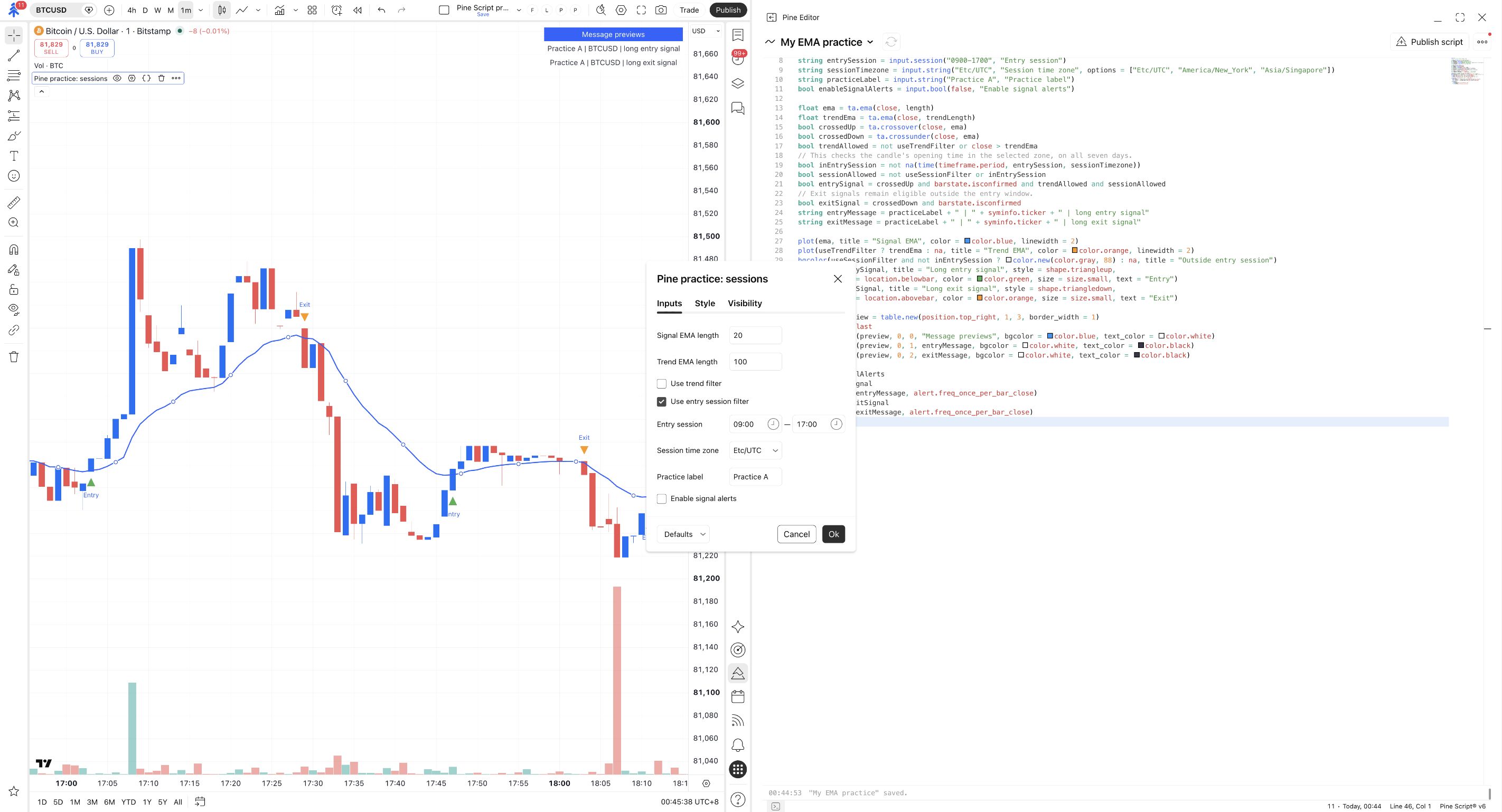
Check Use entry session filter. Set Entry session to 09:00–17:00 and Session time zone to Etc/UTC. Keep Enable signal alerts unchecked, then click Ok.
The entry-session filter is on for 09:00–17:00 in Etc/UTC. Signal alerts are still off.
Compare inside and outside the window
Look through the chart for gray areas and compare their markers with the unshaded areas. An upward cross inside the window is eligible. A downward-cross Exit is eligible on either side of the window.
If your visible chart is entirely inside or outside the window, scroll through earlier candles to find its boundary.
Gray background marks candles outside the entry window. They cannot produce Entry signals in this version; Exit signals can still appear there.
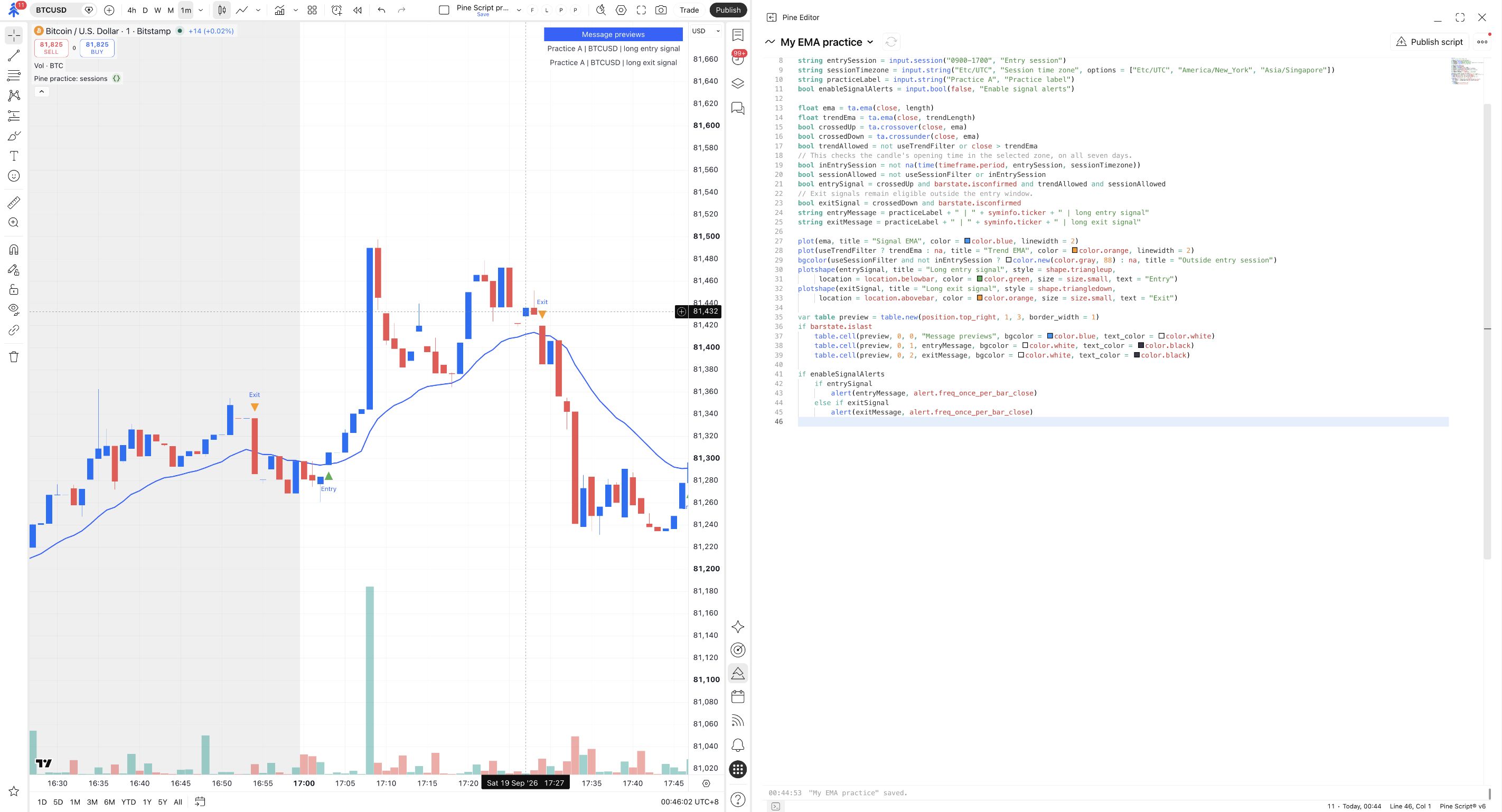
No entry inside the window? The time filter does not generate entries by itself. The confirmed upward cross must still occur. Exit outside the window? That is expected: this is an entry window, not a switch that stops all signals.
Know which clock you are using
Section titled “Know which clock you are using”The code supplies an explicit timezone to its time check:
- Etc/UTC means the hours are interpreted in UTC.
- America/New_York interprets the hours in that region, including daylight-saving changes.
- Asia/Singapore interprets them in Singapore time.
Changing the chart’s displayed timezone does not change this input or Pine’s session calculation. Use the explicit Session time zone field to change the rule. TradingView’s time guide
The example checks the candle’s opening time. On the 1-minute chart, a candle opening at 16:59 UTC is inside this window; one opening at 17:00 UTC is outside it. The signal itself still waits for the eligible candle to close. Keep session boundaries aligned with your chosen candle interval. This example has no weekday restriction, so its time window applies on all seven days. TradingView’s session guide
A time filter is not a scheduled close
Section titled “A time filter is not a scheduled close”Nothing in this script says “close a position at 17:00.” Its exit rule still requires a confirmed downward cross. It also does not know whether the broker’s market is open or whether a broker position exists.
To express a different rule, you would need to change the exit condition deliberately. Do not put the session filter around both entry and exit calls merely to shorten the code; that would prevent these exit signals outside the window.
Check yourself
Section titled “Check yourself”Question: an Entry condition occurs on a candle opening at 17:00 UTC. Will this version mark it as Entry?
Show the answer
No. The 09:00–17:00 entry window has ended. The upward-cross condition alone is not enough.
Question: an Exit condition occurs at 18:00 UTC. Is it blocked by the entry window?
Show the answer
No. The exit condition is evaluated separately and does not include the session filter.
Try: turn Use entry session filter off, compare the same earlier candles, then turn it back on. Leave Enable signal alerts off. The next lesson uses these conditions to compare two ways of configuring indicator alerts.