
Choose strategy alert events
Practise order-fill alerts and alert() calls separately, with the message field and saved inputs matched to the chosen event.


A strategy can send a message when its code calls alert(), when its simulated order fills, or through both sources. You will practise one route at a time and recognise the message each produces.
Continue with My strategy practice from Understand a Pine Script strategy. Use the same symbol, interval and standard candles. Your account needs an available script-alert slot for the live exercise.
Add the two practice routes
Section titled “Add the two practice routes”Click Copy below. In TradingView, open Pine, select all the code inside My strategy practice, and replace it. Save, then update the chart if offered. The chart label becomes Pine practice: strategy alerts.
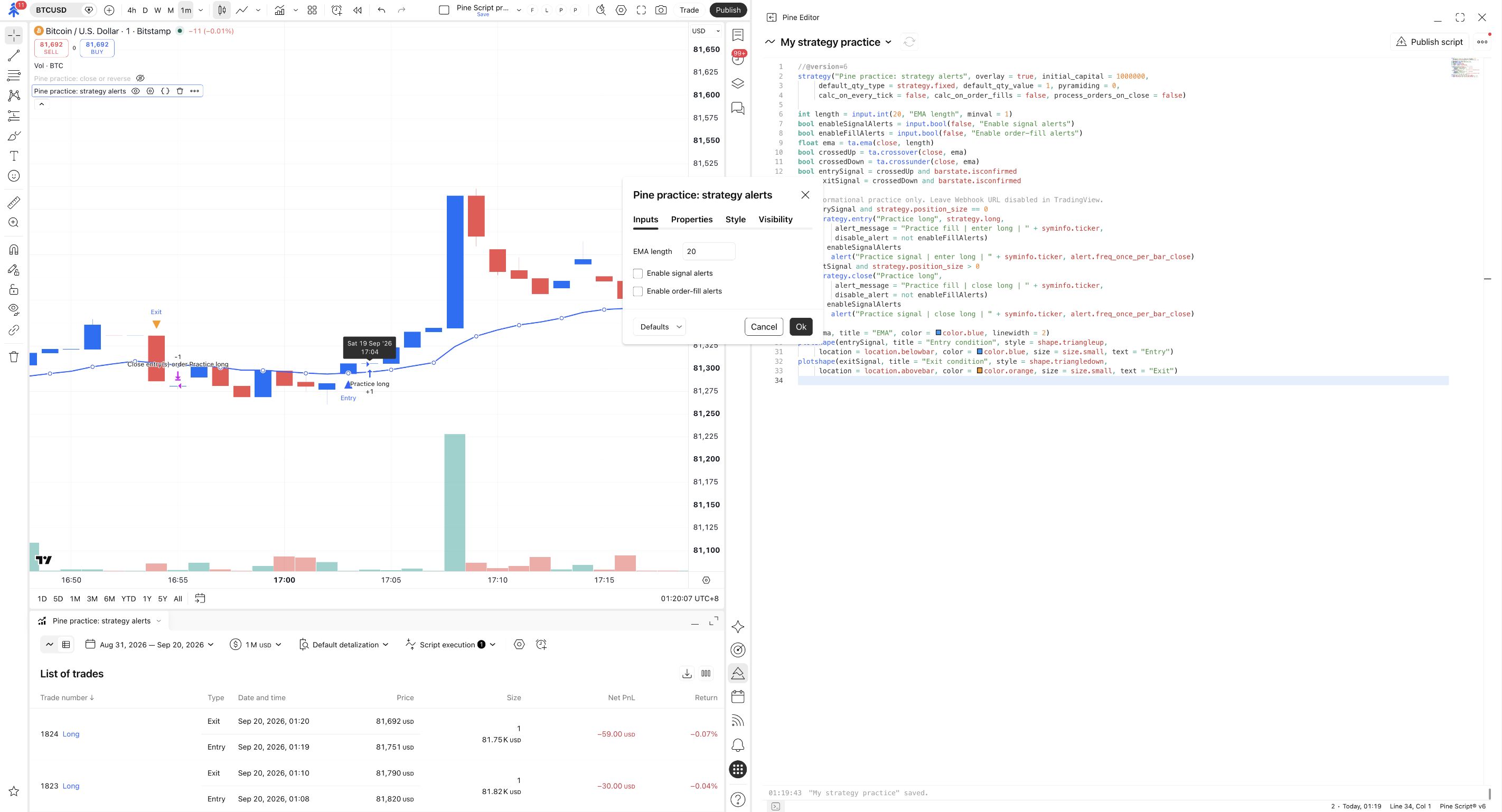
Open the strategy’s Settings → Inputs. Confirm that Enable signal alerts and Enable order-fill alerts are both unchecked. Those are the source defaults, but inspect the current fields in case earlier chart inputs were retained. The simulation can still show trades with both unchecked; these switches control messages, not the simulated trading rules.
| Route | What causes the practice message | Message begins with |
|---|---|---|
| Signal alert | The guarded alert() call runs when this script places its simulated entry or close order. |
Practice signal |
| Order-fill alert | TradingView’s broker emulator fills an eligible strategy order. | Practice fill |
The events can happen at different times. In this example, the decision is made at a bar close and the fill normally follows at the next bar’s open. Strategy alerts
First, listen to order fills
Section titled “First, listen to order fills”Enable only the fill route
In the strategy’s Inputs, turn on Enable order-fill alerts. Keep Enable signal alerts off. Click Ok.
Enable order-fill alerts is checked; Enable signal alerts is still unchecked.
Select the strategy and fill events
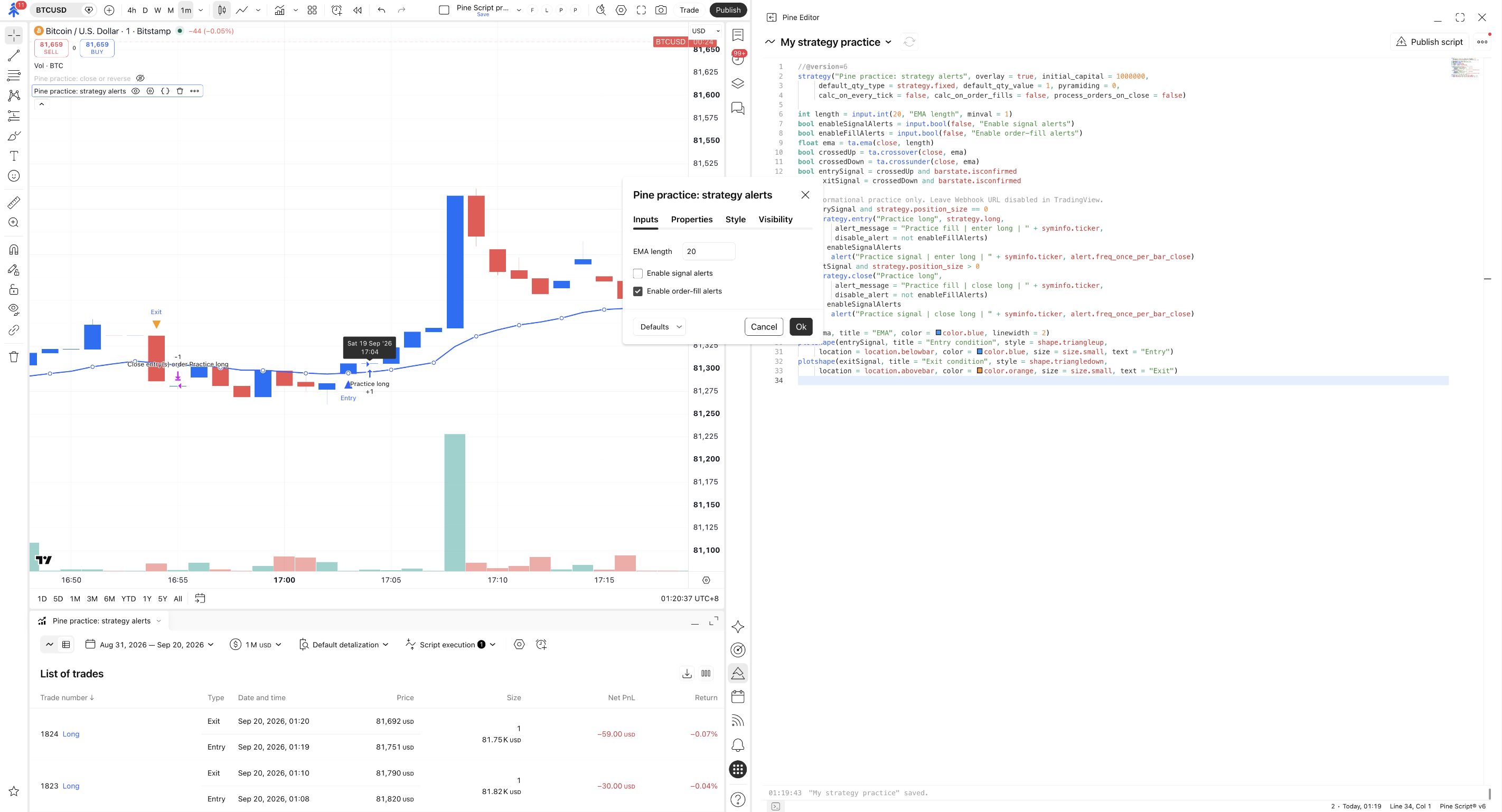
Click the alarm-clock-plus Create alert control in the chart’s top toolbar. Under Condition, select Pine practice: strategy alerts, then choose Order fills only in its event selector. Check that the alert uses your chart’s interval.
The new alert listens to the practice strategy's simulated fills.
Do not choose the combined order-fill and alert() option for this exercise. If your script or dialog exposes no event selector, check which alert sources that script actually contains.
Put the order’s message into the alert
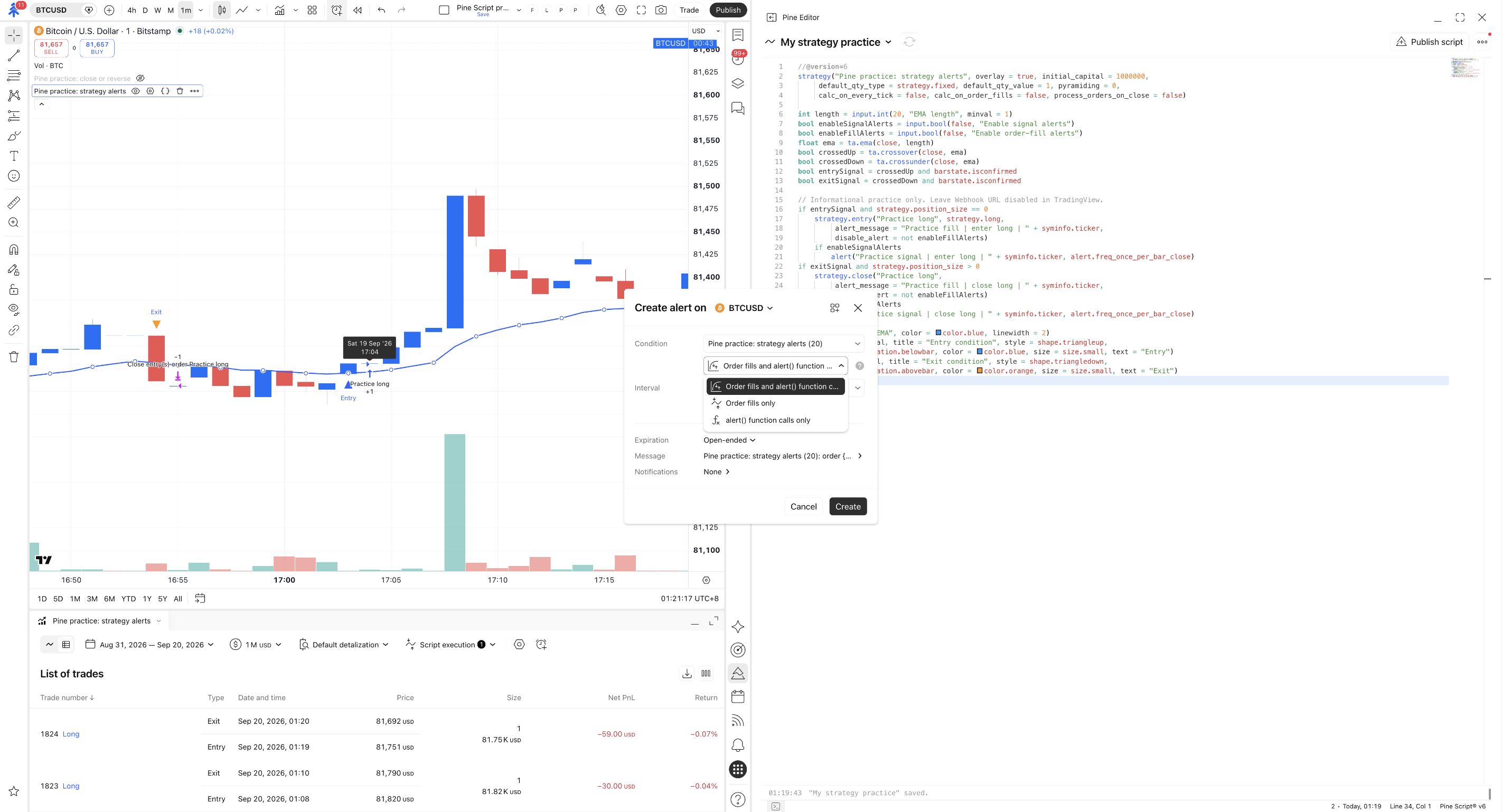
Section titled “Put the order’s message into the alert”Open Message in the alert dialog. Replace the default message with this exact placeholder, including both pairs of braces:
Name the alert Strategy practice fills, then apply the message settings. The placeholder tells TradingView to use the alert_message attached to the order that filled. It is not a Pine expression to paste into the editor. Order-fill messages
Review the destination and create
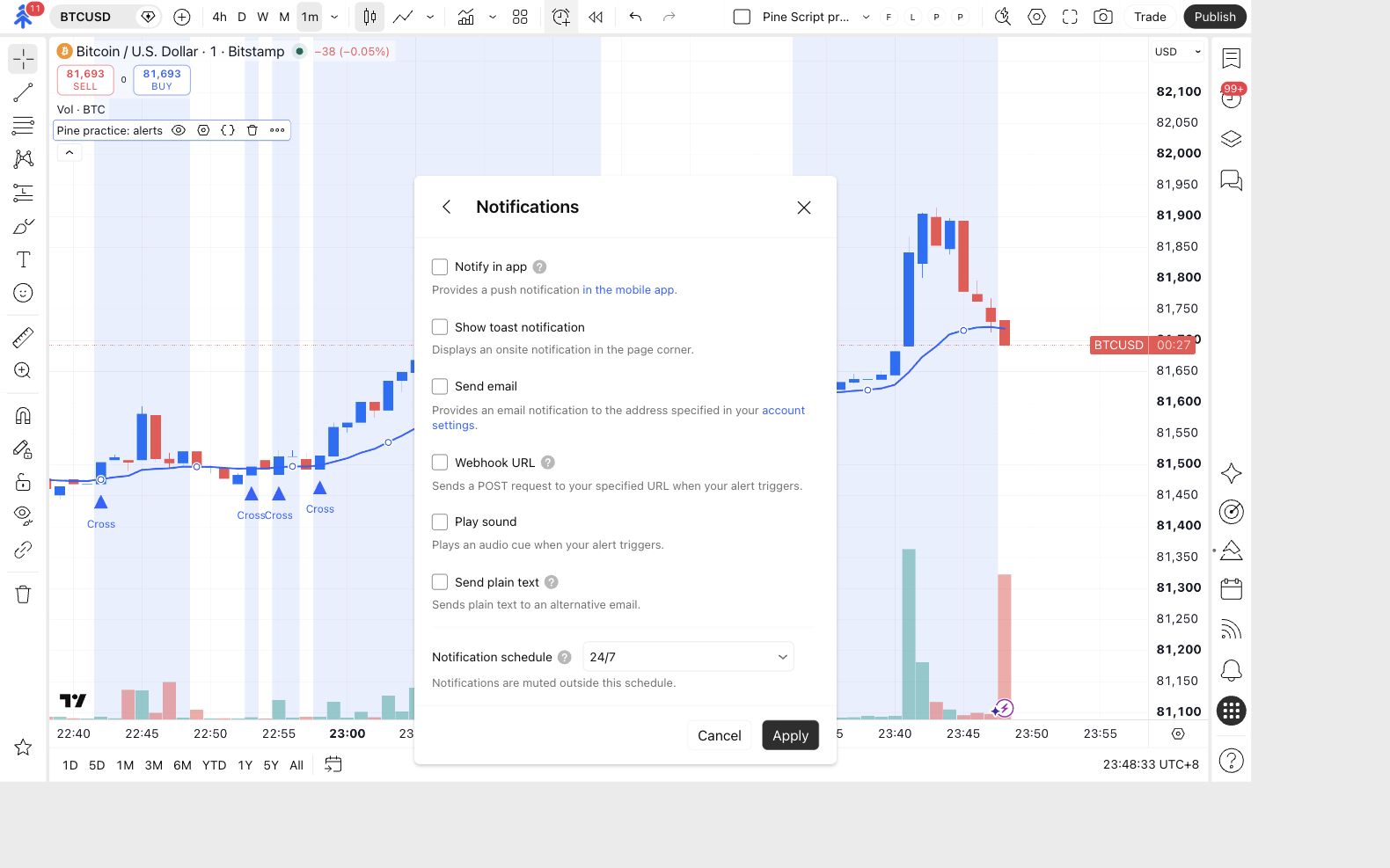
Open Notifications. Leave Webhook URL and all other notification options off, then click Apply. Review the condition, interval and name before clicking Create.
Strategy practice fills appears in the Alerts list as active.
An unavailable alert slot stops the live exercise here. You can still inspect the code and answer the questions below.
Open Alerts in the right toolbar and find the new alert. Wait for a qualifying future simulated fill, then open Log. Historical trades in the report do not produce old alert messages.
For the BTCUSD example, the entry message should be Practice fill | enter long | BTCUSD; an eligible close should say Practice fill | close long | BTCUSD. Keep the chart’s settings unchanged while comparing the new log entry with its simulated fill.
Wrong result: a generic strategy description instead of the practice message usually means the Message field was not set to the placeholder. A missing event also calls for checking the saved enable switch and whether a new fill occurred. Correct the setup and replace the alert; changing the chart does not update an existing alert’s saved inputs.
See what controls a fill message
Section titled “See what controls a fill message”The entry contains these two arguments:
alert_message supplies the text. When disable_alert is true, that order’s fill alert is suppressed. The simulated order still exists. This example also supplies a message and guard on strategy.close(...); reviewing the entry alone would miss half the workflow.
Then, compare the signal route
Section titled “Then, compare the signal route”- In Alerts, right-click Strategy practice fills, select Pause, and confirm Stopped manually.
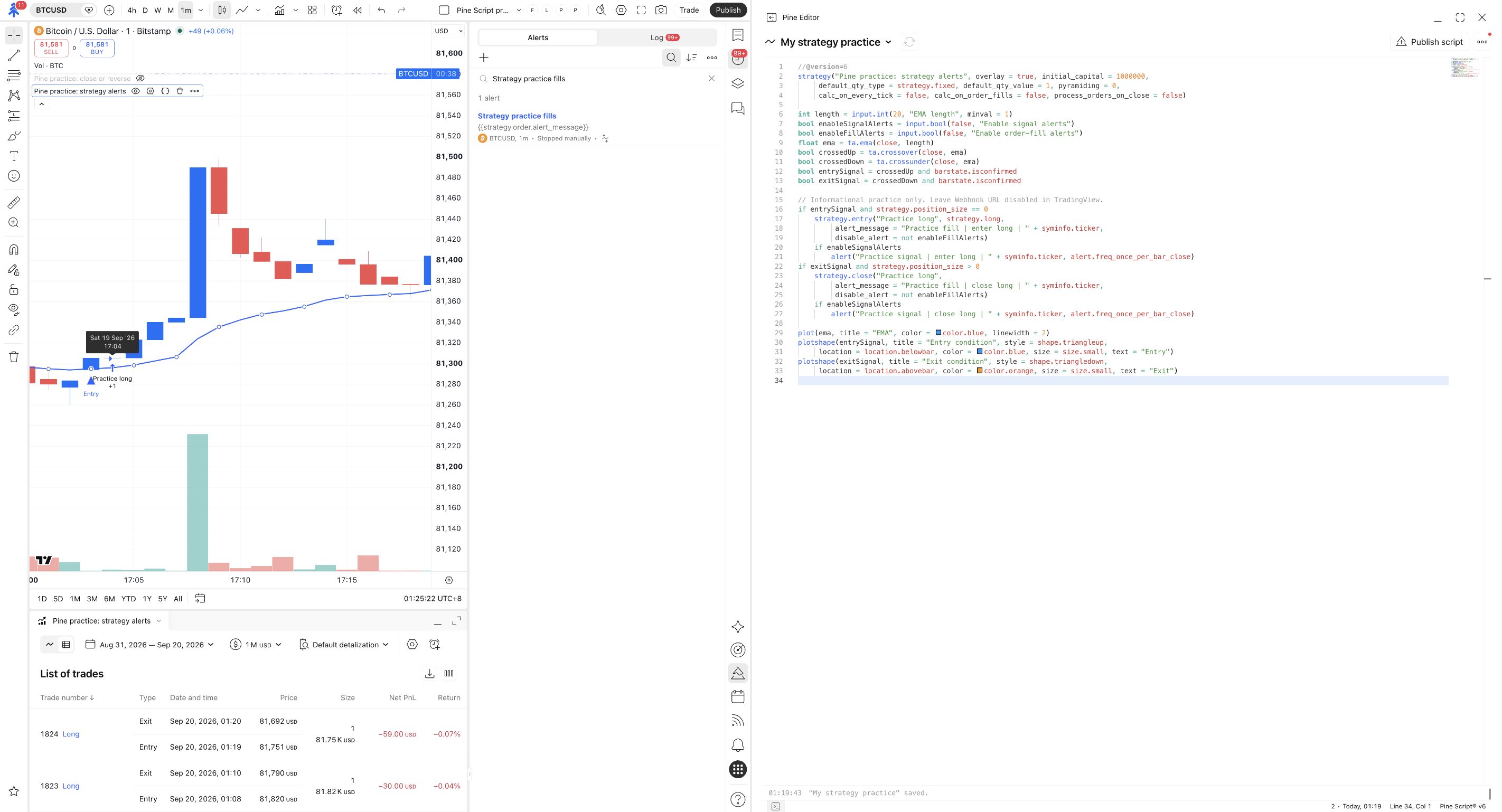
- In the strategy’s Inputs, turn Enable order-fill alerts off and Enable signal alerts on. Click Ok.
- Create a fresh alert from Pine practice: strategy alerts, choosing alert() function calls only. Name it Strategy practice signals and keep all notifications, including the webhook, off.
- At a future qualifying event, inspect Log for
Practice signal | enter long | BTCUSDorPractice signal | close long | BTCUSD. - Pause Strategy practice signals when finished. Confirm that both practice alerts show Stopped manually.
- Open the chart strategy’s Settings → Inputs and uncheck both Enable signal alerts and Enable order-fill alerts. Click Ok, then check the two switches again before replacing this source in the next lesson.
For this route, the alert(...) call supplies the message. The order-fill placeholder is not what creates its text.
Reset both the saved alerts and the chart inputs. Pausing the alerts does not reset the chart’s switches, and pasting replacement source does not guarantee that retained input values return to its defaults.
Predict before revealing
Section titled “Predict before revealing”You enable both input switches and select both event sources in one alert. Could a single intended entry produce a signal message and a later fill message?
Show the answer
Yes. This script can emit one message when it requests the simulated order and another when the emulator fills it. If both were mapped to the same broker entry, that could request two entries. Select the event route deliberately and check older alerts as well.
If the alert was created successfully but no qualifying future event appeared, configuration is complete while message observation remains pending. If TradingView prevented alert creation, both creation and message observation are incomplete. Keep those distinctions when you move to a PineConnector integration.