
Complete your own demo workflow
Put one indicator or strategy into a controlled demo workflow and record the evidence for each alert, processing result and broker outcome.
Builds on: Verify the demo outcomeUpdate without duplicatesTrace a missing alert


Your final project is one workflow you can explain, inspect, update and stop. Choose an indicator or strategy, configure it for your own demo connection, and follow its actual events through TradingView, PineConnector and the broker.
This is an exercise you run on your own demo account. The screenshots show controls and reference layouts; they do not complete the checks for you. If an event or destination cannot be verified, leave that part pending.
Choose one starting path
Section titled “Choose one starting path”| Your starting point | Use this course path |
|---|---|
| An indicator with conditions you understand | Connect your indicator. Use its message preview before enabling messages. |
| An editable strategy with understood entries and exits | Adapt a strategy, then check its behaviour. Select one deliberate alert-event route. |
You can use a course example with one deliberate change, such as its EMA length. You do not need a new trading system. If you cannot explain an existing script’s entry, exit or opposite-signal behaviour, resolve that with its author before connecting it.
Write your expected result first
Section titled “Write your expected result first”Keep a private note with these fields. Do not put credentials or a signal secret in a public document.
| Field | Record your choice |
|---|---|
| Source | Saved script name and the version or change you are testing. |
| Chart | Symbol, data feed, interval and standard chart type. |
| Event | Exact entry and exit conditions; confirmation rule and optional filters. |
| Alert route | alert() calls, one named condition, or strategy order fills, as appropriate. |
| Destination | Intended demo connection and every receiving account sharing its License ID. |
| Instrument | Exact broker symbol. For this project, choose a chart representing that same instrument. |
| Sizing and protection | One explicit volume method, its value, and any required stop; record target units too. |
| Existing positions | Which positions the entry, exit or reverse command may affect. |
| Replacement and cleanup | Which old alerts will stay paused and how you will finish the demo exercise. |
A chart ticker and broker symbol can use different names for the same instrument. Do not copy EURUSD from a reference picture while leaving a BTCUSD signal chart unchanged for this project.
Build and inspect with messages disabled
Section titled “Build and inspect with messages disabled”Prepare the chart and preview
Follow your chosen path above to load the complete example in Pine Editor. Save and update it on the chart. Open its Inputs and explicitly check that its message switches are off.
Enter your own demo details privately and inspect the entry and exit messages. A source default of false does not prove an existing chart input has reset.
Your script compiles, its markers match the written rules, and the message previews match the intended destination and values.
Check the rule, not just the compiler: find an eligible event and a nearby event that should be rejected by your filter. Explain both. For a strategy, distinguish its signal from the simulated fill that may occur later.
Check the message: compare the destination, direction, exact broker symbol, units and protection with your private note. An exit from a long position and opening a short position are different intentions. Use PineConnector Syntax when checking the request.
Create one controlled demo alert
Section titled “Create one controlled demo alert”Pause the previous version first
Open TradingView’s Alerts list. Identify the alerts for this setup, right-click the old version and choose Pause. Verify Stopped manually.
Inspect the demo account’s existing positions, pending orders and history before enabling a replacement. Pausing an alert does not remove a broker position.
No older active copy can send the same intended instruction during your test.
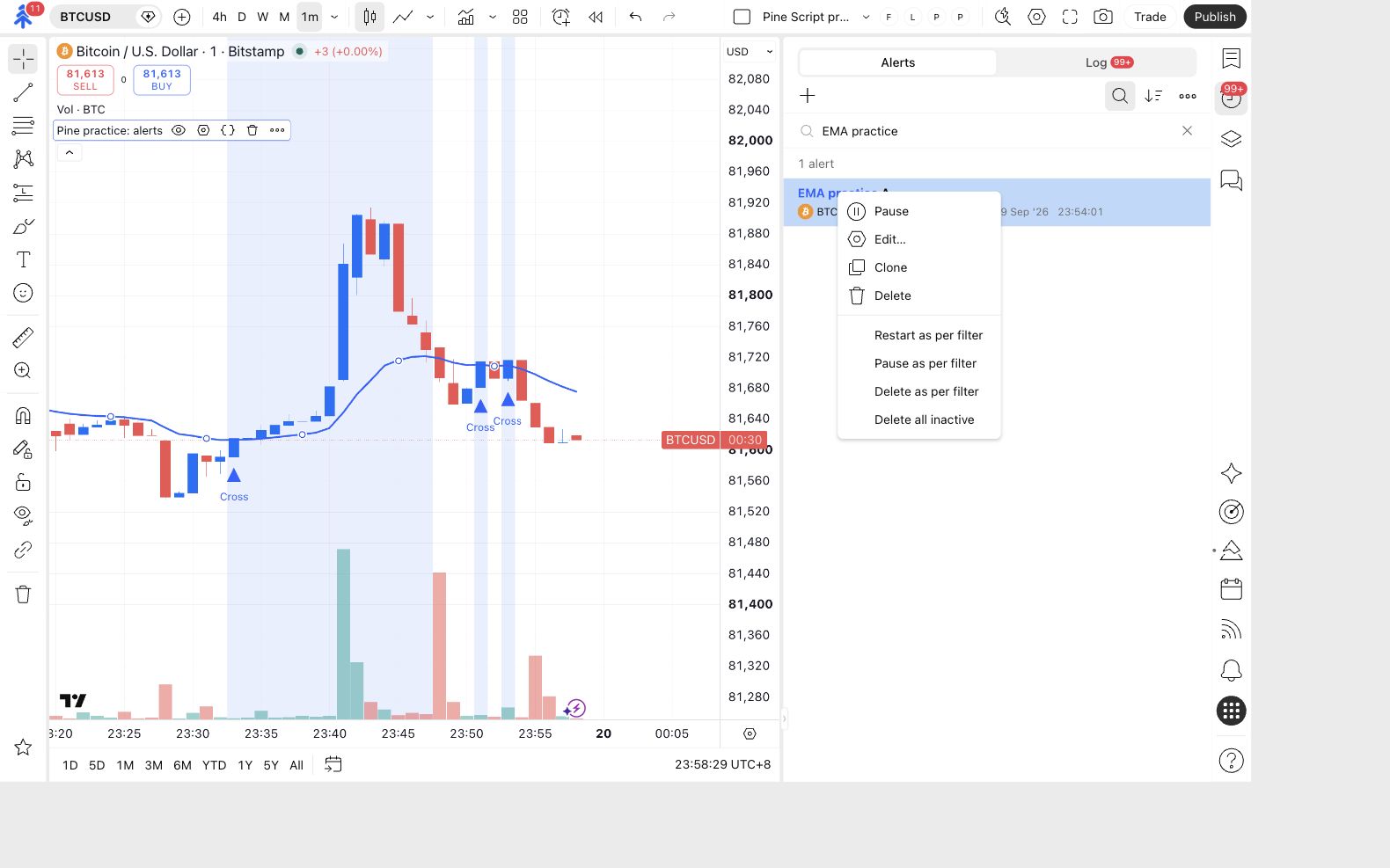
The picture uses the earlier EMA practice A example. Apply the control to your project’s alert, and leave unrelated alerts alone.
Choose your test mode before activating the alert
Section titled “Choose your test mode before activating the alert”| Mode | What you do | What it verifies |
|---|---|---|
| Entry-only check | Observe one new entry event, then pause the alert while checking its message, processing and broker result. | Entry only. The automated exit remains pending. |
| Complete automated cycle | Keep one isolated demo alert active while directly observing both entry and exit. Pause after the broker position closes, or immediately if a result is unexpected. | The full cycle, once both actual events and their processing and broker outcomes are checked. |
Use the entry-only check first if you have not yet verified that route. For a complete cycle, use a demo position that other automation will not manage, confirm the starting positions and pending orders match your plan, and stay present through the test. You can match all the saved log records after the cycle is stopped; do not pause between entry and exit merely to open another screen.
Create the new alert from the reviewed inputs
Use the exact creation steps from your chosen indicator or strategy lesson. Enable its intended message route only after checking the chart inputs, then create a fresh alert. Give it a distinctive project name.
For the connected demo stage, follow Verify your demo setup to configure the webhook. A text-only review alert with Webhook URL off cannot establish broker delivery.
One intended saved alert contains the reviewed script, inputs, event route, interval and demo destination.
Do not select both strategy order fills and alert() calls for the same intended request unless you have deliberately designed and checked two distinct event streams. Review which active alert this project replaces before continuing.
Record an actual event through all three stages
Section titled “Record an actual event through all three stages”Read the new TradingView message
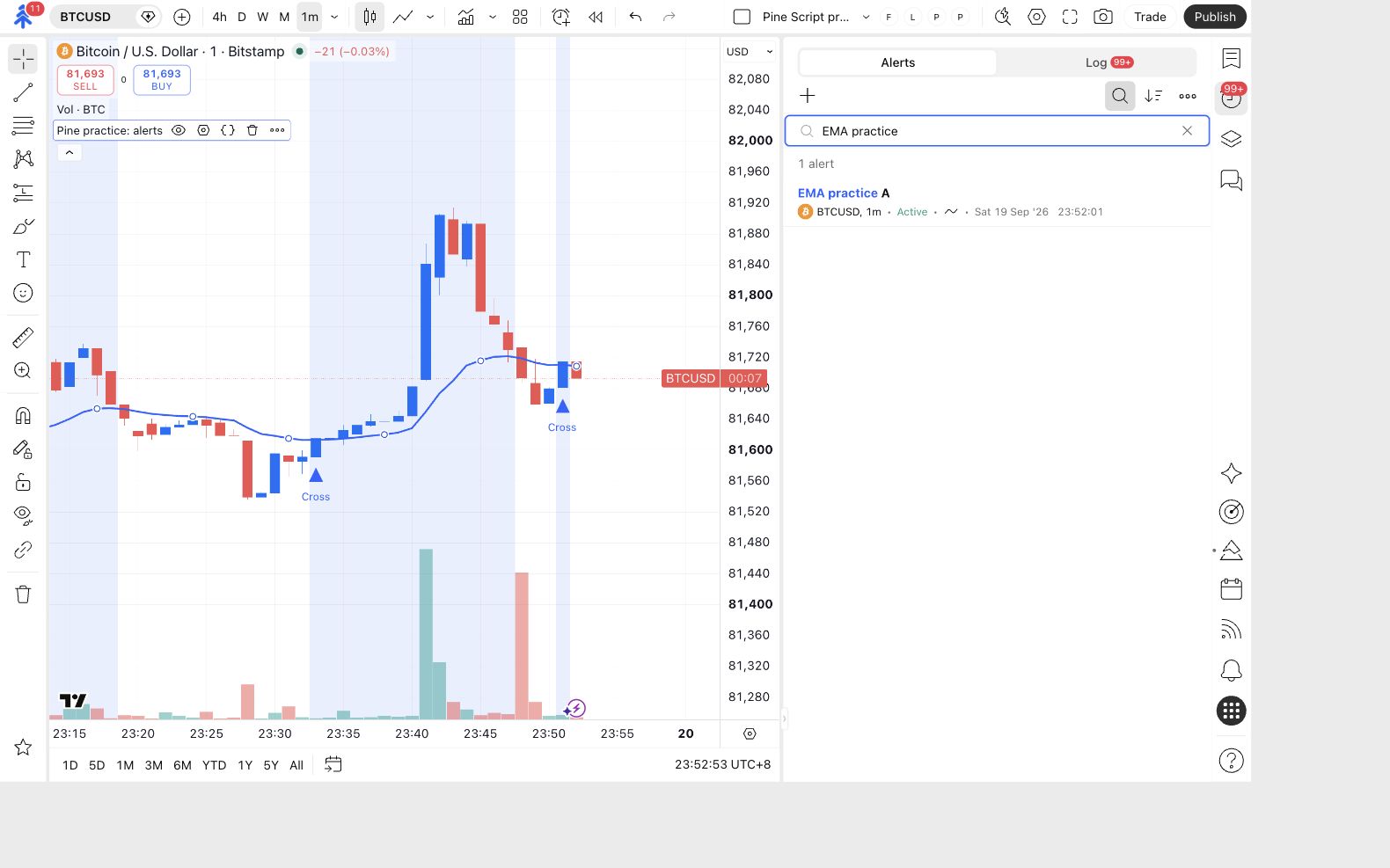
Wait for a new qualifying event. Open Alerts → Log and inspect your project alert’s entry. Compare its message with your written expectation.
Entry-only mode: pause after the entry event. Complete-cycle mode: keep the one intended alert active while directly observing the entry and exit; pause after the broker close or immediately on an unexpected result.
Record each actual event separately. A historical chart marker is not a newly sent alert.
You have the actual event's name, timestamp, timezone and generated message.
Match that event in Bridge
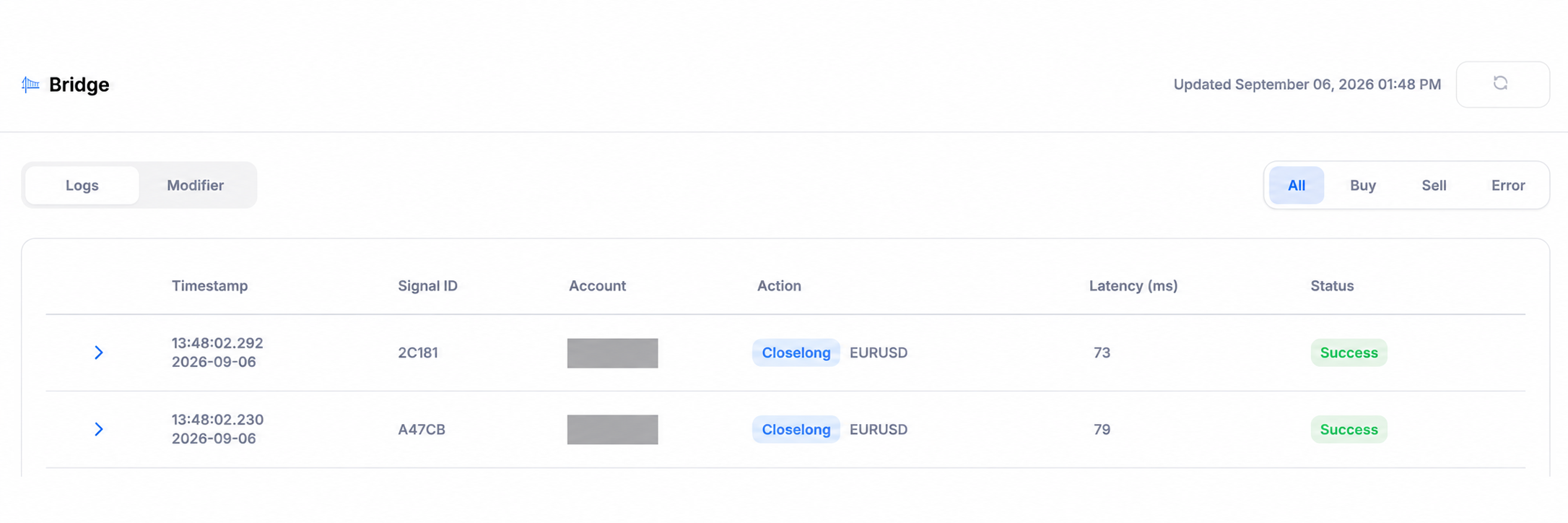
Open Portal → Bridge. Match the time and intended account, open the details, and read the complete processing result.
You have a processing record for the same event, destination, action and symbol.
Verify the actual broker result
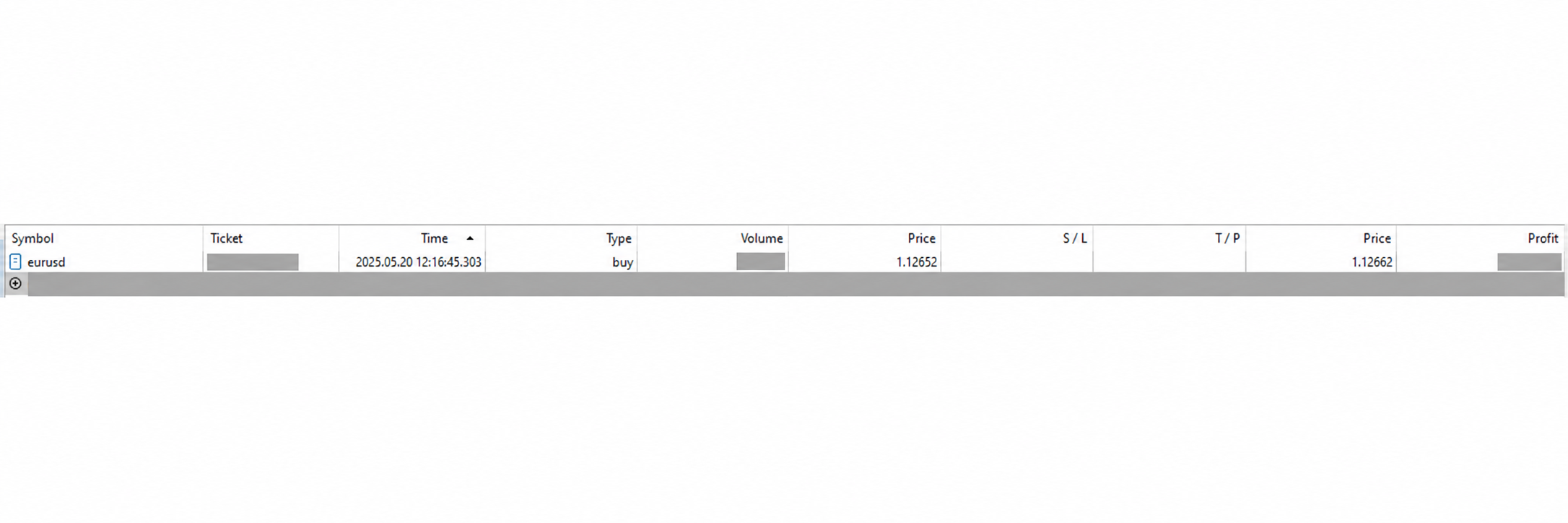
Open the same account in its supported MT5 interface. Inspect positions, pending orders and history. Match the symbol, direction, actual volume and accepted stop or target prices.
For a close event, verify which position closed and what remains. If a protective stop or target already closed it, record that outcome rather than assuming the later script-close request performed the close.
The intended demo account shows the expected position or closure, with the expected scope and no unintended duplicate.
Record the result for entry and exit separately. The full workflow requires both actual events, their matching Bridge records and their expected broker outcomes. If a protective stop or target closes the position before the intended automated exit, record that closure and pause the test; the unobserved script-exit path remains pending.
An exit condition occurred while the alert was paused? Do not resume blindly to recover it. A missed crossover is not a queued exit waiting to be sent. Inspect positions, pending orders and history; reconcile the broker state with the script’s assumptions and handle the existing demo exposure deliberately. Start a fresh controlled cycle only when its starting state is aligned with your plan, with one intended alert active.
If a checkpoint is missing or unexpected, use Find where an alert stopped. Keep the affected alert paused, inspect broker state and resolve the uncertainty before a new test.
Make one controlled update
Section titled “Make one controlled update”Change one input, such as EMA length, while your saved alert is paused. Follow Update your automation to inspect the new chart values, review the messages and create its replacement.
Your check is operational: the new alert has the intended saved inputs, the older copy remains stopped, and its next observed event is matched through the same evidence chain. The input change is not proof of improved performance.
Finish with a known state
Section titled “Finish with a known state”Stop the project and check the account
Pause the active project alert and verify Stopped manually. Turn off the current chart’s message switches too.
Close any remaining course demo position through the broker interface and confirm it has closed. Check for unintended pending orders and other receiving accounts sharing the License ID. Preserve the evidence from the exercise.
Temporary project alerts are stopped, chart message switches are off, and the course demo positions have been handled deliberately.
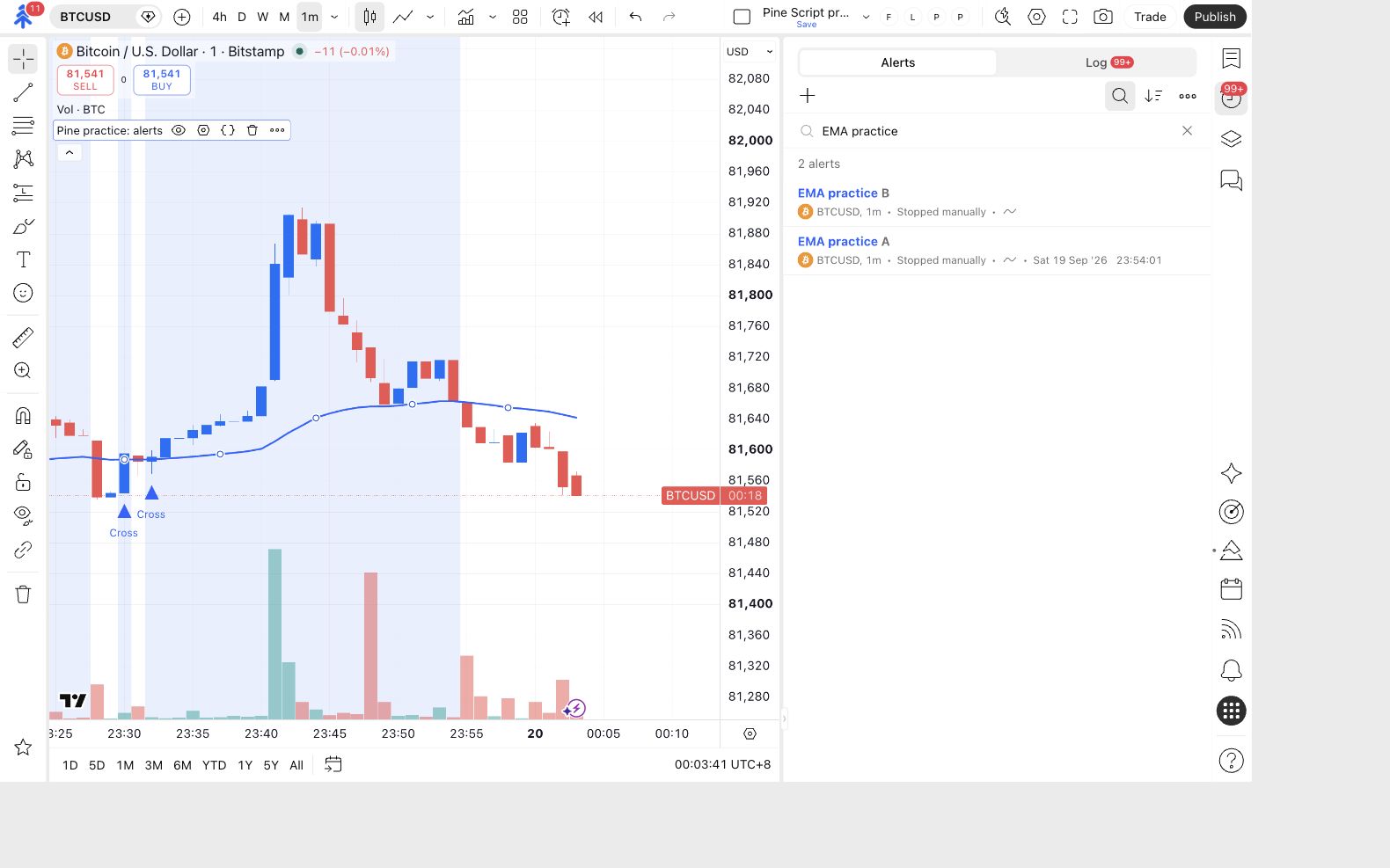
The screenshot shows the earlier practice alerts stopped. Your project should end with the equivalent confirmed state for its own named alerts and demo positions.
Review your project
Section titled “Review your project”| You can demonstrate… | Evidence to keep privately |
|---|---|
| The conditions express your intended rule. | One qualifying and one rejected chart example, with your explanation. |
| The correct alert mechanism is selected. | Its event choice, interval and message settings. |
| Your messages request the intended actions. | Actual entry and exit message text, with sensitive details protected. |
| The complete route worked for entry and automated exit. | Both actual TradingView events, their matching Bridge records and expected broker outcomes from a controlled cycle. An entry-only check leaves exit pending. |
| The update replaced the saved configuration. | The reviewed new inputs, old alert stopped and one intended replacement. |
| The exercise ended deliberately. | Stopped temporary alerts and checked demo positions/history. |
A screenshot of a preview, a successful compile or a backtest is not a substitute for the missing rows. The full project is complete only when both the actual entry and intended automated exit have been verified through all three stages, followed by the update and cleanup checks. This demonstrates the tested workflow; it does not establish profitability or identical results on another setup.
Check yourself
Section titled “Check yourself”Question: after changing an input, the chart shows the right message but the old alert still shows Active. Is the update complete?
Show the answer
No. Pause the old saved alert, verify broker state, then create and check the intended replacement from the reviewed inputs. The chart and saved alert are different copies.
Question: your demo entry worked, but you have not observed the intended exit path. Can you mark both verified?
Show the answer
No. Record the entry as observed and leave the exit pending. Inspect the current position and plan a controlled exit check; do not infer it from the entry result or a chart marker.
Question: you paused after entry, and the exit crossover happened while paused. Should you resume and expect that old event to close the position?
Show the answer
No. Inspect and reconcile the broker position and pending orders first. Handle the existing demo exposure deliberately, then start a fresh controlled cycle when the broker state and the script’s assumptions match your plan. Leave the unobserved automated exit pending.