
Close a position or change direction
Distinguish closing a buy from opening a sell, then preview the commands for each intended workflow.


You will choose the action you want before choosing its command. The key distinction is practical: close a buy and open a sell are different requests.
Finish the preceding demo exercise with its course position closed and its alert paused. This lesson uses a separate preview-only script, so you can compare workflows without sending orders.
Start with the position you want to end up with
Section titled “Start with the position you want to end up with”| Starting situation | Intended result | Relevant request |
|---|---|---|
| You want to enter long | A buy position | buy |
| You want to exit existing buys | Matching buys closed; no new sell requested | closelong |
| You want to enter short | A sell position | sell |
| You want to exit existing sells | Matching sells closed; no new buy requested | closeshort |
The receiving EA’s scope and behaviour still apply. For example, an entry can be affected by Close on Reverse, while a close can affect several matching positions. These commands are not confirmations of a resulting position. Commands, Close positions
Load the workflow preview
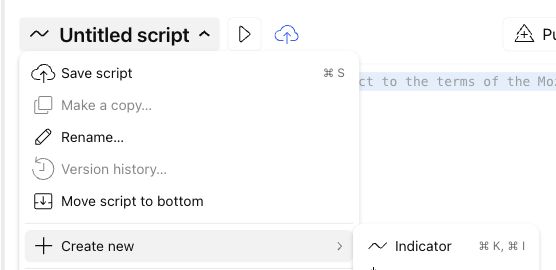
Open Pine → script-name menu → Create new → Indicator. Replace the starter code with the complete example below. Save it as My action preview and click Add to chart.
A table shows the first and second messages for Buy and close buy.
This script contains no alert or order functions. Its LicenseID and BrokerSymbol placeholders are deliberate. The displayed lot and stop values are examples, not values to send to your account.
Inspect Buy and close buy
Open the preview indicator’s Settings → Inputs. Set Workflow to Buy and close buy, then click Ok.
Read the second command aloud: close long. It does not ask for a new short position. This is the pair used by My connection practice.
The first message requests buy; the second requests closelong without entry-size fields.
Inspect Sell and close sell
In Inputs, select Sell and close sell. Click Ok and compare the two messages.
Trying to close an existing buy? This is not the long-only exit pair. Return to Buy and close buy and use its closelong meaning.
The commands change to sell and closeshort.
Compare an explicit reversal
Section titled “Compare an explicit reversal”Preview Reverse between directions
Choose Reverse between directions in Workflow, then click Ok.
closeshortopenlong requests closing matching sells, then opening a buy. closelongopenshort requests closing matching buys, then opening a sell.
Both messages contain an entry-size field because both request a new entry after a close.
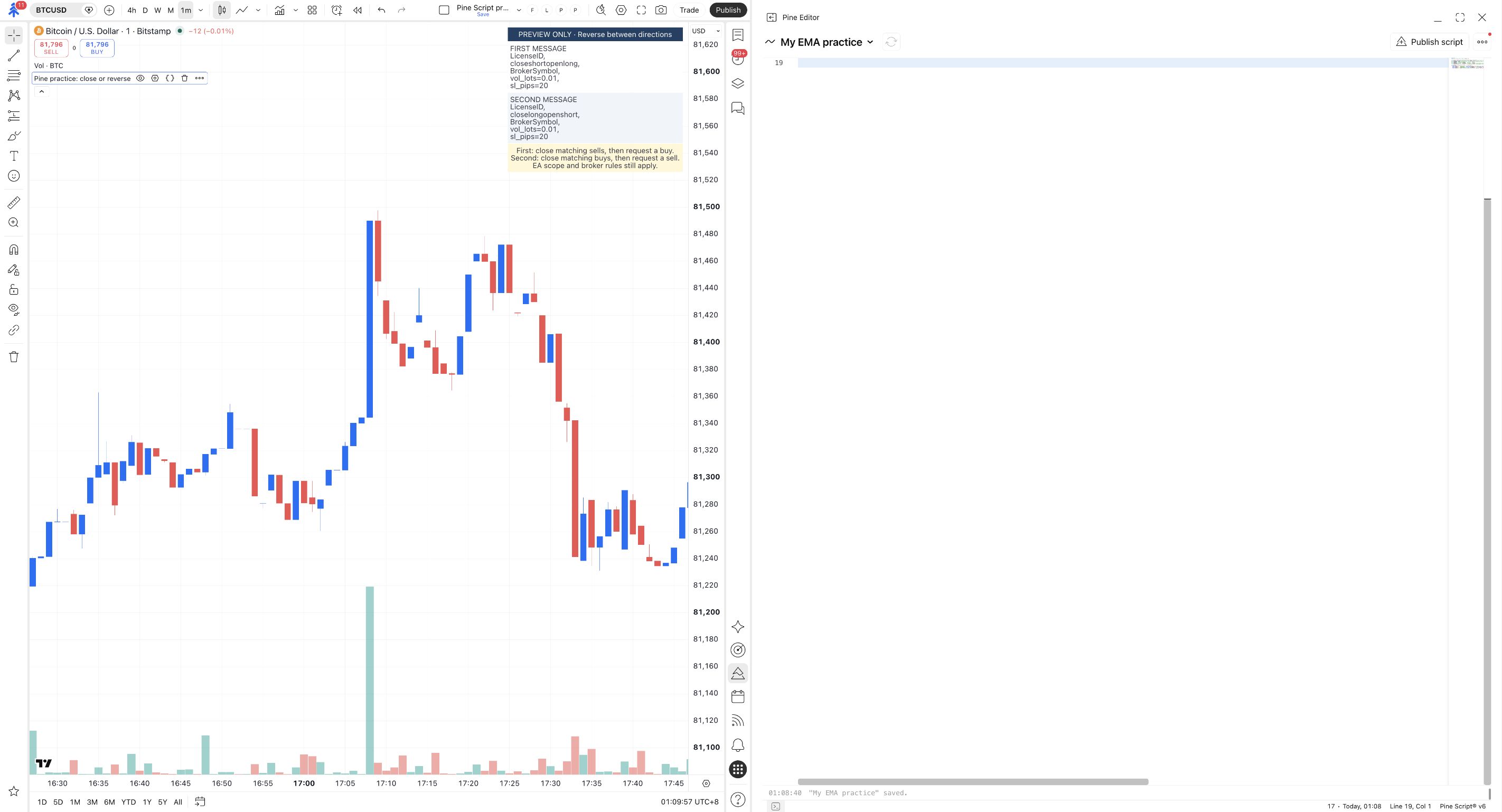
These combined commands make the intended actions explicit. They still require the intended EA position scope, permitted entry size and broker acceptance. Do not send two unrelated close/open messages and assume that their arrival or processing order is guaranteed. Combined close and open
This preview is not wired into the earlier connected indicator. Changing Workflow here cannot change My connection practice or an already running alert.
Inspect which positions could be affected
On your receiving setup, review Magic Restriction, Pyramiding and Close on Reverse. For Edge, inspect the connection’s hosted EA settings; do not try to change a local EA to control it.
You can state whether the receiving EA can include manual or other-EA positions, and whether repeated entries can add positions.
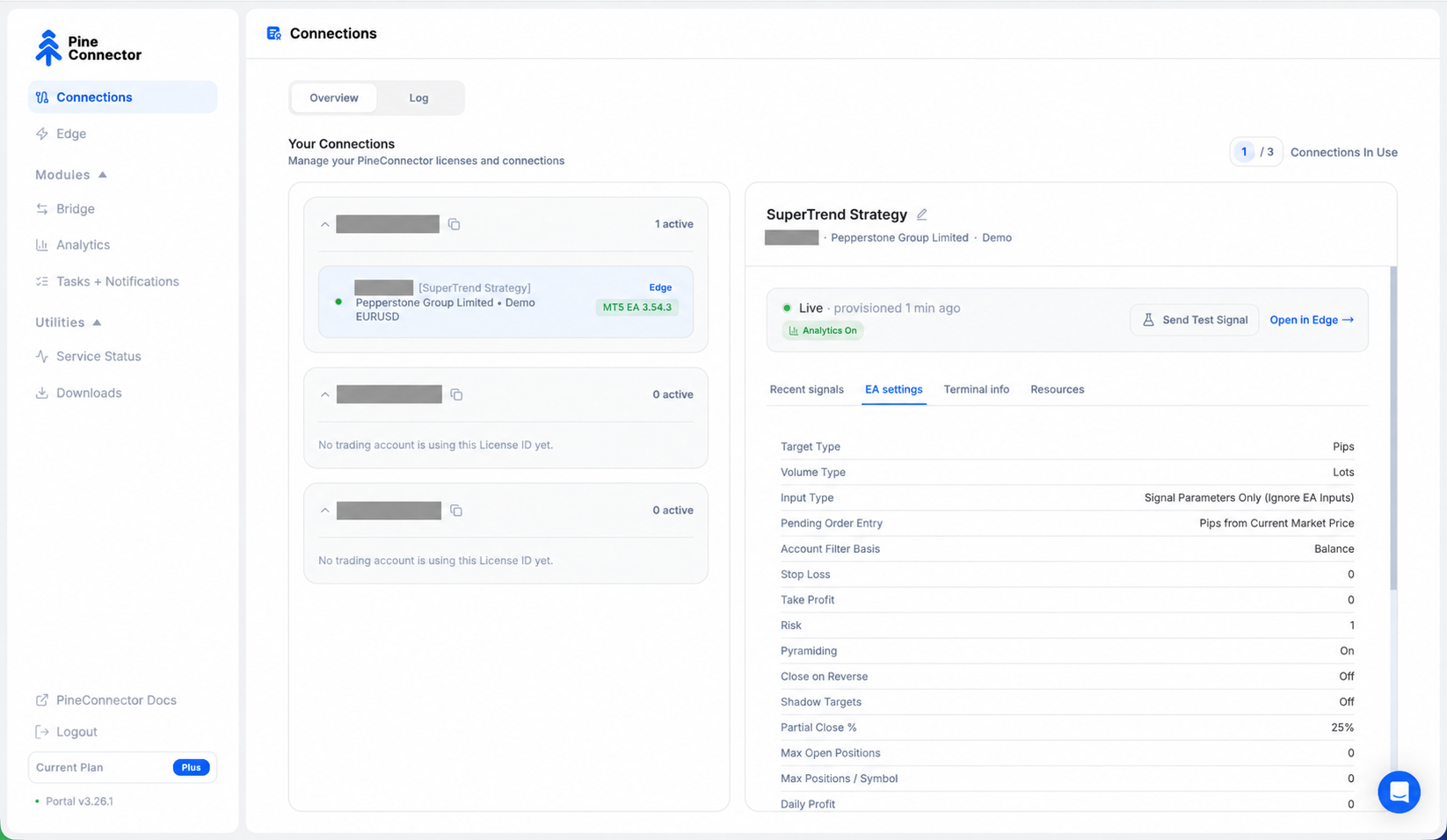
Magic Restriction Off can broaden management to positions opened manually or by other EAs. A closelong without a strategy comment is not restricted to one strategy’s comment. Dedicated demo scope matters even when your script uses the correct close command. Position scope, Comment matching
The EA’s Close on Reverse labels have specific meanings:
| EA option | Opposite entry signal |
|---|---|
| On — Hedging | Close opposite positions and open the new direction. |
| On — Netting | Close opposite positions without opening the new direction. |
| Off | This feature leaves opposite positions alone; other entry rules still apply. |
These are EA settings, not commands that change the broker account’s hedging/netting account type. Do not infer the setting from the account name. Close on Reverse
Keep closing scope deliberate
Section titled “Keep closing scope deliberate”For the basic course, retain a dedicated demo setup and the direction-specific close command. closeall is broader: it closes positions and cancels pending orders within the receiving EA’s scope, and its third field must be that EA’s attached chart symbol. It is not a beginner substitute for closelong.
The course’s sending indicator adds the configured secret to entries and exits. If you later add supported strategy comments, keep the matching comment on the close instruction too. Do not assume every partial-close command supports the same filtering rules.
Try it yourself
Section titled “Try it yourself”- A long-only strategy reaches its exit condition. Which command closes the buy without requesting a short?
- A workflow should finish short after closing its matching buys. Which combined command expresses that?
- Does changing this preview’s Workflow update an existing TradingView alert?
Check your answers
1. closelong. 2. closelongopenshort, with the reviewed entry fields and intended scope. 3. No. This is a separate preview-only indicator, and running alerts keep saved copies of their own scripts and inputs.
Before modifying a connected workflow, write its intended before-and-after position state in plain language. Then apply the update procedure in the next lesson and repeat the dedicated demo verification. This preview does not establish that a reversal executed at your broker.