
Choose an indicator alert method
Compare alert() with named alertcondition() events, then configure one named text-only alert and check its message settings.


So far you have chosen Any alert() function call in TradingView. Some indicators instead offer named choices such as Practice long entry. You will use the same chart conditions to see how that route differs.
Keep earlier practice alerts paused. This lesson uses informational messages only, with Webhook URL off. An available TradingView script-alert slot is needed to create the practice alert; the code and dialog comparison are still useful without one.
Add named alert conditions
Section titled “Add named alert conditions”Click Copy on the code block below. This version uses alertcondition(...) instead of alert(...) and starts with Enable signal alerts off.
Replace and save the practice script
Open Pine. Click inside My EMA practice, select all with Cmd+A / Ctrl+A, and paste with Cmd+V / Ctrl+V. Save and update the chart if asked.
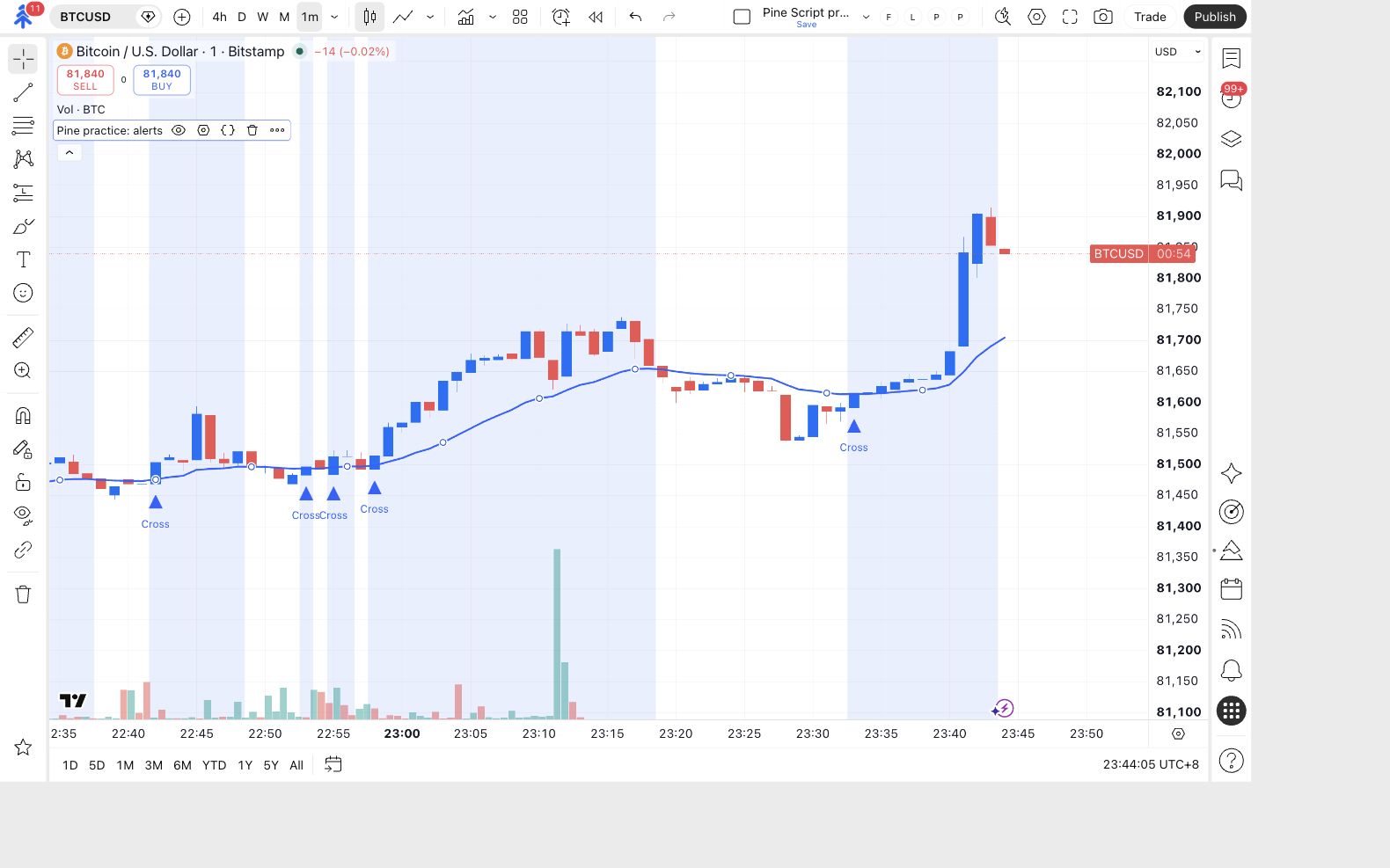
The chart label reads Pine practice: named alerts. Entry and Exit markers remain, with a box showing their message templates.
The braces in the preview, such as {{ticker}}, are expected. This box displays a message template. TradingView replaces supported placeholders when an alert using that template fires; the box is not a log of sent events.
Prepare one text-only practice alert
Open the settings gear for Pine practice: named alerts, then Inputs. Set Signal EMA length to 20. Uncheck Use trend filter and Use entry session filter.
Check Enable signal alerts, then click Ok. These settings will be captured when you create the new alert. They do not change an older saved alert.
The chart uses signal length 20, both optional filters off, and Enable signal alerts on.
Choose the named event
Section titled “Choose the named event”Open Create alert
If Pine Editor crowds the chart toolbar, collapse it with its minus button. Click the alarm-clock icon with a plus sign in the top chart toolbar.
The alert dialog is open for your current practice chart.
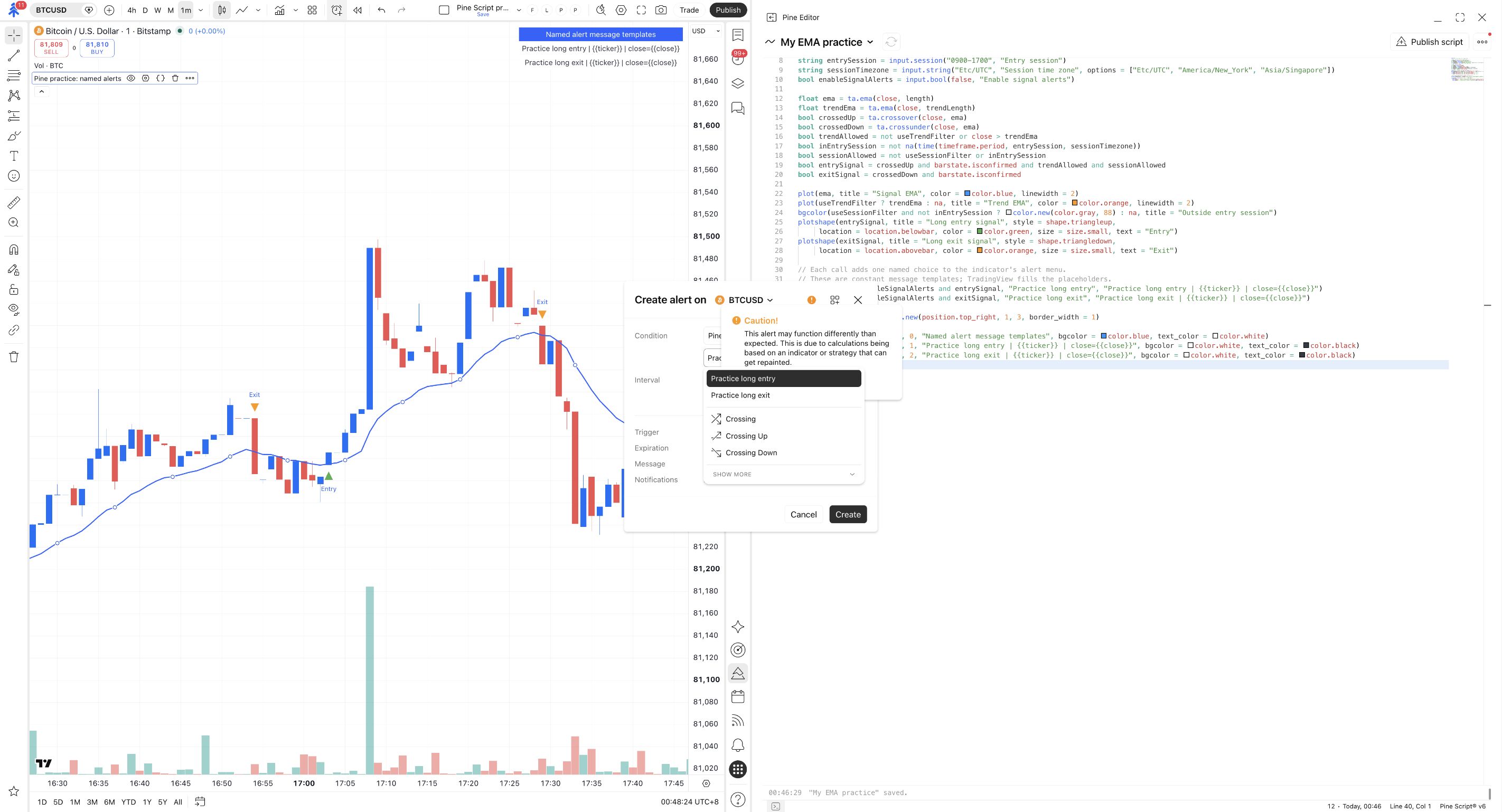
Select Practice long entry
Under Condition, choose Pine practice: named alerts. Open its event menu and select Practice long entry.
No Any alert() function call option? That is expected for this version. Its source uses named alertcondition(…) events instead.
The selected event is Practice long entry. This alert will not listen to the separate Practice long exit condition.
Check the interval, trigger and message
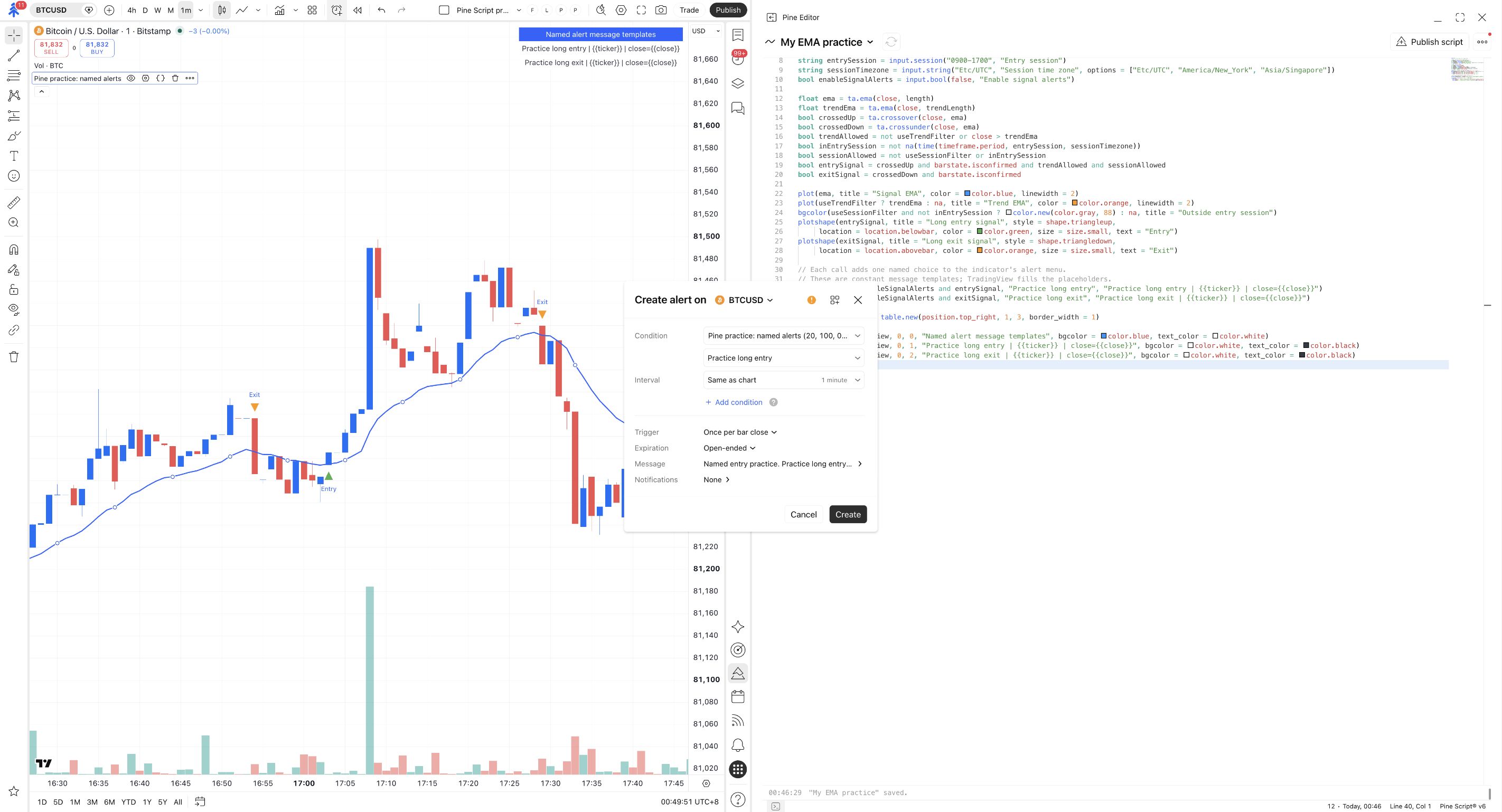
Keep the 1-minute interval. Open Trigger, which may start at Once only, and select Once per bar close. Open Message and inspect the default message.
Keep its entry text and the {{ticker}} and {{close}} placeholders. Do not paste the full Pine Script into this field. Name the alert Named entry practice, then apply the settings.
The interval is 1 minute, the trigger is Once per bar close, and the default message contains the entry text and placeholders.
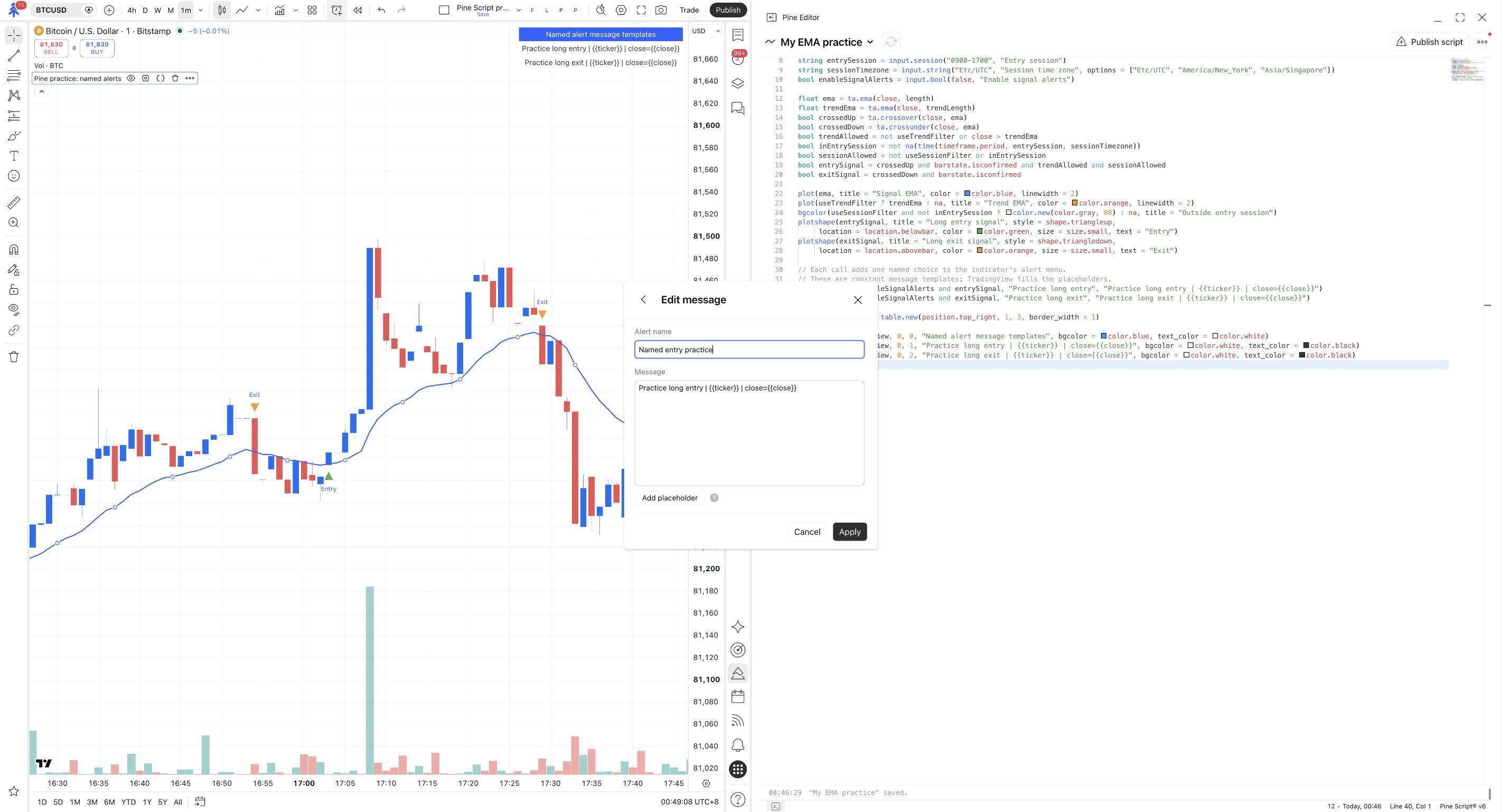
A custom-script warning appears? Open its help and follow the warning checks. Do not treat the warning as proof that every script is safe or that a confirmed-bar condition resolves every source of repainting.
Keep notifications off and create the alert
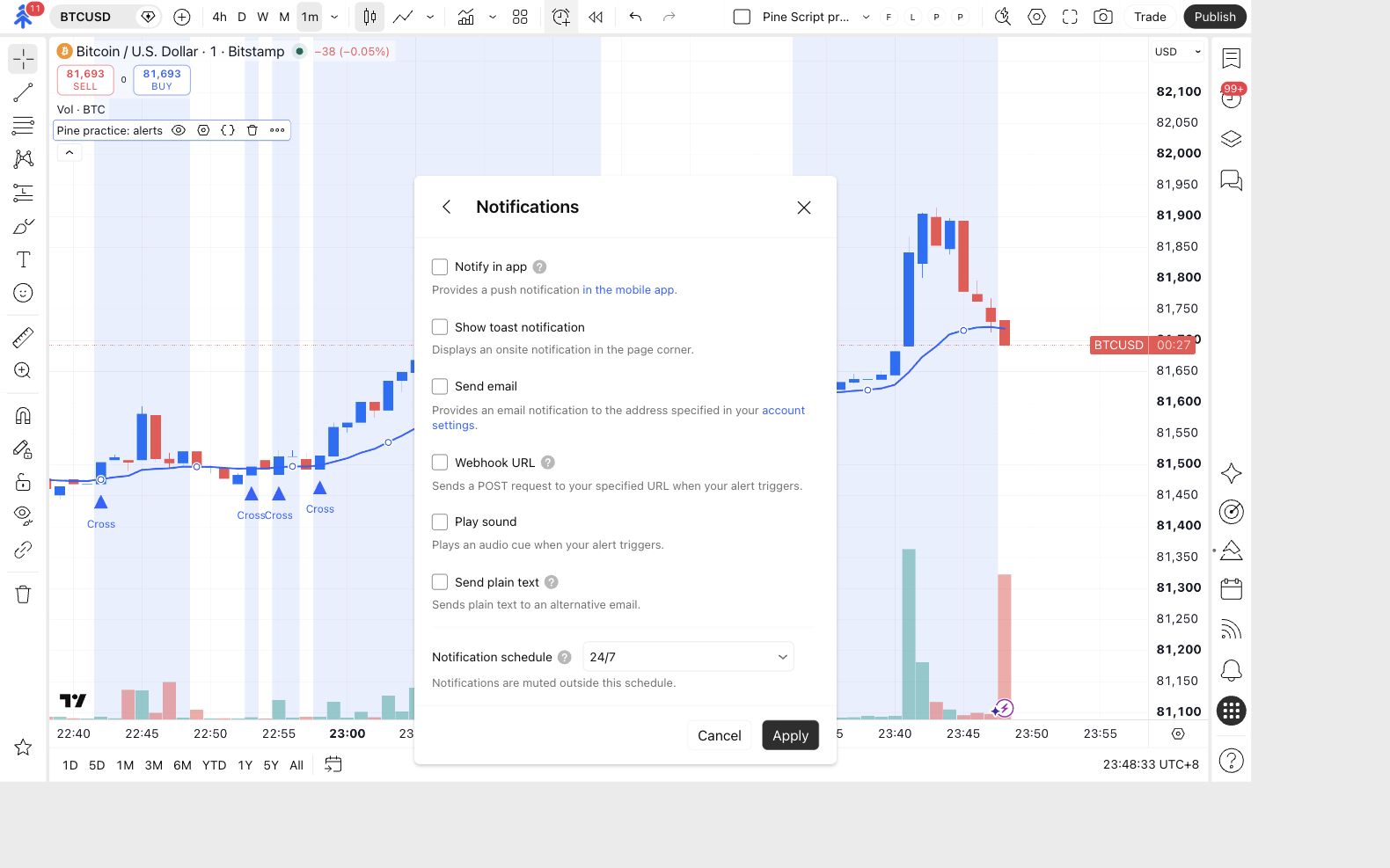
Open Notifications. Leave every option, including Webhook URL, unchecked. Click Apply, review the dialog, and click Create.
Open Alerts on the right and find Named entry practice. If TradingView prevents creation because of account access or slot limits, the live test remains incomplete.
Named entry practice appears as Active in the Alerts list.
At the next eligible upward cross, inspect this alert in the Log tab. The message should start Practice long entry, with the chart ticker and closing price substituted for the placeholders. A downward-cross Exit marker alone should not trigger this entry alert. Historical markers do not send old events when you create it.
Choose the method that fits the script
Section titled “Choose the method that fits the script”| Question | alert() |
alertcondition() in an indicator |
|---|---|---|
| What do you select? | Any alert() function call. | One named event, such as Practice long entry. |
| Where is the message built? | In the Pine code, including changing text or numbers. | A constant default template in code, editable in the alert dialog. Supported placeholders can supply values. |
| Where is frequency set? | In the code’s freq argument. |
In the alert dialog. |
| Can one created alert cover entry and exit? | Yes, if both calls are in the script and allowed by its logic and frequency. | Each created alert listens to its chosen named condition. |
These are two routes, not two proficiency levels. The next module uses alert() again because it builds a PineConnector message from inputs. Named conditions remain useful when adapting an indicator that already exposes separate alert choices. TradingView’s alerts reference
{{ticker}} is not a universal Pine variable. This lesson’s named-alert template supports that placeholder. In an alert() message, use Pine values such as syminfo.ticker and convert numbers with str.tostring(...); do not expect alert() to substitute template placeholders. TradingView’s alerts FAQ
Finish before changing the script again
Section titled “Finish before changing the script again”Pause the named practice alert and reset the chart input
In the Alerts list, right-click Named entry practice and choose Pause. Check for Stopped manually.
Then open the indicator’s Settings → Inputs, uncheck Enable signal alerts, and click Ok. Keep both optional filters off for the next module.
Named entry practice shows Stopped manually, and Enable signal alerts is unchecked on the chart.
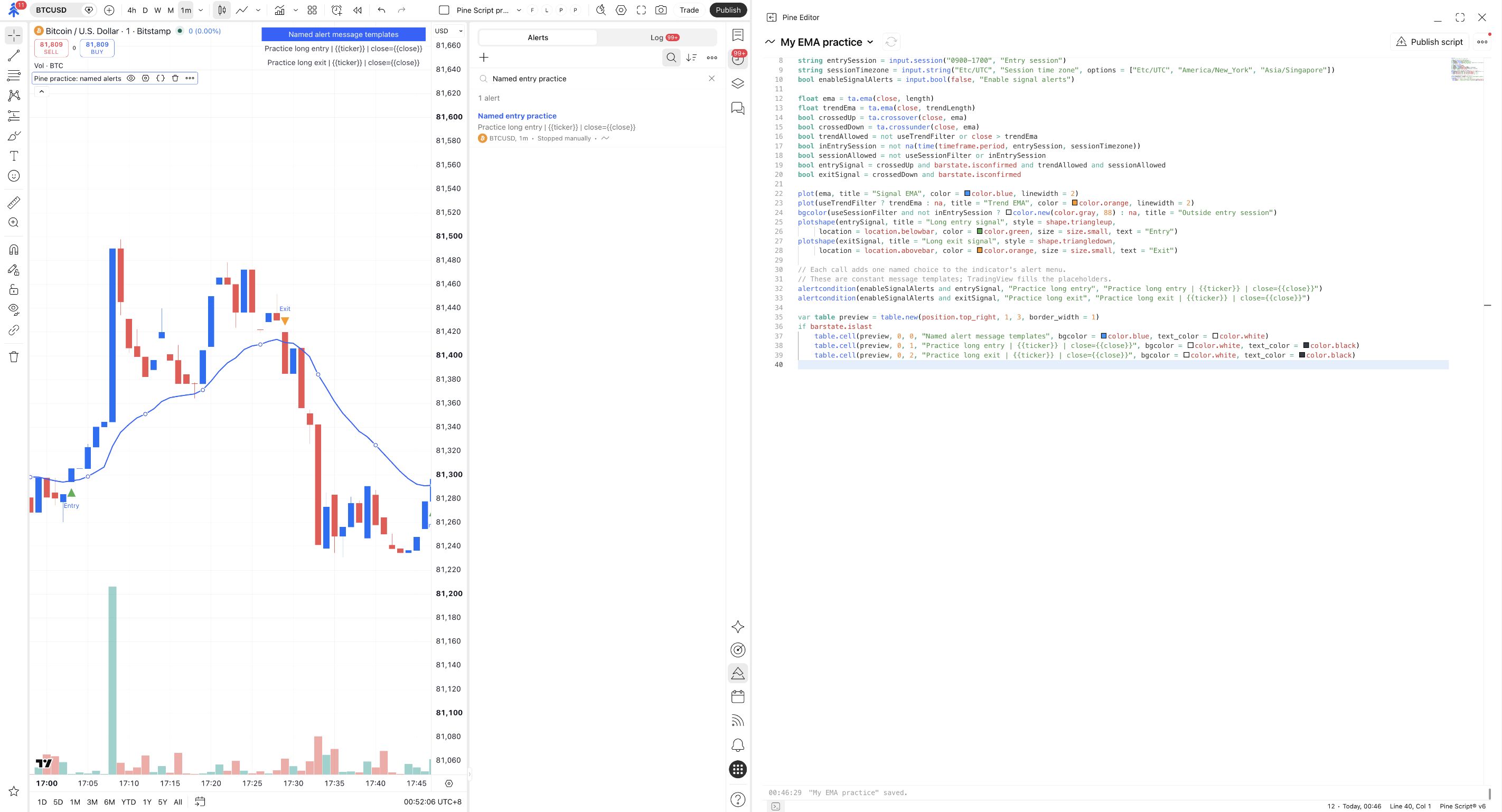
Do both actions: the saved alert and the current chart are separate copies. A false default in replacement source code also does not reliably reset an input value already chosen on the chart.
Check yourself
Section titled “Check yourself”Question: you selected Practice long entry. Will the same alert send the Practice long exit message?
Show the answer
No. It listens to the selected entry condition. The exit condition is a separate named choice and would need its own alert if you wanted to use that route for both events.
Question: can you copy this template’s {{ticker}} text into an alert() call and expect it to be substituted?
Show the answer
No. For alert(), build the string using Pine values such as syminfo.ticker. The message-building mechanism must match the alert method.